There is more than one way to track changes in Excel. Which method you use depends on where your workbook lives and how you're sharing it. A file stored in OneDrive behaves differently from one you're emailing back and forth as an attachment, for example.
In this guide, we'll help you choose the right method for your situation. You'll learn how to view recent edits, restore an earlier version if something goes wrong, and see exactly who changed what in a shared workbook.
Choose the Best Way to Track Changes
There are multiple ways to track changes in Excel, and here’s an overview of when to use which method depending on your situation:
|
Where you're stuck:
|
What to use:
|
|
See recent edits and who made them
|
Show Changes
|
|
Restore an earlier version of the file
|
Version History
|
|
See who's changed a shared workbook over time
|
Collaboration features
|
|
Work with an older file that still uses Shared Workbooks
|
Track Changes (Legacy)
|
Each method is suitable for a different situation:
- Show Changes: Your go-to for everyday questions, like "who changed this number" or "what did this cell say before."
- Version History: Use this when something's gone wrong, and you need to go back to an earlier point in the file.
- Collaboration features: Use these when you care less about one specific edit and more about who's been working in the file overall.
Note: These methods only work if your workbook is saved in OneDrive or SharePoint. If you're emailing the file or saving it to your computer's local drive, they won't work
Track Changes (Legacy) is different from the other three. Microsoft doesn't really promote it anymore, and it comes with some real limitations we'll cover later. It's here mainly for people who still work with older workbooks built around it.
Use Show Changes to See Recent Edits
Show Changes is Excel's built-in tool for seeing exactly what changed in a workbook, who changed it, and when. It works automatically once your file is saved to OneDrive or SharePoint.
Here's how to open it and read what it's telling you:
- Open your workbook. Make sure it's saved in OneDrive or SharePoint, since Show Changes won't work on a file saved only to your computer
- Click the Review tab in the ribbon
- Click Show Changes
A pane opens on the right side of the screen. This is where the details live.
Each entry in the pane tells you four things:
- The cell or range that changed
- The name of the person who made the changes
- The date when they changed it
- What the value used to be before the edit. If a formula changed instead of a plain number, click on the See changes (in the panel); you'll see the old formula listed too.
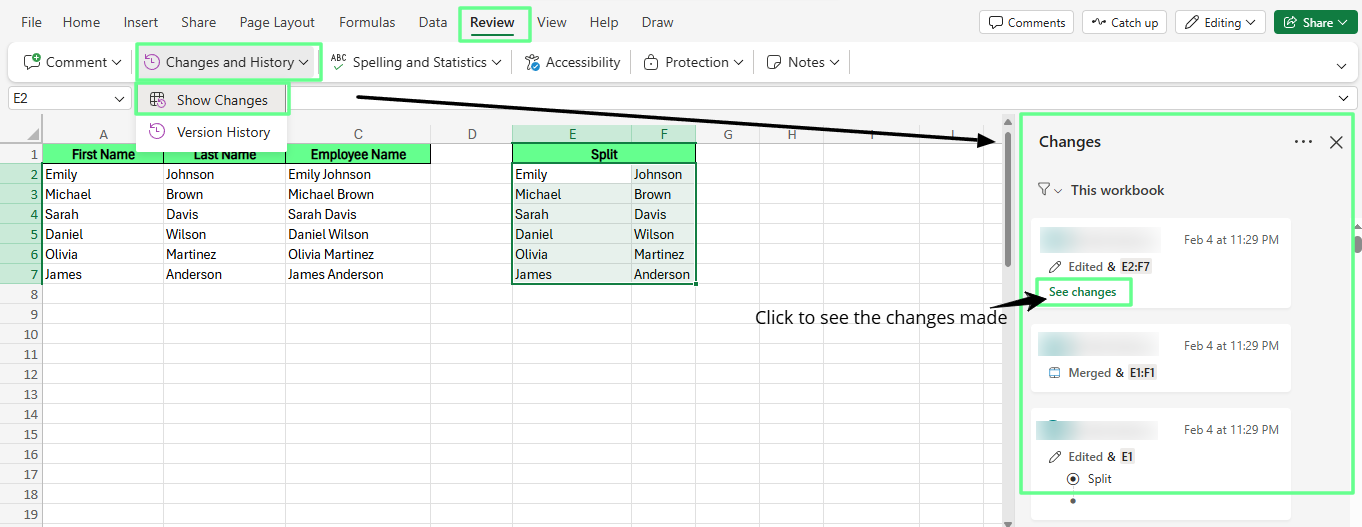
See the recent edits made using Show Changes. Image by Author.
It also only tracks changes to cell values and formulas. Formatting changes, chart edits, and things like renaming a sheet won't show up here.
Note: Show Changes only covers recent activity up to the last 60 days, so we can’t look for something that happened months ago. That's what Version History is for, and we'll get to that next.
Tip: Everyone working on the file needs to use a version of Excel that supports co-authoring, meaning Microsoft 365, Excel for the web, Excel 2024, or Excel 2021. If someone edits the file using an older, one-time-purchase version of Excel, it can clear the change history for everyone, not just for them.
Use Version History to Restore Earlier Versions
Version History lets you open, compare, and restore older saved versions of your workbook. Unlike Show Changes, which shows you individual edits, Version History works with entire snapshots of the file, taken automatically over time.
Here's how to open it in Excel for Windows:
- Click File in the top left
- Click Info
- Click Version History
Or simply go to the Review tab > Version History.
Once the panel opens, you'll see a list of previous versions, each with a timestamp and the name of whoever saved it. Click on any version to open it.
From there, you'll see two buttons:
- Save a Copy saves that old version as a brand new file, so you can look through it separately without messing up your current workbook.
- Restore replaces your current workbook with this old version, so anything you've changed since then is gone.
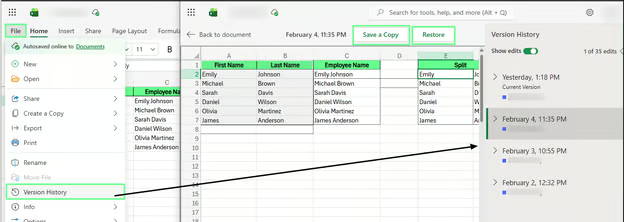
See the entire edits of the workbook with Version History. Image by Author.
On a Mac, go to File > Browse Version History.
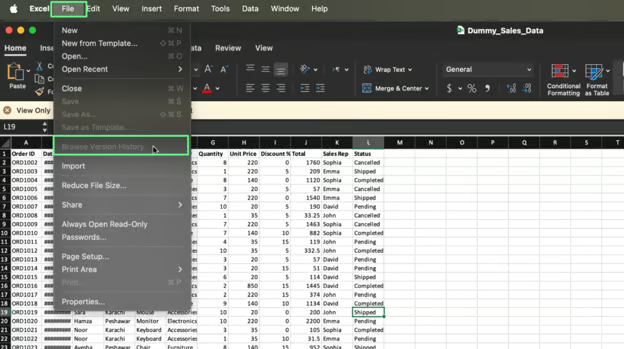
Browse version history on Mac. Image by Author
You can also open Version History straight from OneDrive or SharePoint in your browser. Here’s how:
- Open Windows Explorer
- Find the file in your OneDrive folder
- Right-click it, and click Version History
This works even if you don't have the desktop app installed.
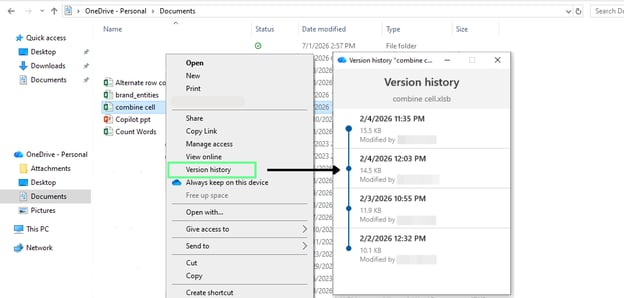
Check Version History directly from the Windows Explorer. Image by Author.
See Who Changed a Shared Workbook
Whoever is signed in with a Microsoft 365 account when they edit a cell is the name you'll see later in Show Changes or Version History. This only works if everyone is actually signed in and using a version of Excel that supports co-authoring.
If someone edits without signing in, or uses an older version of Excel, their name might not show up at all.
View cell edit history
You've already seen Show Changes shows the history of the whole file. But do you know it can also show the changes that happen on a single cell or selected range?
To view these changes:
- Select the cell or cell range
- Right-click it, and choose Show Changes
The pane will only show edits for that one cell, so you don't have to scroll through everything else.
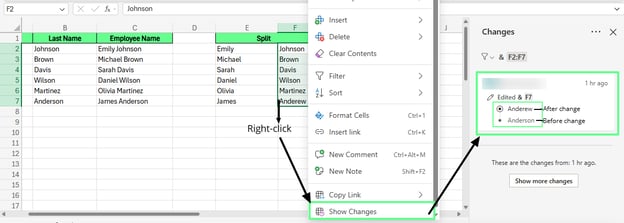
View single cell edit instead of whole file. Image by Author.
This is the fastest way to check one specific thing, like who changed a single number, without opening the full change log.
Comments and notes don't track what changed. They let people explain why something changed, or leave a note for someone else to read.
- A note is just a sticky note on a cell. Nobody can reply to it.
- A comment can have replies, so it works better when two people need to talk something through.
To see comments:
- Go to the Review tab
- Click the Comment dropdown
- Choose Show Comments
This opens a panel on the right side of the screen with every comment in the workbook.
Any cell with a comment on it has a small colored marker in the corner. That's how you know a comment is there without opening the panel first.
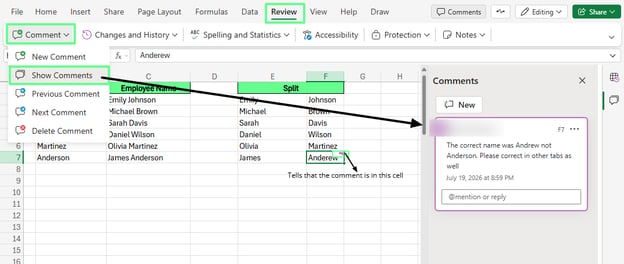
View and add comments in Excel. Image by Author.
Click that cell, or click the comment in the panel, and you'll see who wrote it, what it says, and when they wrote it.
You can reply directly underneath, using the box that says "@mention or reply."
In the ribbon, you'll find "Notes" as its own separate button next to "Comment," since Excel treats them as two distinct features.
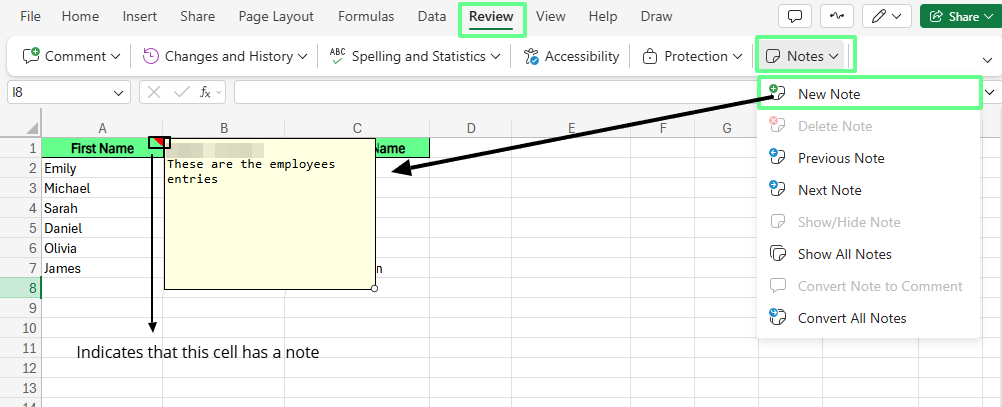
View notes in Excel. Image by Author.
Track changes during collaboration
When more than one person is in the file at the same time, Excel shows this live. You'll see a small label near the cell someone else is working in, so you don't accidentally edit the same thing at the same time.
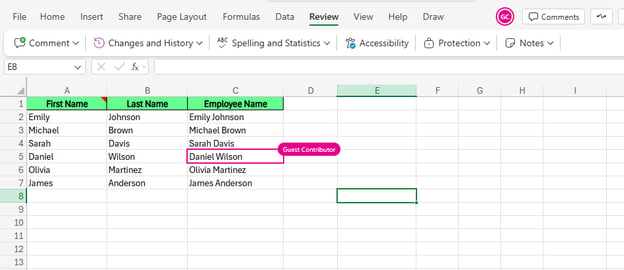 Collaborator in Excel. Image by Author.
The label usually shows the person's name. But if someone joined as a guest instead of signing in with a full Microsoft 365 account, you might see a role like Guest Contributor instead. Either way, it tells you the same thing: someone else is in that cell right now.
Use the Legacy Track Changes Feature
Track Changes shows edits made to a workbook right on the cells, using colors and small comments. It's the old way Excel did this, before Show Changes and Version History came along. It's not on the ribbon by default anymore, but you can still turn it on if you need it.
Track Changes (Legacy) only works in the Excel desktop app. It's not available in Excel for the web, no matter what you try.
Here's how to turn it on:
- Head over to File > Options
- Click Customize Ribbon
- On the right side, find Review
- Right-click it and choose Add New Group
- In the Choose commands from option in the above dropdown, click All Commands
- Find Track Changes in the list and add it to your new group
- Click OK
- Now go to the ribbon > Review
- You’ll see the Track Changes dropdown there
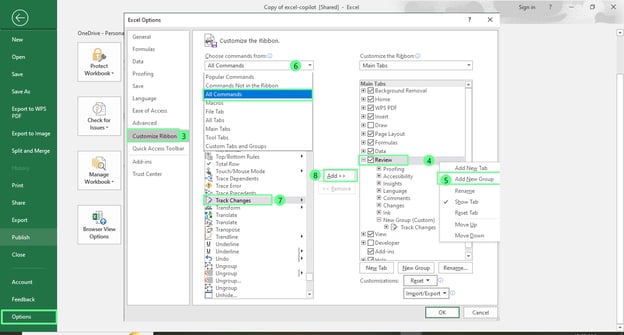
Turn on the Track Changes option in Excel desktop. Image by Author.
Now here’s how it works:
- Click on the Track Changes > Highlight Changes
- Checkmark two options: Track changes while editing and Highlight changes on screen
- Click OK
- A dialog box will appear, saying This action will now save the workbook. Do you want to continue? Click OK to confirm.
Now all the changes you make in the sheet will show up with a colored border and a small triangle in the corner of the cell. Hover over it to see who made the change and what it said before.
To go through changes one at a time, use Accept or Reject from the same menu. This lets you approve or undo each edit one by one, which Show Changes can't do.
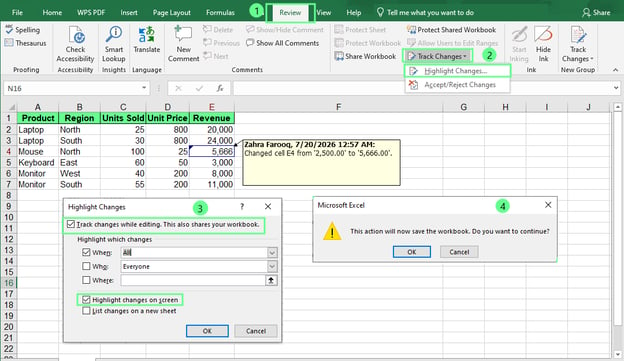
Track the changes with the Track Changes option. Image by Author.
Microsoft moved it because turning it on changed your file into a Shared Workbook, and that came with problems. You couldn't use tables, merged cells, or some chart types once it was on. It also wasn't built for many people editing at the same time, which is normal in Excel now.
If you're working with an old workbook that already uses it, and the file isn't stored in OneDrive or SharePoint, this is one of the few tools that still works on a local file.
Fix Common Problems When Tracking Changes
Most tracking issues come down to one of a few causes: where the file is saved, which version of Excel someone's using, or whether they're signed in.
Show Changes isn't available
Show Changes only works if your workbook is stored in OneDrive or SharePoint. If it's saved to your computer's local drive or attached to an email, the button will be greyed out or missing entirely.
To fix this: Click File, then look at the file path or click Save a Copy to see where it's currently stored. If it's not in OneDrive or SharePoint, move it there, and the option should appear.
Version History is missing
Version History needs the file saved in OneDrive or SharePoint, too. If you're opening a local copy or a copy someone emailed you, there's no version history to show, since none was ever saved.
To fix this: Check the AutoSave toggle at the top left of the window. If it's off, turn it on. Remember this won't recover versions from before you turned it on, only going forward.
Can't see who made changes
This usually means someone edited the file without being signed in to their Microsoft 365 account, or they used a version of Excel that doesn't support co-authoring. Excel can only attach a name to an edit if it knows who made it.
To fix this: Ask collaborators to make sure they're signed in before editing, and confirm everyone's using a supported version of Excel. If someone edited anonymously through a public link, their changes may show up without a name attached at all.
Workbook isn't stored in OneDrive or SharePoint
Show Changes, Version History, and real-time collaboration all depend on the same thing under the hood: a cloud-saved file. If your workbook lives on your local drive, none of these features can turn on, no matter what settings you toggle inside Excel.
To fix this: Click File > Save As, then choose OneDrive or SharePoint as the location. Once the file is saved there, Show Changes, Version History, and real-time collaboration should all start working right away, since they're supported by that same cloud connection. If you can't use OneDrive or SharePoint for some reason, Track Changes (Legacy) is your fallback option, since it works on local files too.
Best Practices for Managing Workbook Changes
Here are a few habits that make change tracking actually helpful instead of something you only think about after things go wrong:
- Save your workbook to OneDrive or SharePoint. It's the one thing all the other features need, since Show Changes, Version History, and real-time collaboration only work with cloud storage.
- Skim Version History before you restore anything, so you actually know what you're getting back instead of guessing.
- Add a comment when you make a big change. A quick note next to the change you made tells people why it was made and saves everyone a round of questions later.
- Keep everyone working in one shared file as it’s much easier for people to collaborate in the same file.
Differences Between Excel and Google Sheets
Both Excel and Google Sheets let you track changes, but they go about it differently. Here's a quick comparison:
| |
Excel
|
Google Sheets
|
|
Recent edits
|
Show Changes
|
Version history
|
|
Restoring old versions
|
Version History
|
Version history (same feature)
|
|
Cell-level history
|
Right-click a cell, click Show Changes
|
Right-click a cell, click Show edit history
|
|
Storage requirement
|
OneDrive or SharePoint
|
Google Drive (automatic)
|
|
Collaboration view
|
Live presence labels near active cells
|
Colored cursors and live edit highlights
|
Neither tool is better here; they're built around different assumptions. Sheets assumes cloud storage from the start. Excel assumes local storage unless you set it up otherwise.
Final Thoughts
If you're not already saving your workbooks to OneDrive or SharePoint, that's the first thing to change. Everything in this guide, including Show Changes, Version History, and real-time collaboration, builds on that one setup step. And if your team is still passing the same file back and forth over email, that's worth fixing before anything else.
%22%3E%3Cpath%20d%3D%22m-369%200h408v79h-408z%22%20fill%3D%22%237933ff%22%2F%3E%3Cpath%20d%3D%22m-148%200h306v45h-306z%22%20fill%3D%22%23974dff%22%2F%3E%3C%2Fg%3E%3C%2Fsvg%3E)
%22%2F%3E%3C%2FclipPath%3E%3Cg%20clip-path%3D%22url(%23a)%22%3E%3Cpath%20d%3D%22m76%200h484v36h-484z%22%20fill%3D%22%23974dff%22%2F%3E%3Cpath%20d%3D%22m0%200h384v24h-384z%22%20fill%3D%22%2306bdfc%22%20transform%3D%22matrix(1%200%200%20-1%200%2060)%22%2F%3E%3C%2Fg%3E%3C%2Fsvg%3E)



%22%3E%0A%20%20%20%20%20%20%20%20%3Crect%20fill%3D%22%23EFEBE4%22%20height%3D%22180%22%20width%3D%22336%22%20%2F%3E%0A%20%20%20%20%20%20%20%20%3Crect%0A%20%20%20%20%20%20%20%20%20%20fill%3D%22%23FF931E%22%0A%20%20%20%20%20%20%20%20%20%20height%3D%22106.6%22%0A%20%20%20%20%20%20%20%20%20%20transform%3D%22rotate(-30%20-208.588%20220.18)%22%0A%20%20%20%20%20%20%20%20%20%20width%3D%22456.125%22%0A%20%20%20%20%20%20%20%20%20%20x%3D%22-208.588%22%0A%20%20%20%20%20%20%20%20%20%20y%3D%22220.18%22%0A%20%20%20%20%20%20%20%20%2F%3E%0A%20%20%20%20%20%20%20%20%3Crect%0A%20%20%20%20%20%20%20%20%20%20fill%3D%22%23F7F3EB%22%0A%20%20%20%20%20%20%20%20%20%20height%3D%2235.875%22%0A%20%20%20%20%20%20%20%20%20%20transform%3D%22rotate(-30%20-208.588%20220.18)%22%0A%20%20%20%20%20%20%20%20%20%20width%3D%22347.576%22%0A%20%20%20%20%20%20%20%20%20%20x%3D%22-208.588%22%0A%20%20%20%20%20%20%20%20%20%20y%3D%22220.18%22%0A%20%20%20%20%20%20%20%20%2F%3E%0A%20%20%20%20%20%20%20%20%3Crect%0A%20%20%20%20%20%20%20%20%20%20fill%3D%22%23000820%22%0A%20%20%20%20%20%20%20%20%20%20height%3D%2235.875%22%0A%20%20%20%20%20%20%20%20%20%20transform%3D%22rotate(-30%20-226.525%20189.111)%22%0A%20%20%20%20%20%20%20%20%20%20width%3D%22347.576%22%0A%20%20%20%20%20%20%20%20%20%20x%3D%22-226.525%22%0A%20%20%20%20%20%20%20%20%20%20y%3D%22189.111%22%0A%20%20%20%20%20%20%20%20%2F%3E%0A%20%20%20%20%20%20%20%20%3Crect%0A%20%20%20%20%20%20%20%20%20%20fill%3D%22%23000820%22%0A%20%20%20%20%20%20%20%20%20%20height%3D%22106.6%22%0A%20%20%20%20%20%20%20%20%20%20transform%3D%22rotate(-30%2085.5879%20256.055)%22%0A%20%20%20%20%20%20%20%20%20%20width%3D%22456.125%22%0A%20%20%20%20%20%20%20%20%20%20x%3D%2285.5879%22%0A%20%20%20%20%20%20%20%20%20%20y%3D%22256.055%22%0A%20%20%20%20%20%20%20%20%2F%3E%0A%20%20%20%20%20%20%20%20%3Crect%0A%20%20%20%20%20%20%20%20%20%20fill%3D%22%23D87300%22%0A%20%20%20%20%20%20%20%20%20%20height%3D%2235.875%22%0A%20%20%20%20%20%20%20%20%20%20transform%3D%22rotate(-30%2085.5879%20256.055)%22%0A%20%20%20%20%20%20%20%20%20%20width%3D%22184.5%22%0A%20%20%20%20%20%20%20%20%20%20x%3D%2285.5879%22%0A%20%20%20%20%20%20%20%20%20%20y%3D%22256.055%22%0A%20%20%20%20%20%20%20%20%2F%3E%0A%20%20%20%20%20%20%20%20%3Crect%0A%20%20%20%20%20%20%20%20%20%20fill%3D%22%23FF931E%22%0A%20%20%20%20%20%20%20%20%20%20height%3D%2235.875%22%0A%20%20%20%20%20%20%20%20%20%20transform%3D%22rotate(-30%20227.432%20132.736)%22%0A%20%20%20%20%20%20%20%20%20%20width%3D%22271.625%22%0A%20%20%20%20%20%20%20%20%20%20x%3D%22227.432%22%0A%20%20%20%20%20%20%20%20%20%20y%3D%22132.736%22%0A%20%20%20%20%20%20%20%20%2F%3E%0A%20%20%20%20%20%20%3C%2Fg%3E%0A%20%20%20%20%20%20%3Cdefs%3E%0A%20%20%20%20%20%20%20%20%3CclipPath%20id%3D%22clip%22%3E%0A%20%20%20%20%20%20%20%20%20%20%3Crect%20fill%3D%22white%22%20height%3D%22180%22%20width%3D%22336%22%20%2F%3E%0A%20%20%20%20%20%20%20%20%3C%2FclipPath%3E%0A%20%20%20%20%20%20%3C%2Fdefs%3E%0A%20%20%20%20%3C%2Fsvg%3E)


%22%3E%0A%20%20%20%20%20%20%20%20%3Crect%20fill%3D%22%23F7F3EB%22%20height%3D%22180%22%20width%3D%22336%22%20%2F%3E%0A%20%20%20%20%20%20%20%20%3Crect%0A%20%20%20%20%20%20%20%20%20%20fill%3D%22%23000820%22%0A%20%20%20%20%20%20%20%20%20%20height%3D%22106.6%22%0A%20%20%20%20%20%20%20%20%20%20transform%3D%22rotate(-30%20-208.588%20220.18)%22%0A%20%20%20%20%20%20%20%20%20%20width%3D%22456.125%22%0A%20%20%20%20%20%20%20%20%20%20x%3D%22-208.588%22%0A%20%20%20%20%20%20%20%20%20%20y%3D%22220.18%22%0A%20%20%20%20%20%20%20%20%2F%3E%0A%20%20%20%20%20%20%20%20%3Crect%0A%20%20%20%20%20%20%20%20%20%20fill%3D%22%2300C74E%22%0A%20%20%20%20%20%20%20%20%20%20height%3D%2235.875%22%0A%20%20%20%20%20%20%20%20%20%20transform%3D%22rotate(-30%20-208.588%20220.18)%22%0A%20%20%20%20%20%20%20%20%20%20width%3D%22347.576%22%0A%20%20%20%20%20%20%20%20%20%20x%3D%22-208.588%22%0A%20%20%20%20%20%20%20%20%20%20y%3D%22220.18%22%0A%20%20%20%20%20%20%20%20%2F%3E%0A%20%20%20%20%20%20%20%20%3Crect%0A%20%20%20%20%20%20%20%20%20%20fill%3D%22%23FF931E%22%0A%20%20%20%20%20%20%20%20%20%20height%3D%2235.875%22%0A%20%20%20%20%20%20%20%20%20%20transform%3D%22rotate(-30%20-226.525%20189.111)%22%0A%20%20%20%20%20%20%20%20%20%20width%3D%22347.576%22%0A%20%20%20%20%20%20%20%20%20%20x%3D%22-226.525%22%0A%20%20%20%20%20%20%20%20%20%20y%3D%22189.111%22%0A%20%20%20%20%20%20%20%20%2F%3E%0A%20%20%20%20%20%20%20%20%3Crect%0A%20%20%20%20%20%20%20%20%20%20fill%3D%22%23D87300%22%0A%20%20%20%20%20%20%20%20%20%20height%3D%22106.6%22%0A%20%20%20%20%20%20%20%20%20%20transform%3D%22rotate(-30%2085.5879%20256.055)%22%0A%20%20%20%20%20%20%20%20%20%20width%3D%22456.125%22%0A%20%20%20%20%20%20%20%20%20%20x%3D%2285.5879%22%0A%20%20%20%20%20%20%20%20%20%20y%3D%22256.055%22%0A%20%20%20%20%20%20%20%20%2F%3E%0A%20%20%20%20%20%20%20%20%3Crect%0A%20%20%20%20%20%20%20%20%20%20fill%3D%22%23000820%22%0A%20%20%20%20%20%20%20%20%20%20height%3D%2235.875%22%0A%20%20%20%20%20%20%20%20%20%20transform%3D%22rotate(-30%2085.5879%20256.055)%22%0A%20%20%20%20%20%20%20%20%20%20width%3D%22184.5%22%0A%20%20%20%20%20%20%20%20%20%20x%3D%2285.5879%22%0A%20%20%20%20%20%20%20%20%20%20y%3D%22256.055%22%0A%20%20%20%20%20%20%20%20%2F%3E%0A%20%20%20%20%20%20%20%20%3Crect%0A%20%20%20%20%20%20%20%20%20%20fill%3D%22%2300C74E%22%0A%20%20%20%20%20%20%20%20%20%20height%3D%2235.875%22%0A%20%20%20%20%20%20%20%20%20%20transform%3D%22rotate(-30%20227.432%20132.736)%22%0A%20%20%20%20%20%20%20%20%20%20width%3D%22271.625%22%0A%20%20%20%20%20%20%20%20%20%20x%3D%22227.432%22%0A%20%20%20%20%20%20%20%20%20%20y%3D%22132.736%22%0A%20%20%20%20%20%20%20%20%2F%3E%0A%20%20%20%20%20%20%3C%2Fg%3E%0A%20%20%20%20%20%20%3Cdefs%3E%0A%20%20%20%20%20%20%20%20%3CclipPath%20id%3D%22clip%22%3E%0A%20%20%20%20%20%20%20%20%20%20%3Crect%20fill%3D%22white%22%20height%3D%22180%22%20width%3D%22336%22%20%2F%3E%0A%20%20%20%20%20%20%20%20%3C%2FclipPath%3E%0A%20%20%20%20%20%20%3C%2Fdefs%3E%0A%20%20%20%20%3C%2Fsvg%3E)
%22%3E%0A%20%20%20%20%20%20%20%20%3Crect%20fill%3D%22%2372E5FE%22%20height%3D%22180%22%20width%3D%22336%22%20%2F%3E%0A%20%20%20%20%20%20%20%20%3Crect%0A%20%20%20%20%20%20%20%20%20%20fill%3D%22%237933FF%22%0A%20%20%20%20%20%20%20%20%20%20height%3D%22106.6%22%0A%20%20%20%20%20%20%20%20%20%20transform%3D%22rotate(-30%20-208.588%20220.18)%22%0A%20%20%20%20%20%20%20%20%20%20width%3D%22456.125%22%0A%20%20%20%20%20%20%20%20%20%20x%3D%22-208.588%22%0A%20%20%20%20%20%20%20%20%20%20y%3D%22220.18%22%0A%20%20%20%20%20%20%20%20%2F%3E%0A%20%20%20%20%20%20%20%20%3Crect%0A%20%20%20%20%20%20%20%20%20%20fill%3D%22%235EB1FF%22%0A%20%20%20%20%20%20%20%20%20%20height%3D%2235.875%22%0A%20%20%20%20%20%20%20%20%20%20transform%3D%22rotate(-30%20-208.588%20220.18)%22%0A%20%20%20%20%20%20%20%20%20%20width%3D%22347.576%22%0A%20%20%20%20%20%20%20%20%20%20x%3D%22-208.588%22%0A%20%20%20%20%20%20%20%20%20%20y%3D%22220.18%22%0A%20%20%20%20%20%20%20%20%2F%3E%0A%20%20%20%20%20%20%20%20%3Crect%0A%20%20%20%20%20%20%20%20%20%20fill%3D%22%23000820%22%0A%20%20%20%20%20%20%20%20%20%20height%3D%2235.875%22%0A%20%20%20%20%20%20%20%20%20%20transform%3D%22rotate(-30%20-226.525%20189.111)%22%0A%20%20%20%20%20%20%20%20%20%20width%3D%22347.576%22%0A%20%20%20%20%20%20%20%20%20%20x%3D%22-226.525%22%0A%20%20%20%20%20%20%20%20%20%20y%3D%22189.111%22%0A%20%20%20%20%20%20%20%20%2F%3E%0A%20%20%20%20%20%20%20%20%3Crect%0A%20%20%20%20%20%20%20%20%20%20fill%3D%22%237933FF%22%0A%20%20%20%20%20%20%20%20%20%20height%3D%22106.6%22%0A%20%20%20%20%20%20%20%20%20%20transform%3D%22rotate(-30%2085.5879%20256.055)%22%0A%20%20%20%20%20%20%20%20%20%20width%3D%22456.125%22%0A%20%20%20%20%20%20%20%20%20%20x%3D%2285.5879%22%0A%20%20%20%20%20%20%20%20%20%20y%3D%22256.055%22%0A%20%20%20%20%20%20%20%20%2F%3E%0A%20%20%20%20%20%20%20%20%3Crect%0A%20%20%20%20%20%20%20%20%20%20fill%3D%22%235EB1FF%22%0A%20%20%20%20%20%20%20%20%20%20height%3D%2235.875%22%0A%20%20%20%20%20%20%20%20%20%20transform%3D%22rotate(-30%2085.5879%20256.055)%22%0A%20%20%20%20%20%20%20%20%20%20width%3D%22184.5%22%0A%20%20%20%20%20%20%20%20%20%20x%3D%2285.5879%22%0A%20%20%20%20%20%20%20%20%20%20y%3D%22256.055%22%0A%20%20%20%20%20%20%20%20%2F%3E%0A%20%20%20%20%20%20%20%20%3Crect%0A%20%20%20%20%20%20%20%20%20%20fill%3D%22%23000820%22%0A%20%20%20%20%20%20%20%20%20%20height%3D%2235.875%22%0A%20%20%20%20%20%20%20%20%20%20transform%3D%22rotate(-30%20227.432%20132.736)%22%0A%20%20%20%20%20%20%20%20%20%20width%3D%22271.625%22%0A%20%20%20%20%20%20%20%20%20%20x%3D%22227.432%22%0A%20%20%20%20%20%20%20%20%20%20y%3D%22132.736%22%0A%20%20%20%20%20%20%20%20%2F%3E%0A%20%20%20%20%20%20%3C%2Fg%3E%0A%20%20%20%20%20%20%3Cdefs%3E%0A%20%20%20%20%20%20%20%20%3CclipPath%20id%3D%22clip%22%3E%0A%20%20%20%20%20%20%20%20%20%20%3Crect%20fill%3D%22white%22%20height%3D%22180%22%20width%3D%22336%22%20%2F%3E%0A%20%20%20%20%20%20%20%20%3C%2FclipPath%3E%0A%20%20%20%20%20%20%3C%2Fdefs%3E%0A%20%20%20%20%3C%2Fsvg%3E)

%22%3E%0A%20%20%20%20%20%20%20%20%3Crect%20fill%3D%22%23EFEBE4%22%20height%3D%22180%22%20width%3D%22336%22%20%2F%3E%0A%20%20%20%20%20%20%20%20%3Crect%0A%20%20%20%20%20%20%20%20%20%20fill%3D%22%2372E5FE%22%0A%20%20%20%20%20%20%20%20%20%20height%3D%22106.6%22%0A%20%20%20%20%20%20%20%20%20%20transform%3D%22rotate(-30%20-208.588%20220.18)%22%0A%20%20%20%20%20%20%20%20%20%20width%3D%22456.125%22%0A%20%20%20%20%20%20%20%20%20%20x%3D%22-208.588%22%0A%20%20%20%20%20%20%20%20%20%20y%3D%22220.18%22%0A%20%20%20%20%20%20%20%20%2F%3E%0A%20%20%20%20%20%20%20%20%3Crect%0A%20%20%20%20%20%20%20%20%20%20fill%3D%22%23000820%22%0A%20%20%20%20%20%20%20%20%20%20height%3D%2235.875%22%0A%20%20%20%20%20%20%20%20%20%20transform%3D%22rotate(-30%20-208.588%20220.18)%22%0A%20%20%20%20%20%20%20%20%20%20width%3D%22347.576%22%0A%20%20%20%20%20%20%20%20%20%20x%3D%22-208.588%22%0A%20%20%20%20%20%20%20%20%20%20y%3D%22220.18%22%0A%20%20%20%20%20%20%20%20%2F%3E%0A%20%20%20%20%20%20%20%20%3Crect%0A%20%20%20%20%20%20%20%20%20%20fill%3D%22%235EB1FF%22%0A%20%20%20%20%20%20%20%20%20%20height%3D%2235.875%22%0A%20%20%20%20%20%20%20%20%20%20transform%3D%22rotate(-30%20-226.525%20189.111)%22%0A%20%20%20%20%20%20%20%20%20%20width%3D%22347.576%22%0A%20%20%20%20%20%20%20%20%20%20x%3D%22-226.525%22%0A%20%20%20%20%20%20%20%20%20%20y%3D%22189.111%22%0A%20%20%20%20%20%20%20%20%2F%3E%0A%20%20%20%20%20%20%20%20%3Crect%0A%20%20%20%20%20%20%20%20%20%20fill%3D%22%23000820%22%0A%20%20%20%20%20%20%20%20%20%20height%3D%22106.6%22%0A%20%20%20%20%20%20%20%20%20%20transform%3D%22rotate(-30%2085.5879%20256.055)%22%0A%20%20%20%20%20%20%20%20%20%20width%3D%22456.125%22%0A%20%20%20%20%20%20%20%20%20%20x%3D%2285.5879%22%0A%20%20%20%20%20%20%20%20%20%20y%3D%22256.055%22%0A%20%20%20%20%20%20%20%20%2F%3E%0A%20%20%20%20%20%20%20%20%3Crect%0A%20%20%20%20%20%20%20%20%20%20fill%3D%22%23D87300%22%0A%20%20%20%20%20%20%20%20%20%20height%3D%2235.875%22%0A%20%20%20%20%20%20%20%20%20%20transform%3D%22rotate(-30%2085.5879%20256.055)%22%0A%20%20%20%20%20%20%20%20%20%20width%3D%22184.5%22%0A%20%20%20%20%20%20%20%20%20%20x%3D%2285.5879%22%0A%20%20%20%20%20%20%20%20%20%20y%3D%22256.055%22%0A%20%20%20%20%20%20%20%20%2F%3E%0A%20%20%20%20%20%20%20%20%3Crect%0A%20%20%20%20%20%20%20%20%20%20fill%3D%22%235646A5%22%0A%20%20%20%20%20%20%20%20%20%20height%3D%2235.875%22%0A%20%20%20%20%20%20%20%20%20%20transform%3D%22rotate(-30%20227.432%20132.736)%22%0A%20%20%20%20%20%20%20%20%20%20width%3D%22271.625%22%0A%20%20%20%20%20%20%20%20%20%20x%3D%22227.432%22%0A%20%20%20%20%20%20%20%20%20%20y%3D%22132.736%22%0A%20%20%20%20%20%20%20%20%2F%3E%0A%20%20%20%20%20%20%3C%2Fg%3E%0A%20%20%20%20%20%20%3Cdefs%3E%0A%20%20%20%20%20%20%20%20%3CclipPath%20id%3D%22clip%22%3E%0A%20%20%20%20%20%20%20%20%20%20%3Crect%20fill%3D%22white%22%20height%3D%22180%22%20width%3D%22336%22%20%2F%3E%0A%20%20%20%20%20%20%20%20%3C%2FclipPath%3E%0A%20%20%20%20%20%20%3C%2Fdefs%3E%0A%20%20%20%20%3C%2Fsvg%3E)
There is more than one way to track changes in Excel. Which method you use depends on where your workbook lives and how you're sharing it. A file stored in OneDrive behaves differently from one you're emailing back and forth as an attachment, for example.
In this guide, we'll help you choose the right method for your situation. You'll learn how to view recent edits, restore an earlier version if something goes wrong, and see exactly who changed what in a shared workbook.
Choose the Best Way to Track Changes
There are multiple ways to track changes in Excel, and here’s an overview of when to use which method depending on your situation:
Where you're stuck:
What to use:
See recent edits and who made them
Show Changes
Restore an earlier version of the file
Version History
See who's changed a shared workbook over time
Collaboration features
Work with an older file that still uses Shared Workbooks
Track Changes (Legacy)
Each method is suitable for a different situation:
Note: These methods only work if your workbook is saved in OneDrive or SharePoint. If you're emailing the file or saving it to your computer's local drive, they won't work
Track Changes (Legacy) is different from the other three. Microsoft doesn't really promote it anymore, and it comes with some real limitations we'll cover later. It's here mainly for people who still work with older workbooks built around it.
Use Show Changes to See Recent Edits
Show Changes is Excel's built-in tool for seeing exactly what changed in a workbook, who changed it, and when. It works automatically once your file is saved to OneDrive or SharePoint.
Here's how to open it and read what it's telling you:
A pane opens on the right side of the screen. This is where the details live.
Each entry in the pane tells you four things:
See the recent edits made using Show Changes. Image by Author.
It also only tracks changes to cell values and formulas. Formatting changes, chart edits, and things like renaming a sheet won't show up here.
Note: Show Changes only covers recent activity up to the last 60 days, so we can’t look for something that happened months ago. That's what Version History is for, and we'll get to that next.
Tip: Everyone working on the file needs to use a version of Excel that supports co-authoring, meaning Microsoft 365, Excel for the web, Excel 2024, or Excel 2021. If someone edits the file using an older, one-time-purchase version of Excel, it can clear the change history for everyone, not just for them.
Use Version History to Restore Earlier Versions
Version History lets you open, compare, and restore older saved versions of your workbook. Unlike Show Changes, which shows you individual edits, Version History works with entire snapshots of the file, taken automatically over time.
Here's how to open it in Excel for Windows:
Or simply go to the Review tab > Version History.
Once the panel opens, you'll see a list of previous versions, each with a timestamp and the name of whoever saved it. Click on any version to open it.
From there, you'll see two buttons:
See the entire edits of the workbook with Version History. Image by Author.
On a Mac, go to File > Browse Version History.
Browse version history on Mac. Image by Author
You can also open Version History straight from OneDrive or SharePoint in your browser. Here’s how:
This works even if you don't have the desktop app installed.
Check Version History directly from the Windows Explorer. Image by Author.
See Who Changed a Shared Workbook
Whoever is signed in with a Microsoft 365 account when they edit a cell is the name you'll see later in Show Changes or Version History. This only works if everyone is actually signed in and using a version of Excel that supports co-authoring.
If someone edits without signing in, or uses an older version of Excel, their name might not show up at all.
View cell edit history
You've already seen Show Changes shows the history of the whole file. But do you know it can also show the changes that happen on a single cell or selected range?
To view these changes:
The pane will only show edits for that one cell, so you don't have to scroll through everything else.
View single cell edit instead of whole file. Image by Author.
This is the fastest way to check one specific thing, like who changed a single number, without opening the full change log.
Review comments and notes
Comments and notes don't track what changed. They let people explain why something changed, or leave a note for someone else to read.
To see comments:
This opens a panel on the right side of the screen with every comment in the workbook.
Any cell with a comment on it has a small colored marker in the corner. That's how you know a comment is there without opening the panel first.
View and add comments in Excel. Image by Author.
Click that cell, or click the comment in the panel, and you'll see who wrote it, what it says, and when they wrote it.
You can reply directly underneath, using the box that says "@mention or reply."
In the ribbon, you'll find "Notes" as its own separate button next to "Comment," since Excel treats them as two distinct features.
View notes in Excel. Image by Author.
Track changes during collaboration
When more than one person is in the file at the same time, Excel shows this live. You'll see a small label near the cell someone else is working in, so you don't accidentally edit the same thing at the same time.
The label usually shows the person's name. But if someone joined as a guest instead of signing in with a full Microsoft 365 account, you might see a role like Guest Contributor instead. Either way, it tells you the same thing: someone else is in that cell right now.
Use the Legacy Track Changes Feature
Track Changes shows edits made to a workbook right on the cells, using colors and small comments. It's the old way Excel did this, before Show Changes and Version History came along. It's not on the ribbon by default anymore, but you can still turn it on if you need it.
Track Changes (Legacy) only works in the Excel desktop app. It's not available in Excel for the web, no matter what you try.
Here's how to turn it on:
Turn on the Track Changes option in Excel desktop. Image by Author.
Now here’s how it works:
Now all the changes you make in the sheet will show up with a colored border and a small triangle in the corner of the cell. Hover over it to see who made the change and what it said before.
To go through changes one at a time, use Accept or Reject from the same menu. This lets you approve or undo each edit one by one, which Show Changes can't do.
Track the changes with the Track Changes option. Image by Author.
Microsoft moved it because turning it on changed your file into a Shared Workbook, and that came with problems. You couldn't use tables, merged cells, or some chart types once it was on. It also wasn't built for many people editing at the same time, which is normal in Excel now.
If you're working with an old workbook that already uses it, and the file isn't stored in OneDrive or SharePoint, this is one of the few tools that still works on a local file.
Fix Common Problems When Tracking Changes
Most tracking issues come down to one of a few causes: where the file is saved, which version of Excel someone's using, or whether they're signed in.
Show Changes isn't available
Show Changes only works if your workbook is stored in OneDrive or SharePoint. If it's saved to your computer's local drive or attached to an email, the button will be greyed out or missing entirely.
To fix this: Click File, then look at the file path or click Save a Copy to see where it's currently stored. If it's not in OneDrive or SharePoint, move it there, and the option should appear.
Version History is missing
Version History needs the file saved in OneDrive or SharePoint, too. If you're opening a local copy or a copy someone emailed you, there's no version history to show, since none was ever saved.
To fix this: Check the AutoSave toggle at the top left of the window. If it's off, turn it on. Remember this won't recover versions from before you turned it on, only going forward.
Can't see who made changes
This usually means someone edited the file without being signed in to their Microsoft 365 account, or they used a version of Excel that doesn't support co-authoring. Excel can only attach a name to an edit if it knows who made it.
To fix this: Ask collaborators to make sure they're signed in before editing, and confirm everyone's using a supported version of Excel. If someone edited anonymously through a public link, their changes may show up without a name attached at all.
Workbook isn't stored in OneDrive or SharePoint
Show Changes, Version History, and real-time collaboration all depend on the same thing under the hood: a cloud-saved file. If your workbook lives on your local drive, none of these features can turn on, no matter what settings you toggle inside Excel.
To fix this: Click File > Save As, then choose OneDrive or SharePoint as the location. Once the file is saved there, Show Changes, Version History, and real-time collaboration should all start working right away, since they're supported by that same cloud connection. If you can't use OneDrive or SharePoint for some reason, Track Changes (Legacy) is your fallback option, since it works on local files too.
Best Practices for Managing Workbook Changes
Here are a few habits that make change tracking actually helpful instead of something you only think about after things go wrong:
Differences Between Excel and Google Sheets
Both Excel and Google Sheets let you track changes, but they go about it differently. Here's a quick comparison:
Excel
Google Sheets
Recent edits
Show Changes
Version history
Restoring old versions
Version History
Version history (same feature)
Cell-level history
Right-click a cell, click Show Changes
Right-click a cell, click Show edit history
Storage requirement
OneDrive or SharePoint
Google Drive (automatic)
Collaboration view
Live presence labels near active cells
Colored cursors and live edit highlights
Neither tool is better here; they're built around different assumptions. Sheets assumes cloud storage from the start. Excel assumes local storage unless you set it up otherwise.
Final Thoughts
If you're not already saving your workbooks to OneDrive or SharePoint, that's the first thing to change. Everything in this guide, including Show Changes, Version History, and real-time collaboration, builds on that one setup step. And if your team is still passing the same file back and forth over email, that's worth fixing before anything else.