
Track
Associate AI Engineer for Developers
29 hr
For this guide, I used a 4× H100 80GB GPU virtual machine. Mistral Medium 3.5 is a dense 128B model, so it needs a multi-GPU setup. SGLang recommends running it with tensor parallelism using --tp 4 on H100 or H200 GPUs. The model supports a large context window, but I recommend starting with 100,000 tokens first instead of the full 256K context to make the setup easier to test and debug.
I used Hyperbolic because it gives access to a full GPU VM, which makes it easier to install Docker, configure the NVIDIA container runtime, and run the SGLang Docker image manually. You can also use platforms like RunPod or Vast.ai, but some of their instances are already tied to custom Docker environments, which gives you less control.
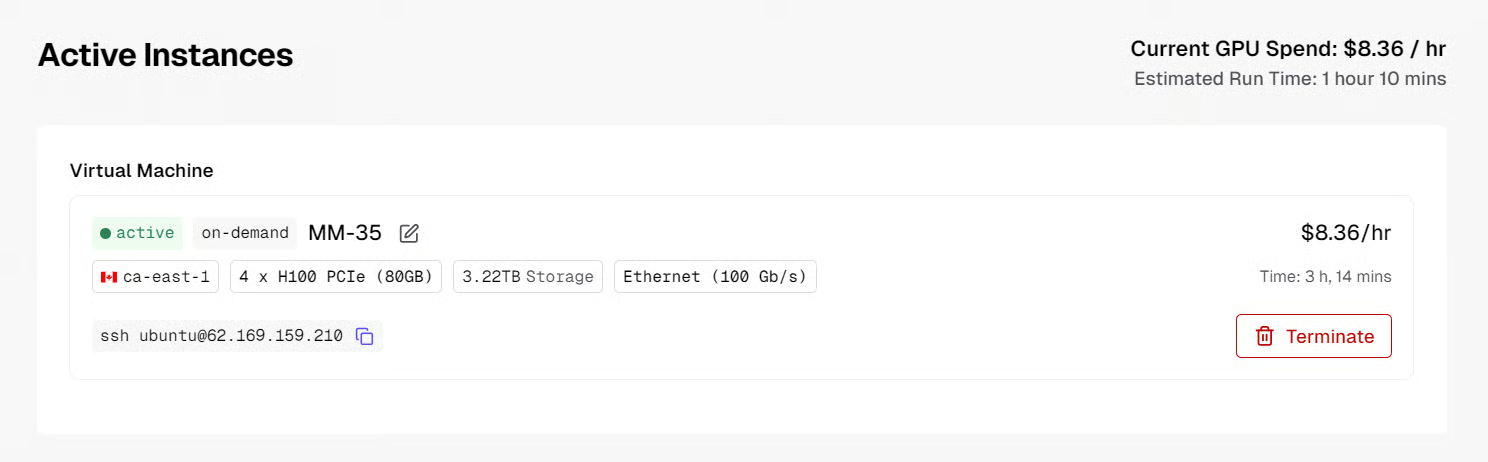
In Hyperbolic, select H100 PCIe 80GB, choose 4 GPUs, add around 3TB storage, enter your SSH public key, and give the instance a name such as MM-35. I chose H100 PCIe because it was the cheapest available H100 option for this test.
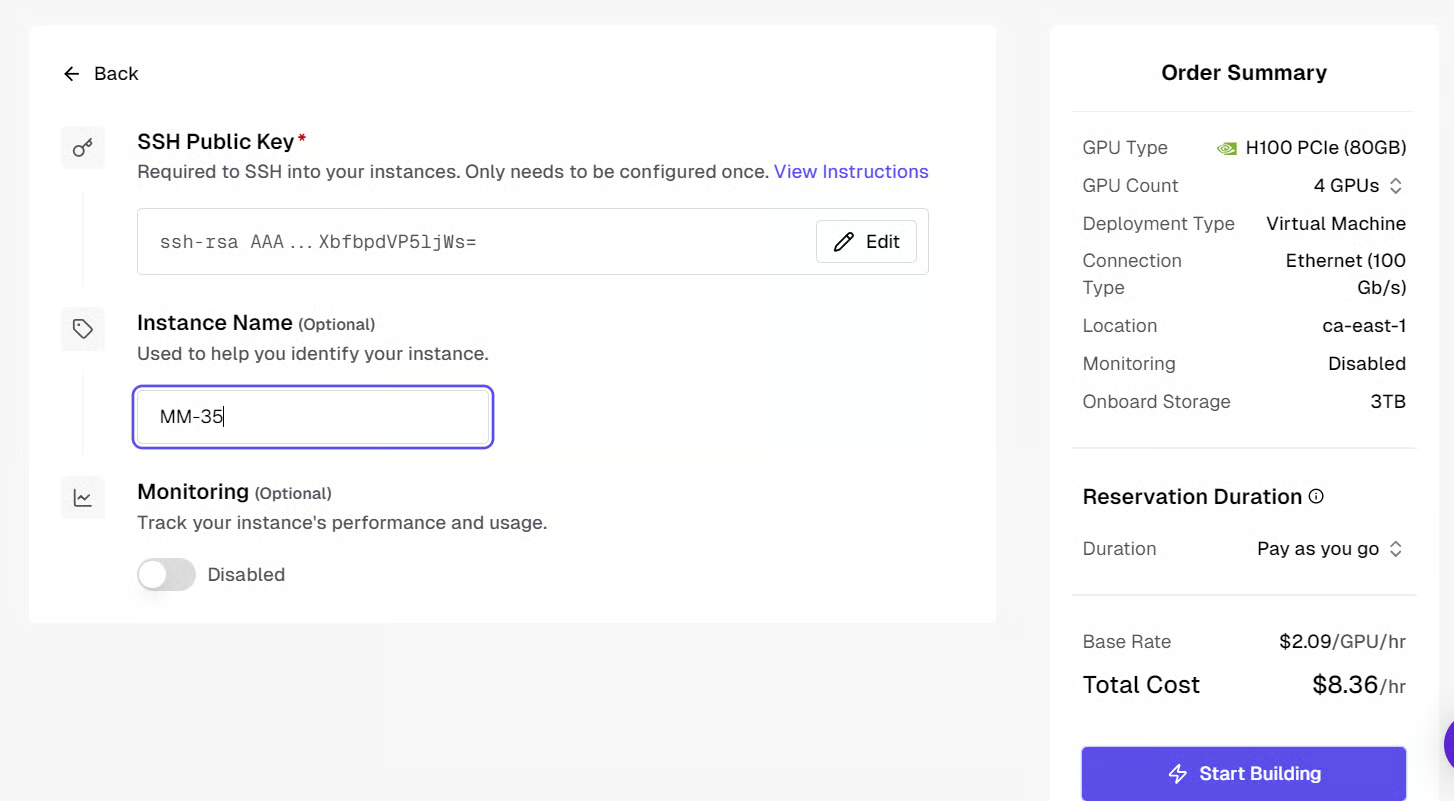
After clicking Start Building, the machine may take around 10 minutes to start. Once it is ready, Hyperbolic will show the SSH access command you need for the next step.
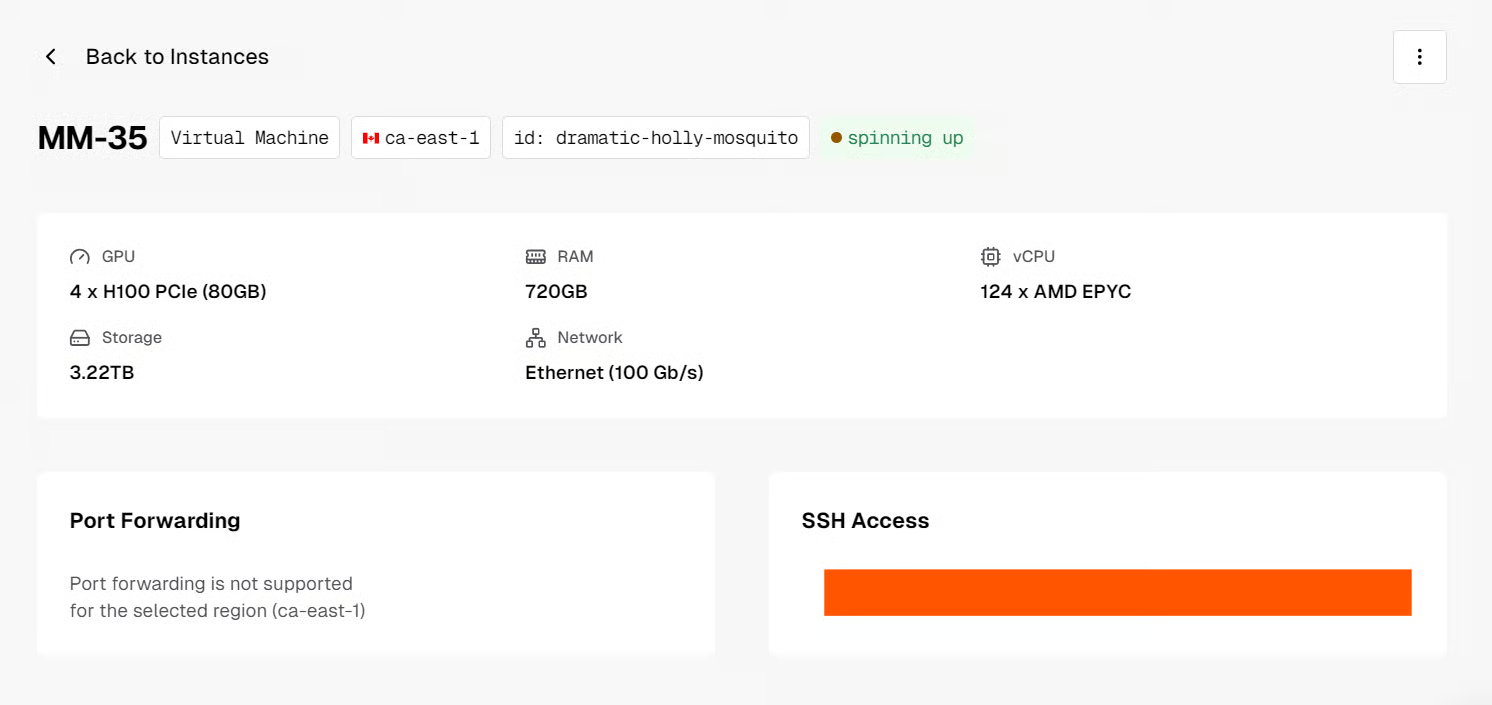
Once the instance is ready, connect to it from your local terminal using the SSH command shown in the Hyperbolic dashboard:
ssh ubuntu@XXXXXXTo access the SGLang API from your local machine later, you can also forward port 30000:
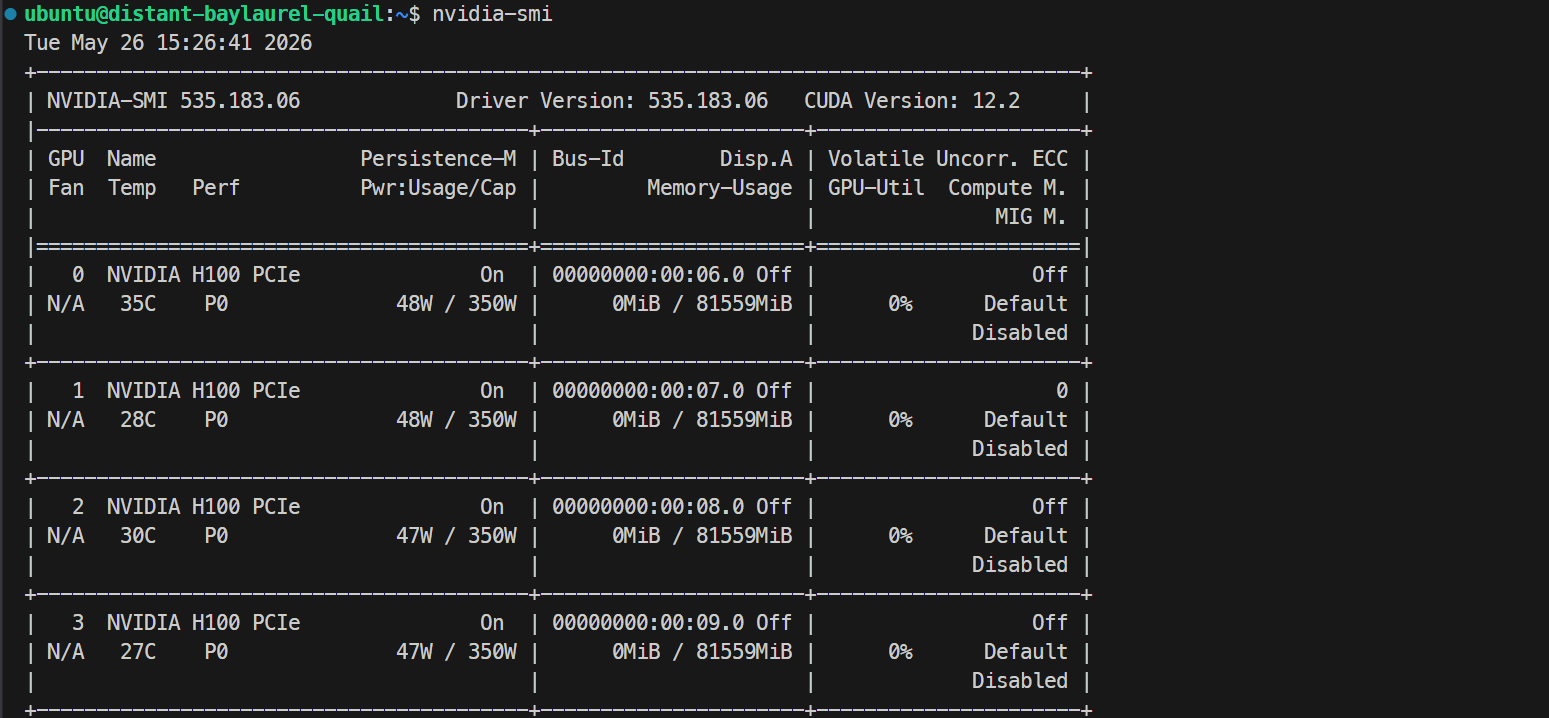
ssh -L 30000:localhost:30000 ubuntu@XXXXXXIf your SSH key has a passphrase, enter it when prompted. After logging in, check that all GPUs are available:
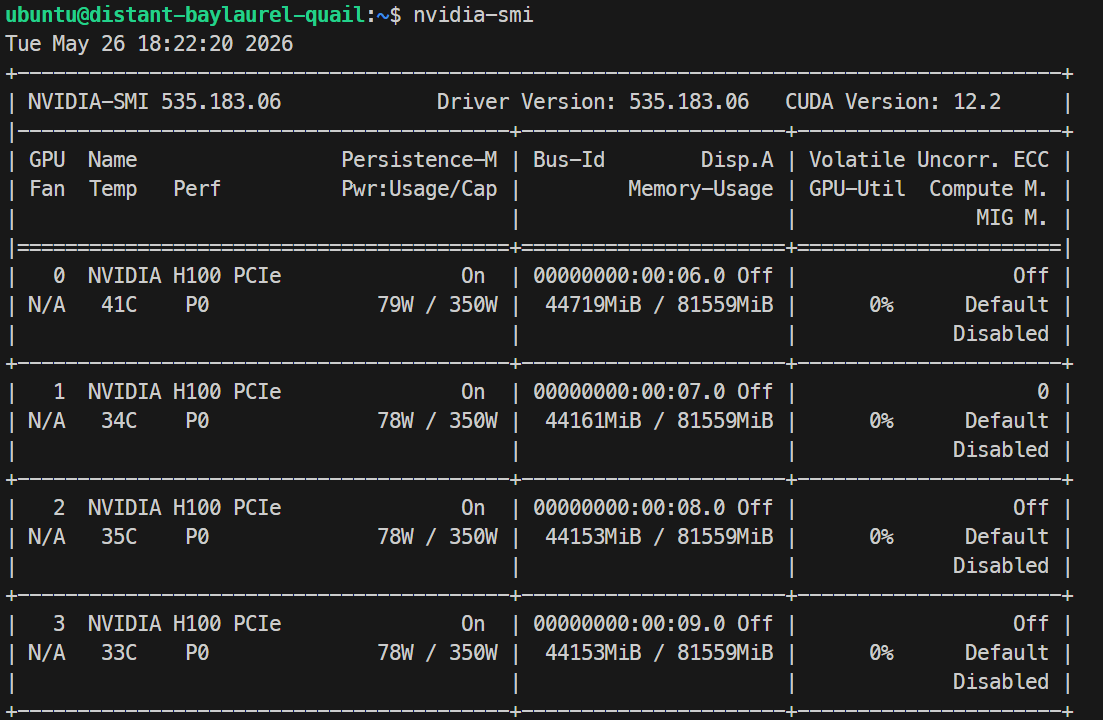
Nvidia-smiYou should see 4× NVIDIA H100 PCIe 80GB GPUs listed. This confirms that the server is ready for the Docker and SGLang setup.
First, export your Hugging Face token so the server can download the Mistral model later:
echo 'export HF_TOKEN="your_huggingface_token_here"' >> ~/.bashrc
source ~/.bashrc
Note: You can get your Hugging Face token from the Access Tokens page.
Create the Hugging Face cache folder:
mkdir -p ~/.cache/huggingfaceNow install Docker:
sudo apt update
sudo apt install -y docker.io
Start Docker and enable it to run automatically after reboot:
sudo systemctl start docker
sudo systemctl enable docker
Check that Docker was installed correctly:
docker –versionYou can also use the Docker search command to confirm that Docker can search for public images from Docker Hub:
docker search nvidia/cudaThis should return available NVIDIA CUDA images. Later, we will use one of these CUDA images to verify that Docker can access the GPUs.
Next, allow your user to run Docker commands without sudo:
sudo usermod -aG docker $USER
newgrp docker
Now install and configure the NVIDIA Container Toolkit so Docker can access the GPUs:
distribution=$(. /etc/os-release;echo $ID$VERSION_ID)

curl -s -L https://nvidia.github.io/libnvidia-container/gpgkey | sudo apt-key add -

curl -s -L https://nvidia.github.io/libnvidia-container/$distribution/libnvidia-container.list | sudo tee /etc/apt/sources.list.d/nvidia-container-toolkit.list

sudo apt update
sudo apt install -y nvidia-container-toolkit

sudo nvidia-ctk runtime configure --runtime=docker
sudo systemctl restart docker
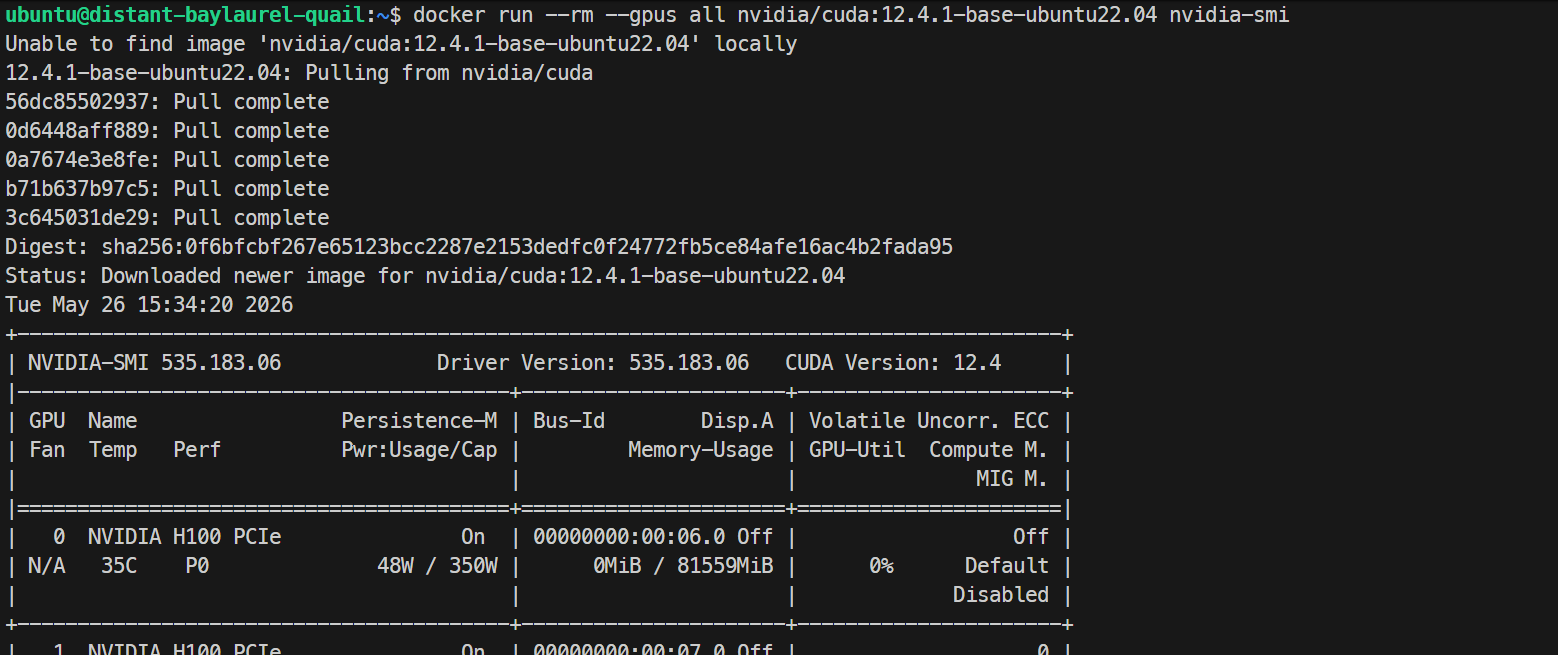
Finally, test that Docker can see the GPUs from inside a container:
docker run --rm --gpus all nvidia/cuda:12.4.1-base-ubuntu22.04 nvidia-smiIf this prints the same H100 GPU list inside the Docker container, your GPU Docker setup is working correctly.
Next, pull the SGLang Docker image built for Mistral Medium 3.5:
docker pull lmsysorg/sglang:dev-mistral-medium-3.5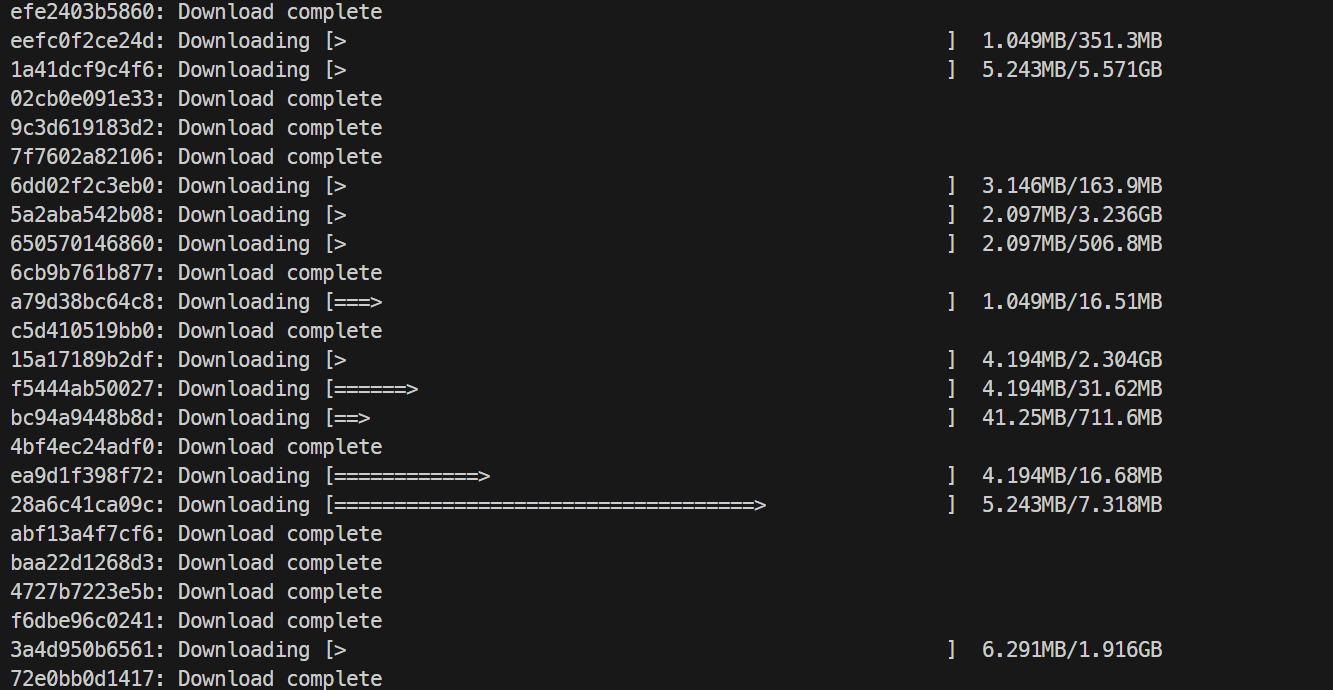
This may take some time, depending on your internet speed. In my case, it took around 10 minutes. Once the image is downloaded, Docker will show a success message similar to:
Status: Downloaded newer image for lmsysorg/sglang:dev-mistral-medium-3.5Now start the SGLang server:
docker run -d \
 --name mistral-sglang \
 --gpus all \
 --shm-size 64g \
 --ipc=host \
 --cap-add SYS_NICE \
 -p 30000:30000 \
 -v ~/.cache/huggingface:/root/.cache/huggingface \
 -e HF_TOKEN=$HF_TOKEN \
 -e PYTORCH_ALLOC_CONF=expandable_segments:True \
 lmsysorg/sglang:dev-mistral-medium-3.5 \
 sglang serve \
   --model-path mistralai/Mistral-Medium-3.5-128B \
   --served-model-name mistral-medium-3.5 \
   --host 0.0.0.0 \
   --port 30000 \
   --tp 4 \
   --trust-remote-code \
   --dtype bfloat16 \
   --context-length 100000 \
   --mem-fraction-static 0.85 \
   --disable-custom-all-reduce \
   --tool-call-parser mistral \
   --reasoning-parser mistral
I used --dtype bfloat16 because the later EAGLE setup also requires bf16, so keeping the base run and speculative run aligned avoids changing the dtype between tests. I also started with --context-length 100000 instead of the full context window to make the first run easier to debug.
Check the container logs with:
docker logs -f mistral-sglang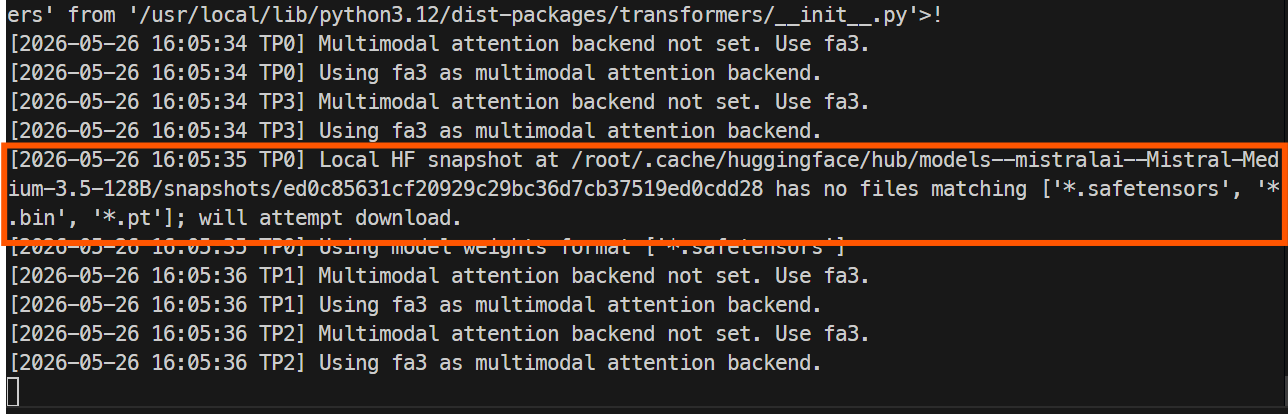
The first launch will take longer because SGLang needs to download the model files from Hugging Face. The full repository is large, so this can take around an hour or more, depending on your instance speed.
When the server is ready, the logs should show that Uvicorn is running on port 30000.
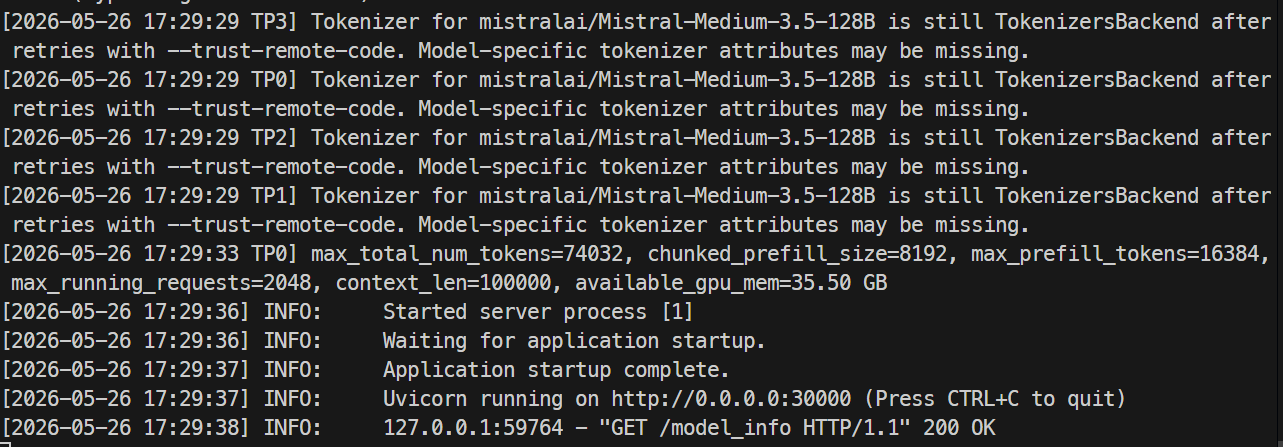
In another terminal, SSH into the server again and check the model endpoint:
curl http://localhost:30000/v1/modelsYou should see mistral-medium-3.5 listed with a max_model_len of 100000.
{"object":"list","data":[{"id":"mistral-medium-3.5","object":"model","created":1779816738,"owned_by":"sglang","root":"mistral-medium-3.5","parent":null,"max_model_len":100000}]}Finally, test a chat completion:
curl http://localhost:30000/v1/chat/completions \
 -H "Content-Type: application/json" \
 -d '{
   "model": "mistral-medium-3.5",
   "messages": [
     {
       "role": "user",
       "content": "Write a short introduction to Mistral Medium 3.5."
     }
   ],
   "max_tokens": 300,
   "temperature": 0.7,
   "top_p": 0.95
 }'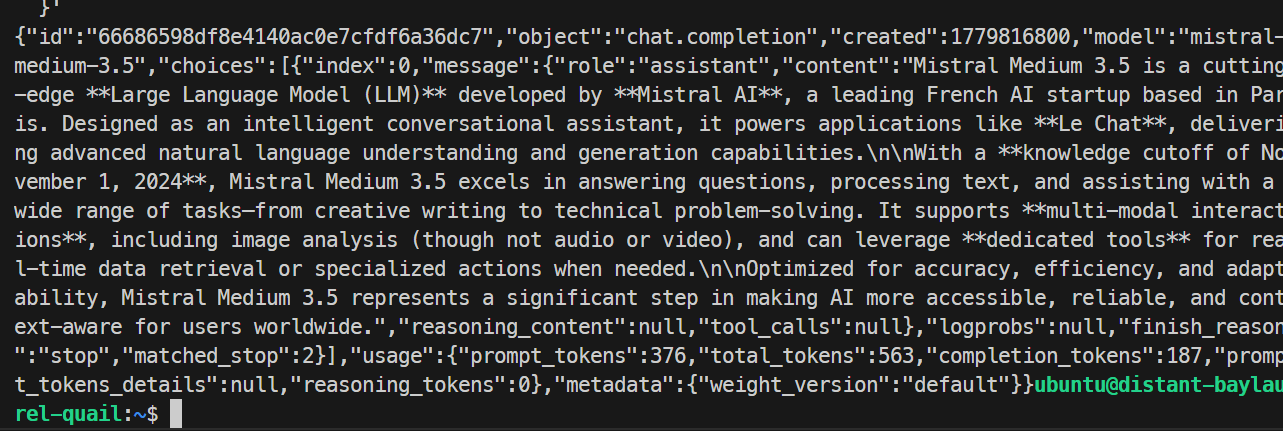
In my test, the model responded successfully and completed the request cleanly, confirming that the SGLang endpoint was working. The basic run generated around 35.6 tokens per second.
Speculative decoding can speed up generation by using a smaller draft model to predict tokens ahead of time, while the main model verifies them.
EAGLE is useful here because it is designed for latency-sensitive serving, especially when you are running a large model like Mistral Medium 3.5 locally. It will not always be faster, but it is worth testing because the benefit depends on the prompt length, output length, concurrency, and GPU usage.
First, remove the base container:
docker rm -f mistral-sglangThen start the EAGLE version:
docker run -d \
 --name mistral-sglang-eagle \
 --gpus all \
 --shm-size 64g \
 --ipc=host \
 --cap-add SYS_NICE \
 -p 30000:30000 \
 -v ~/.cache/huggingface:/root/.cache/huggingface \
 -e HF_TOKEN="$HF_TOKEN" \
 -e PYTORCH_ALLOC_CONF=expandable_segments:True \
 lmsysorg/sglang:dev-mistral-medium-3.5 \
 sglang serve \
   --model-path mistralai/Mistral-Medium-3.5-128B \
   --served-model-name mistral-medium-3.5-eagle \
   --host 0.0.0.0 \
   --port 30000 \
   --tp 4 \
   --trust-remote-code \
   --dtype bfloat16 \
   --context-length 100000 \
   --mem-fraction-static 0.85 \
   --disable-custom-all-reduce \
   --tool-call-parser mistral \
   --reasoning-parser mistral \
   --enable-metrics \
   --speculative-algorithm EAGLE \
   --speculative-draft-model-path mistralai/Mistral-Medium-3.5-128B-EAGLE \
   --speculative-num-steps 3 \
   --speculative-eagle-topk 1 \
   --speculative-num-draft-tokens 4
SGLang recommends this EAGLE setup as a good starting point: --speculative-num-steps 3, --speculative-eagle-topk 1, and --speculative-num-draft-tokens 4. The first run may take longer because it also downloads the EAGLE draft model.
Once loaded, you can check GPU usage with nvidia-smi; in my run, the model used around 44GB per H100 GPU.
Monitor the logs with:
docker logs -f mistral-sglang-eagle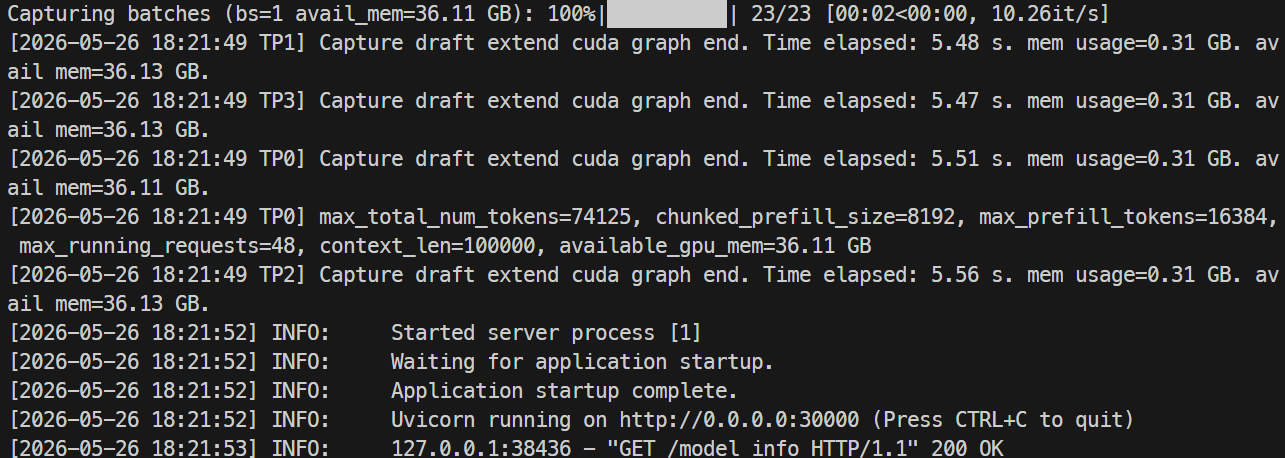
When the logs show that Uvicorn is running on 0.0.0.0:30000, test the endpoint:
curl http://localhost:30000/v1/chat/completions \
 -H "Content-Type: application/json" \
 -d '{
   "model": "mistral-medium-3.5-eagle",
   "messages": [
     {
       "role": "user",
       "content": "Generate a simple Python game."
     }
   ],
   "reasoning_effort": "none",
   "max_tokens": 300,
   "temperature": 0.7,
   "top_p": 0.95
 }'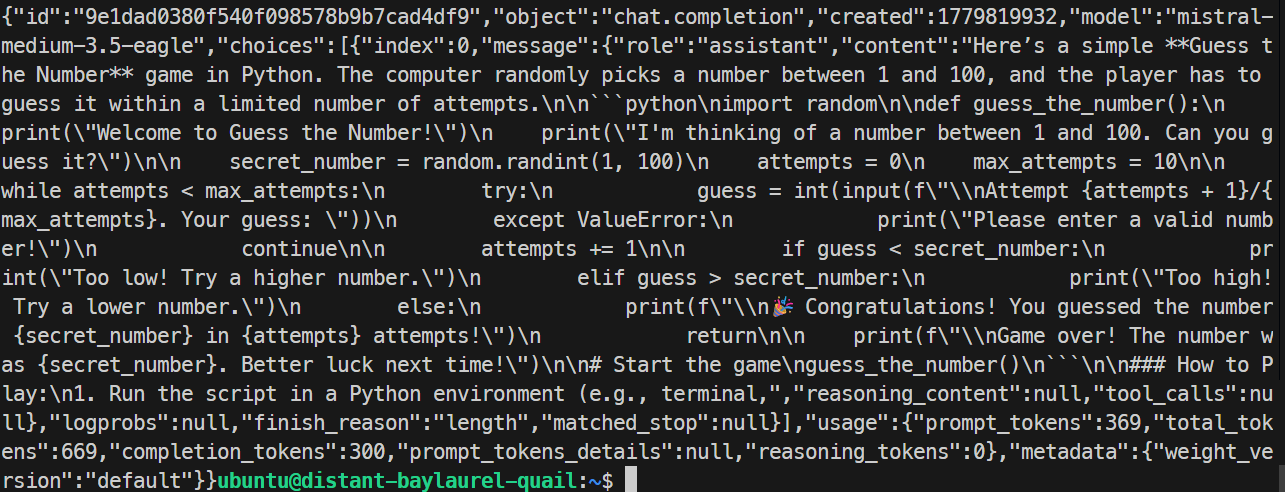
In my test, the EAGLE server responded correctly and generated a simple Python game. The run achieved around 32 tokens per second, which was slightly slower than the base run, so EAGLE did not improve this specific test.
This is normal: speculative decoding depends heavily on the workload, and the best way to judge it is to test it with your own prompts and concurrency level.
OpenCode is an open-source AI coding agent that can connect to OpenAI-compatible model endpoints. Since SGLang exposes Mistral Medium 3.5 through a local OpenAI-compatible API, we can use it directly inside OpenCode.
Install OpenCode if you have not already:
curl -fsSL https://opencode.ai/install | bashThen move into your project directory and create an opencode.json file.
Add the following configuration:
{
 "$schema": "https://opencode.ai/config.json",
 "provider": {
   "sglang": {
     "npm": "@ai-sdk/openai-compatible",
     "name": "SGLang Local",
     "options": {
       "baseURL": "http://127.0.0.1:30000/v1",
       "apiKey": "EMPTY"
     },
     "models": {
       "mistral-medium-3.5-eagle": {
         "name": "Mistral Medium 3.5 EAGLE",
         "limit": {
           "context": 100000,
           "output": 8192
         }
       }
     }
   }
 },
 "model": "sglang/mistral-medium-3.5-eagle"
}
Now launch OpenCode from the same project directory:
OpencodeYou should see Mistral Medium 3.5 EAGLE SGLang Local selected inside OpenCode. This means OpenCode is now talking to your local SGLang server through the forwarded 30000 port, just like it would call any OpenAI-compatible API.
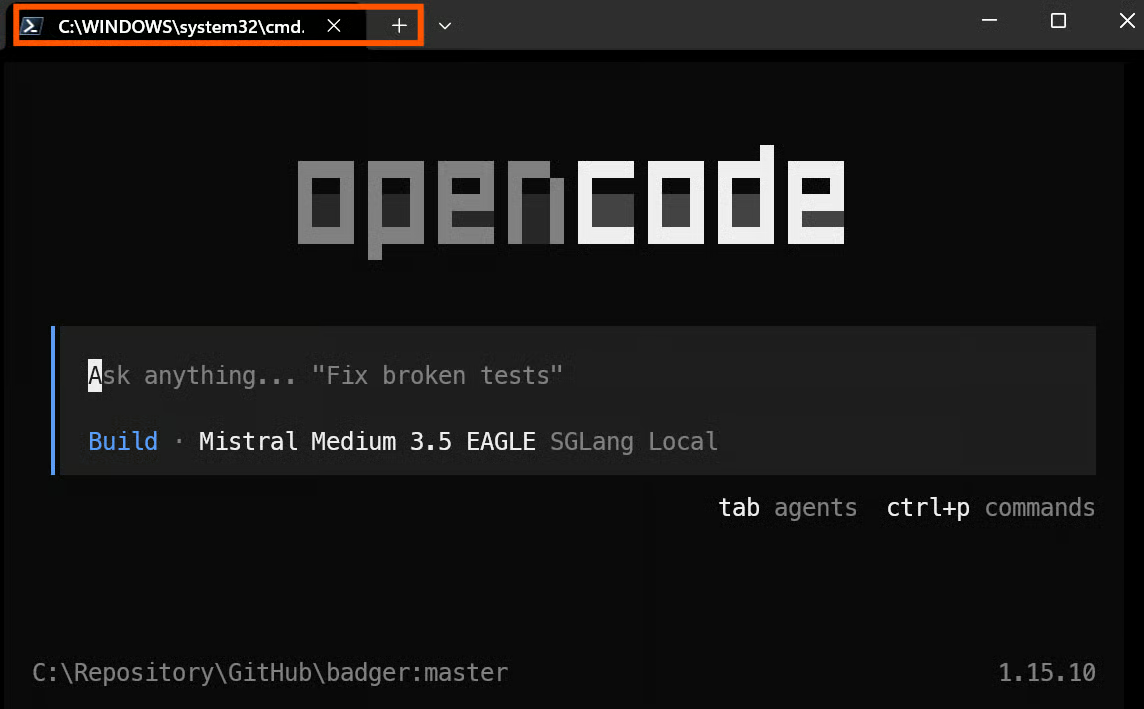
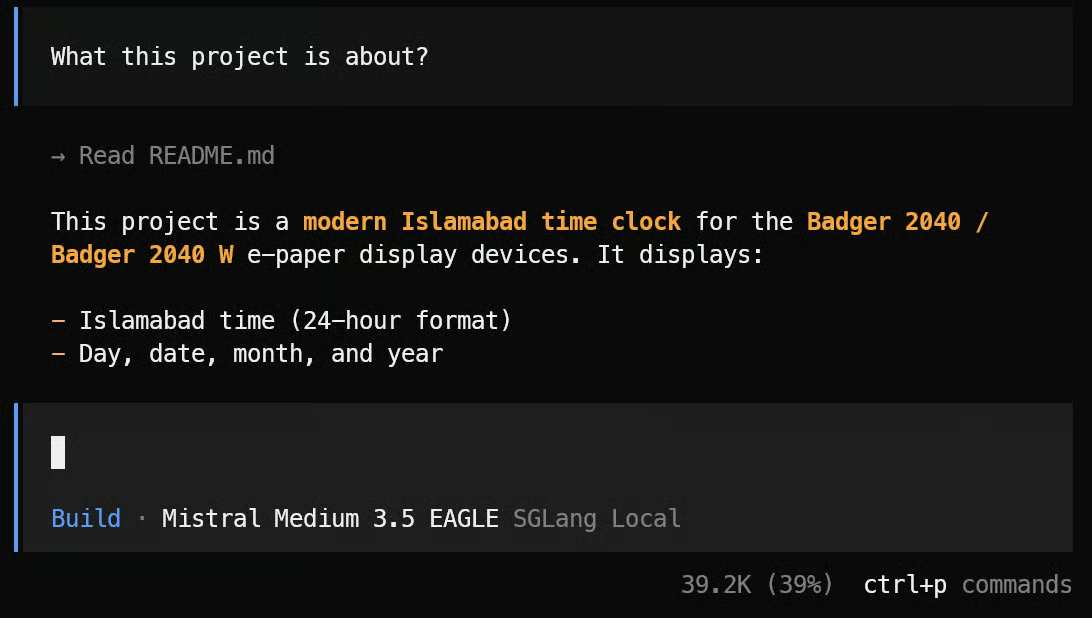
In my test, I asked OpenCode to explain the project, and it read the repository files within a few seconds and generated the summary.
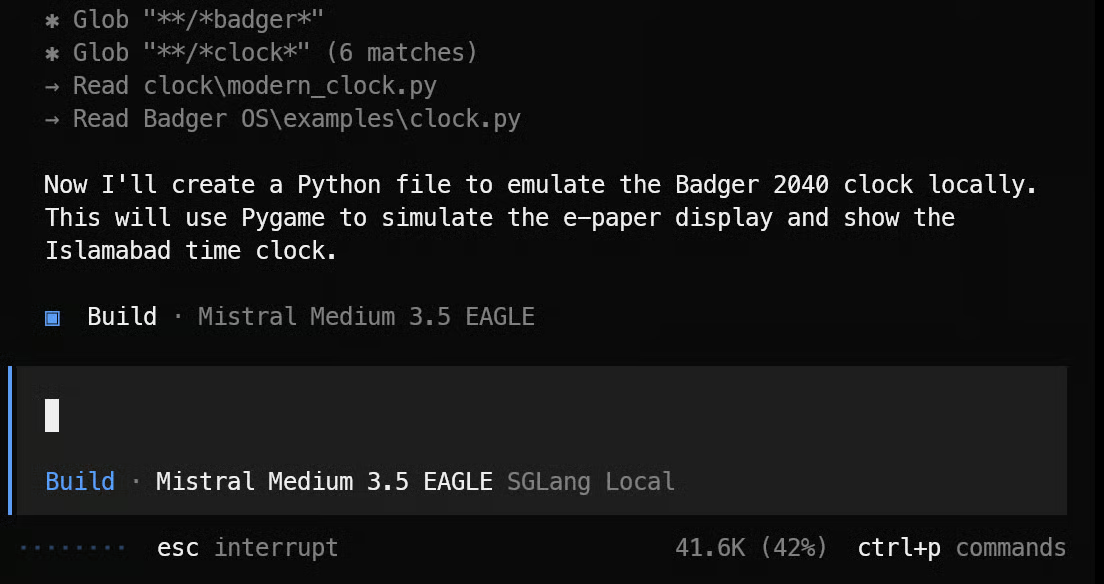
Then, I asked it to create a Badger 2040 emulator, and it first inspected the existing project files, validated the structure, and then created the required Python file. The whole process took around 2 minutes.
After that, I asked it to test the emulator locally. OpenCode ran the code and opened the emulator window successfully.
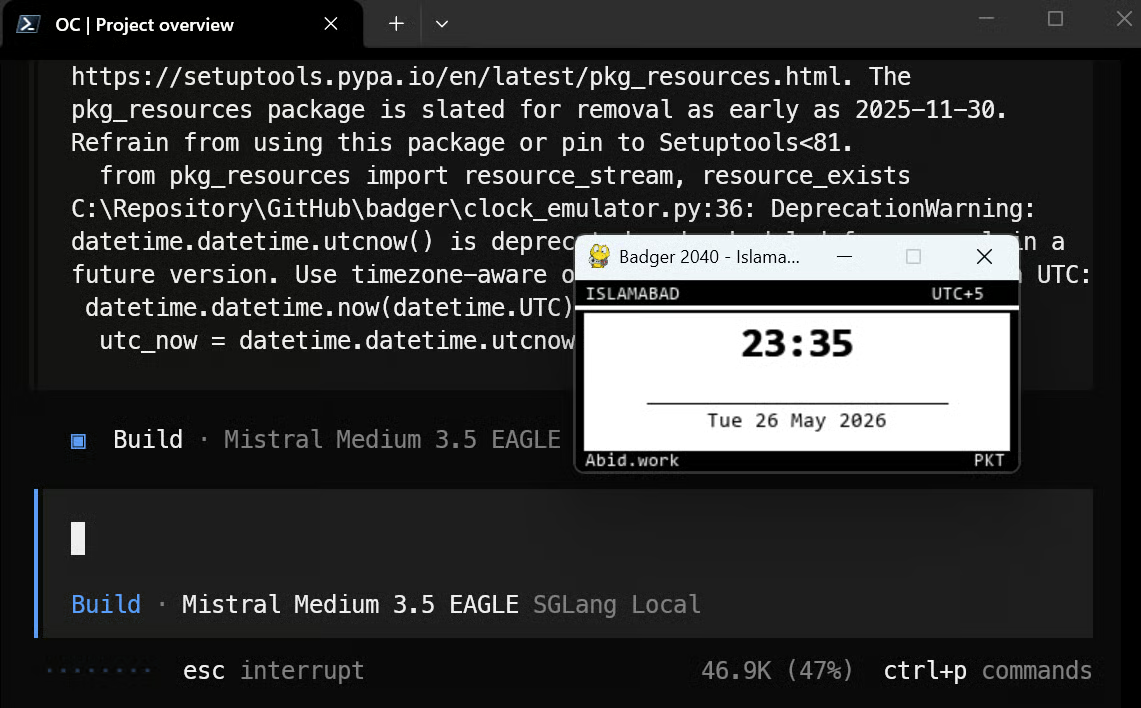
The font was not exactly the same as the real Badger 2040 display, but the layout, time display, date placement, and overall structure were almost perfect.
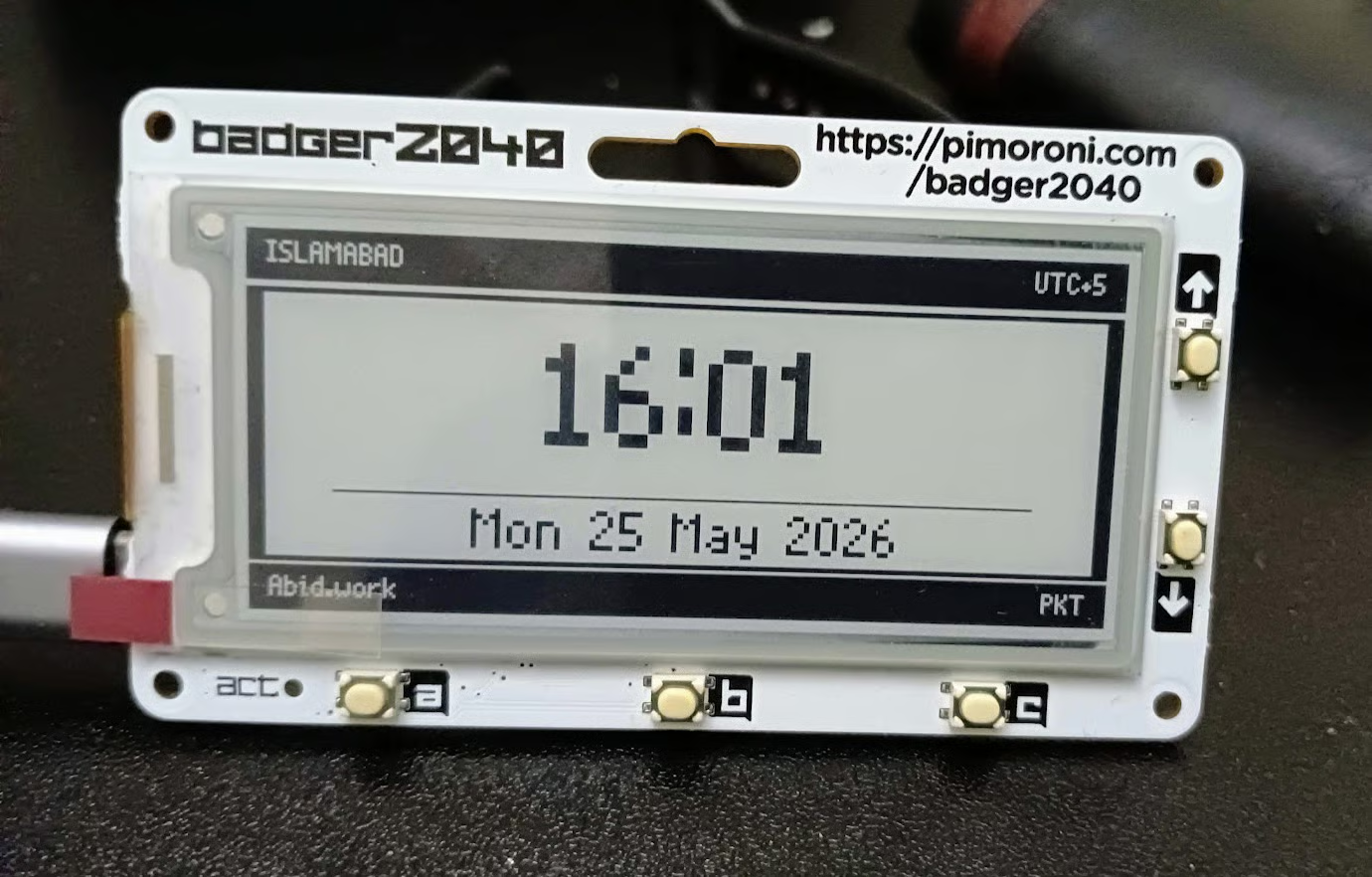
I was genuinely surprised by the result because I had tried the same task with Claude Code and GPT-5.5 before, and both struggled with it, while Mistral Medium 3.5 handled it really well through the local SGLang setup.
There are a few pitfalls along the way. Let me walk you through problems you might encounter and how to solve them.
First of all, you’ll need to be patient. This full setup took me almost 3 hours. Launching the GPU VM took around 15 minutes, installing Docker and the NVIDIA container toolkit took around 10 minutes, pulling the SGLang Docker image took around 30 minutes, and downloading plus loading the Mistral Medium 3.5 model weights took around 1 hour.
Starting the EAGLE setup also takes extra time because it loads the model again and may download the EAGLE draft model. If you want a smoother experience, use faster networking, newer GPUs such as H200s if available, and enough storage for the full Hugging Face cache.
If nvidia-smi works on the host but Docker cannot access the GPUs, the NVIDIA container runtime is probably not configured correctly. Re-run the NVIDIA container toolkit configuration and restart Docker:
sudo nvidia-ctk runtime configure --runtime=docker
sudo systemctl restart docker
NVIDIA’s documentation also recommends this nvidia-ctk runtime configuration step for Docker GPU access.
Make sure the Hugging Face cache is mounted into the container:
-v ~/.cache/huggingface:/root/.cache/huggingfaceThis lets Docker reuse downloaded model files instead of downloading them again every time. Hugging Face uses a local cache to avoid re-downloading files that are already up to date.
The Mistral Medium 3.5 repository is large, so the first download can take a long time. If it looks stuck, check your internet speed, disk space, and Hugging Face token. Also, make sure you have accepted any required model access terms on Hugging Face before running the container.
The server is not ready until the logs show that Uvicorn is running on port 30000. Check the logs with:
docker logs -f mistral-sglangor for EAGLE:
docker logs -f mistral-sglang-eagleAlso, make sure the container exposes the port correctly with:
-p 30000:30000This is normal. Speculative decoding is not guaranteed to improve every request. It works by using a draft model to propose tokens and the main model to verify them, but the speedup depends on acceptance rate, prompt length, output length, concurrency, and GPU utilization.
If you hit memory issues, reduce the context length first. For example, start with --context-length 100000 instead of trying the full context window immediately. You can also lower --mem-fraction-static slightly if startup fails, but reducing context length is usually the easiest first step.
Make sure the SGLang server is running and that your opencode.json uses the correct local endpoint:
"baseURL": "http://127.0.0.1:30000/v1"If you are accessing the server from your local machine, start SSH with port forwarding:
ssh -L 30000:localhost:30000 ubuntu@XXXXXXThen launch OpenCode from the same directory where your opencode.json file is saved.
I was honestly surprised by how smooth the technical setup was. Running Mistral Medium 3.5 128B with the native SGLang Docker image was much easier than I expected. The Docker image pulled correctly, the model loaded, the OpenAI-compatible endpoint worked, and OpenCode connected to it without much trouble. I
f you are trying this yourself, I would strongly recommend using the SGLang Docker image instead of installing everything through Python packages. When you install through Python, it can easily start messing with CUDA, PyTorch, and other dependencies. Docker keeps everything clean and isolated.
But the biggest thing I took away from this experiment is the cost. I honestly do not know how AI companies are making money on inference. Even with one of the cheaper and older H100 PCIe options, this setup was still close to $10 per hour. And this is just for a 128B model on 4 GPUs. Now imagine running a much larger trillion-parameter model on 16× H100s. Your bill can easily reach $40+ per hour, before even thinking about storage, networking, monitoring, uptime, and engineering work.
For small companies, I do not think it makes sense to serve models like this locally unless there is a very strong reason, such as privacy, research, or deep control over the inference stack. The inference cost is already high, but the operational burden is also a problem. You need to keep the server running, make sure the model does not crash, monitor GPU memory, handle failed containers, and keep the endpoint available.
Serverless also does not really solve this for very large models. The cold start is simply too long. In this setup, launching the GPU VM, installing dependencies, pulling the Docker image, downloading the weights, and loading the model took almost 3 hours in total.
Even if your setup is faster, loading a model of this size can still take a long time. So if every new request requires launching another GPU cluster and loading the model again, it defeats the purpose of serverless. In practice, companies need to keep warm GPU clusters running, which means they are paying even when the GPUs are idle.
This also explains why off-peak GPU pricing exists. Providers want people to use idle GPU capacity because unused GPUs are just burning money. For users, that can be a good way to experiment more cheaply, but it also shows how difficult the economics of large-model inference are.
Overall, I really liked SGLang for this setup. The Docker-based workflow made serving Mistral Medium 3.5 128B much easier than expected, and the OpenCode test was genuinely impressive. But this experiment also made one thing very clear to me: running large open models locally is possible, but running them reliably and affordably as a real product is a completely different challenge.
Learn AI with DataCamp!
Track
Course
Course
Tutorial
Aashi Dutt
9 min
Tutorial
Abid Ali Awan
5 min
Tutorial
Abid Ali Awan
6 min
Tutorial
Bex Tuychiev
12 min
Tutorial
Aashi Dutt
12 min
Tutorial
Aashi Dutt
8 min


