

Khóa học
Làm việc với OpenAI API
3 giờ
183.4K
Luyện tập và Lộ trình tiến trình của bạn.
Tiếp Tục Với GoogleChạy các mô hình ngôn ngữ lớn (LLM) cục bộ ngày càng phổ biến, đặc biệt khi bạn không muốn gửi dữ liệu riêng tư lên máy chủ bên ngoài. Khi mọi thứ chạy trên máy của bạn, lời nhắc và dữ liệu đều ở trong môi trường của bạn, giúp bạn kiểm soát tốt hơn và tăng cường quyền riêng tư.
Nếu bạn muốn có sức mạnh đó, tôi sẽ hướng dẫn bạn cách dùng LM Studio để chạy và trò chuyện với LLM cục bộ. Đây là công cụ ưu tiên giao diện đồ họa (GUI), nên bạn không cần kinh nghiệm dùng terminal hay kiến thức kỹ thuật sâu. Việc thiết lập rất đơn giản và bạn có thể bắt đầu nhanh chóng. Hãy cùng bắt đầu!
Nếu bạn quan tâm đến việc chạy các công cụ agent cục bộ, tôi khuyên bạn xem các hướng dẫn thiết lập OpenClaw và Claude Code với Ollama.
LM Studio là ứng dụng đa nền tảng cho phép bạn tải xuống và chạy các mô hình ngôn ngữ lớn cục bộ trên máy của mình để dữ liệu không bao giờ rò rỉ ra máy chủ bên ngoài.
Ứng dụng có trình duyệt mô hình tích hợp để bạn tìm kiếm, duyệt và tải trực tiếp các mô hình từ Hugging Face. Bạn hầu như có thể tải bất kỳ mô hình nào bạn muốn, bao gồm các phiên bản khác nhau của DeepSeek, Llama, Gemma, Phi hoặc Mistral. Bạn cũng không cần thiết lập bổ sung nào.
LM Studio cũng là lựa chọn tuyệt vời cho người mới bắt đầu, đặc biệt nếu bạn không thoải mái với dòng lệnh. Ứng dụng cung cấp giao diện thân thiện để bạn chọn mô hình, điều chỉnh cấu hình và bắt đầu trò chuyện ngay lập tức.
Bạn cũng có thể tải tệp cục bộ lên và trò chuyện với chúng: LM Studio có thể đính kèm tệp .docx, .pdf và .txt vào phiên trò chuyện. Nếu tài liệu vừa với ngữ cảnh, nó sẽ được đưa vào đầy đủ; nếu quá dài, LM Studio có thể dùng retrieval-augmented generation (RAG) để truy xuất thông tin liên quan từ các tệp đó nhằm trả lời câu hỏi của bạn.
Vì LM Studio đa nền tảng, nó hoạt động mượt mà trên Windows, Mac và Linux, nên bạn không bị giới hạn bởi thiết lập của mình. Và khi đã nắm vững những điều cơ bản, bạn còn có thể làm nhiều hơn. Bạn có thể kết nối LLM cục bộ với công cụ, nguồn dữ liệu và API bên ngoài bằng cách tích hợp máy chủ MCP, đủ linh hoạt cho các quy trình nâng cao.
LM Studio và Ollama đều được thiết kế để chạy và trò chuyện với các LLM cục bộ. Tuy nhiên, có vài khác biệt chính:
|
Tính năng |
LM Studio |
Ollama |
|
Giao diện |
Ưu tiên GUI, thân thiện với người dùng |
Ưu tiên CLI, dựa trên terminal |
|
RAG tích hợp |
Có, không cần thiết lập thêm |
Cần công cụ bên ngoài |
|
Hỗ trợ MCP |
Tích hợp sẵn |
Hạn chế / không bản địa |
|
Tải mô hình |
Truy cập Hugging Face ngay trong ứng dụng |
Bằng lệnh như |
|
Dễ thiết lập |
Rất thân thiện với người mới |
Hơi có đường cong học tập nếu bạn mới dùng CLI |
Trước khi bắt đầu tải mô hình trong LM Studio, bạn nên hiểu hệ thống của mình thực sự xử lý được gì. Mô hình bạn chọn phụ thuộc trực tiếp vào RAM sẵn có; chọn sai có thể làm chậm hoặc khiến ứng dụng khó dùng.
Bảng tra nhanh các mô hình phù hợp với từng mức RAM:
|
RAM |
Những gì bạn có thể chạy thoải mái |
|
8GB |
Mô hình nhỏ (1B–4B) |
|
16GB |
Mô hình tầm trung (7B-9B) |
|
32GB+ |
Mô hình lớn (13B trở lên) |
GPU là tùy chọn, nhƣng tạo khác biệt rõ rệt. Nếu có GPU, phản hồi của mô hình sẽ nhanh và mượt hơn. GPU NVIDIA hỗ trợ CUDA là tốt nhất, Apple Silicon dùng Metal hiệu quả, còn AMD hỗ trợ một phần tùy thiết lập.
Dưới đây là một số khuyến nghị thực tế khi chọn mô hình chạy tốt trên máy của bạn mà không quá tải.
|
RAM/VRAM |
Mô hình khuyến nghị |
|
8GB |
Qwen 2.5 3B / 4B, Phi-3 Mini (3.8B), Gemma 2 2B |
|
16GB |
Llama 3 8B, Gemma 2 9B, Mistral 7B, Qwen 2.5 7B |
|
24GB |
Llama 3.1 8B (định lượng chất lượng cao hơn), Mixtral 8x7B (định lượng), Qwen 2.5 14B |
|
32GB+ |
Llama 3.1 70B (định lượng nặng), Qwen 2.5 32B, các biến thể Mixtral (cấu hình tốt hơn) |
Bạn cũng sẽ thấy các phiên bản của cùng mô hình với nhãn như Q4_K_M hoặc Q8_0. Đây là mức định lượng, mô tả cách mô hình được nén. Định lượng thấp, như Q4, giảm bộ nhớ dùng và chạy nhanh hơn nhưng mất chút chất lượng. Định lượng cao hơn, như Q8, giữ chất lượng đầu ra tốt hơn nhưng cần nhiều RAM hơn và chạy chậm hơn.
Nếu chưa chắc, Q4 hoặc Q5 thường là điểm khởi đầu an toàn, nhất là trên hệ 16GB như của tôi.
Để bắt đầu với LM Studio, hãy truy cập trang web chính thức và tải ứng dụng. Trang sẽ tự động nhận diện hệ điều hành của bạn và đề xuất phiên bản phù hợp.
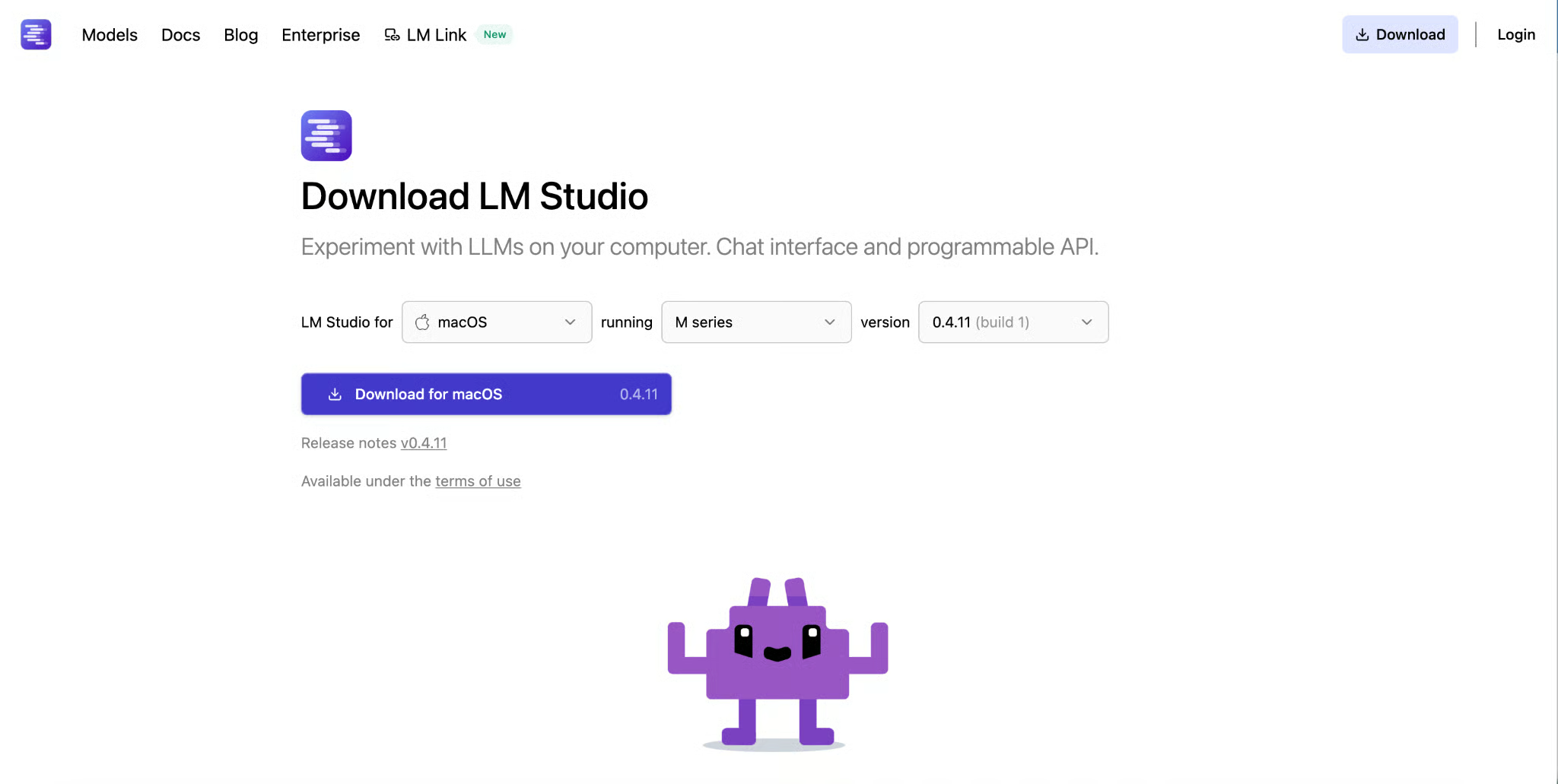 Tùy cài đặt hệ thống, bạn có thể được yêu cầu cấp quyền. Trường hợp của tôi trên Mac, ứng dụng có sẵn ngay sau khi mở trình cài đặt đã tải.
Khi mở LM Studio lần đầu, bạn sẽ thấy giao diện gọn gàng với trình duyệt mô hình. Bạn có thể tìm kiếm mô hình, khám phá các tùy chọn sẵn có và bắt đầu tải về để chạy cục bộ.
Mở LM Studio và nhấp biểu tượng tìm kiếm ở thanh bên trái.
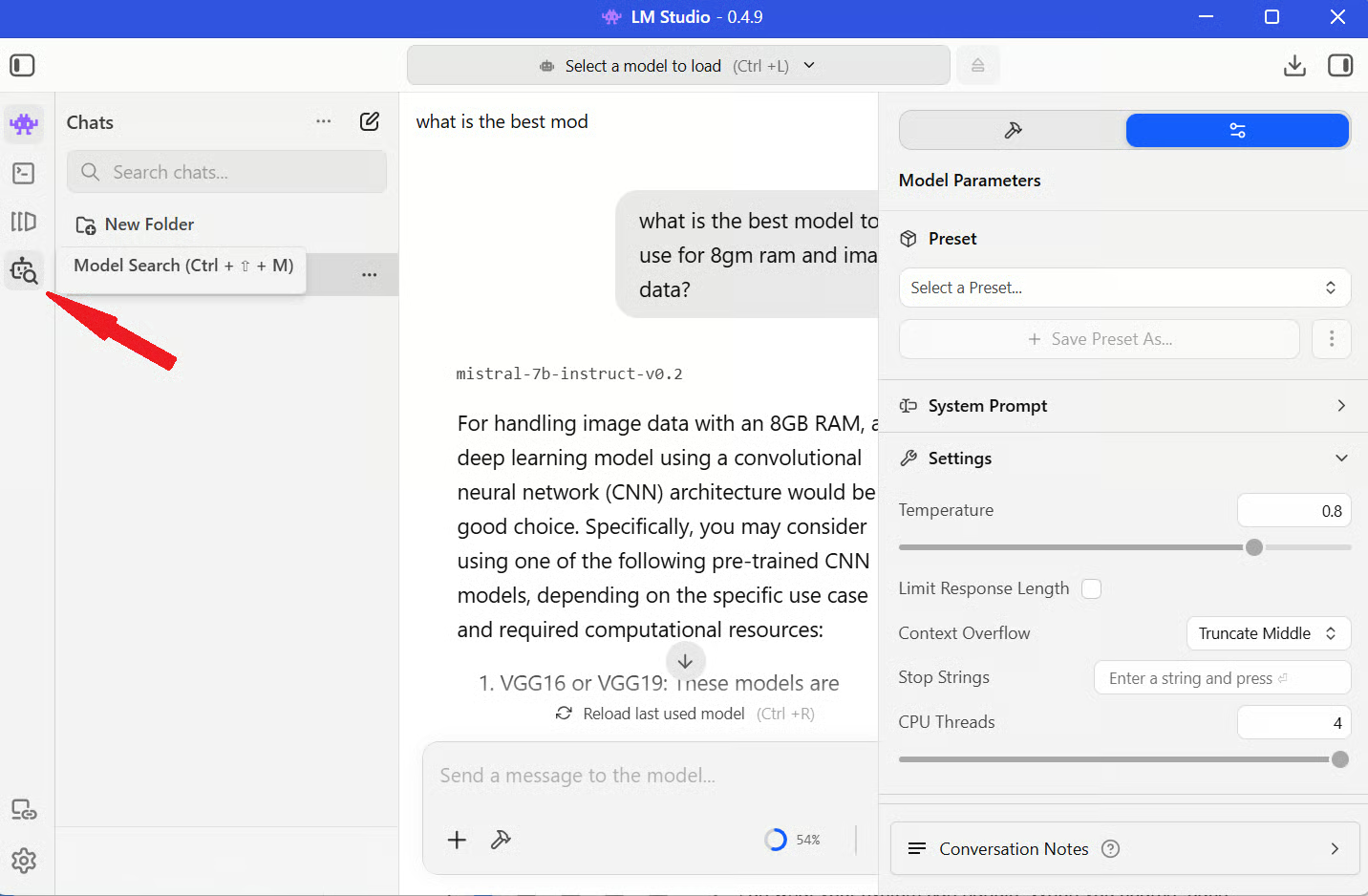
Về cơ bản, đây là chợ mô hình của bạn: có thể tìm mô hình cụ thể, lọc theo kích thước và khám phá các tùy chọn. Khi tìm kiếm, mỗi mô hình có thẻ thông tin kèm ngữ cảnh hữu ích như kích thước, khả năng và đôi khi là khuyến nghị sử dụng. Nên lướt qua trước khi tải để biết mình có thể kỳ vọng gì.
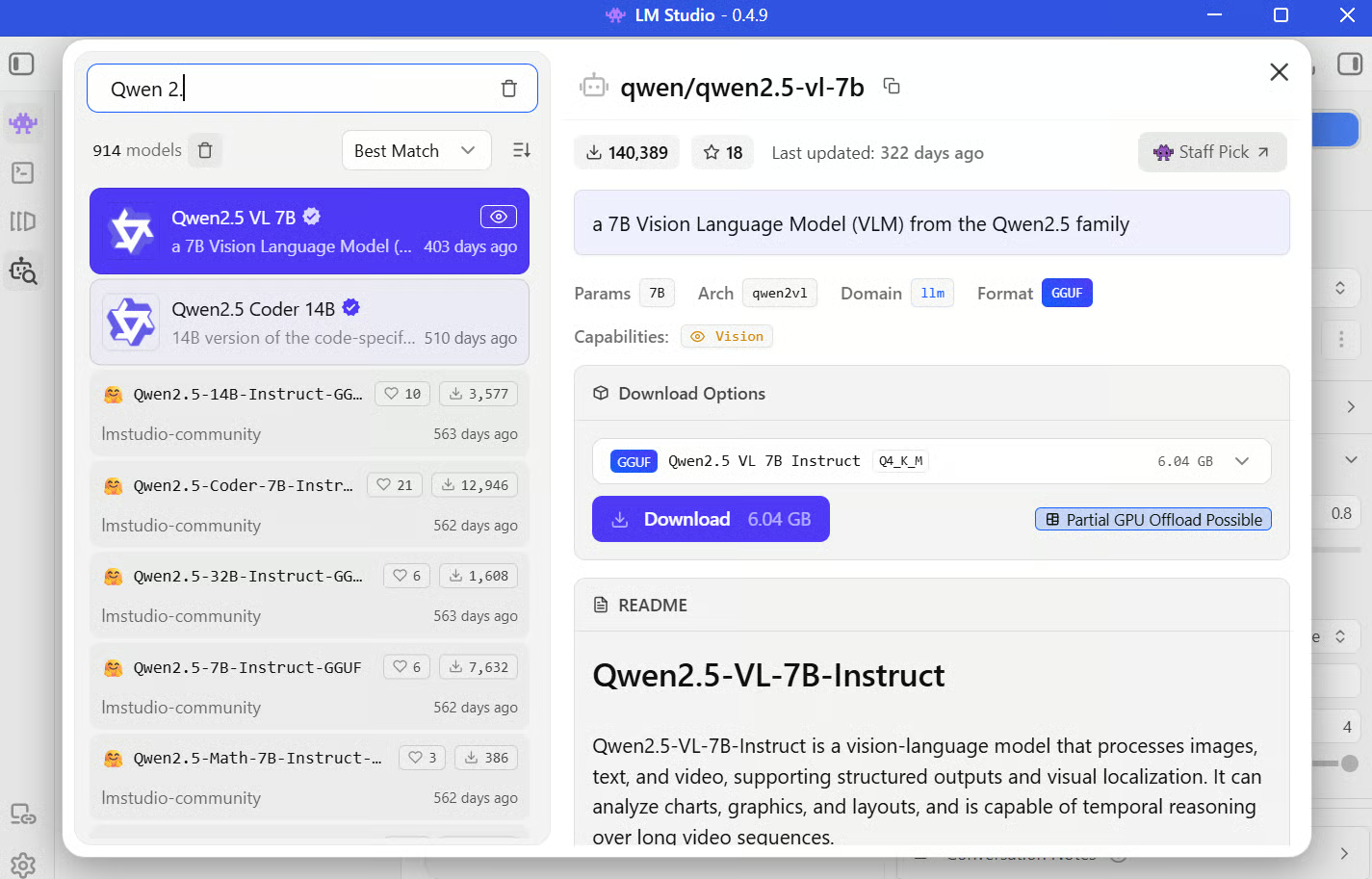
Nếu bạn làm theo và muốn một điểm khởi đầu đáng tin cậy, hãy chọn Qwen 2.5 7B (Q4_K_M) cho hệ 16GB (hoặc chọn một gợi ý tôi nêu ở trên). Mô hình này cân bằng tốt giữa hiệu năng và chất lượng, chạy mượt mà mà không làm máy bạn quá tải.
Khi duyệt, bạn sẽ thấy hầu hết mô hình có sẵn ở định dạng GGUF. GGUF (GPT-Generated Unified Format) là định dạng nhị phân để lưu trữ và chạy LLM hiệu quả trên phần cứng phổ thông.
Định dạng này ánh xạ trọng số độ chính xác cao (ví dụ Float16) của mô hình xuống số nguyên ít bit hơn (ví dụ 4-bit, 5-bit) và đóng gói trọng số, siêu dữ liệu và cấu hình vào một tệp tối ưu duy nhất. Điều này giúp tải nhanh hơn và đảm bảo tương thích với các engine suy luận như llama.cpp, mà LM Studio sử dụng phía dưới.
Giờ đến phần thú vị: đưa mô hình vào sử dụng.
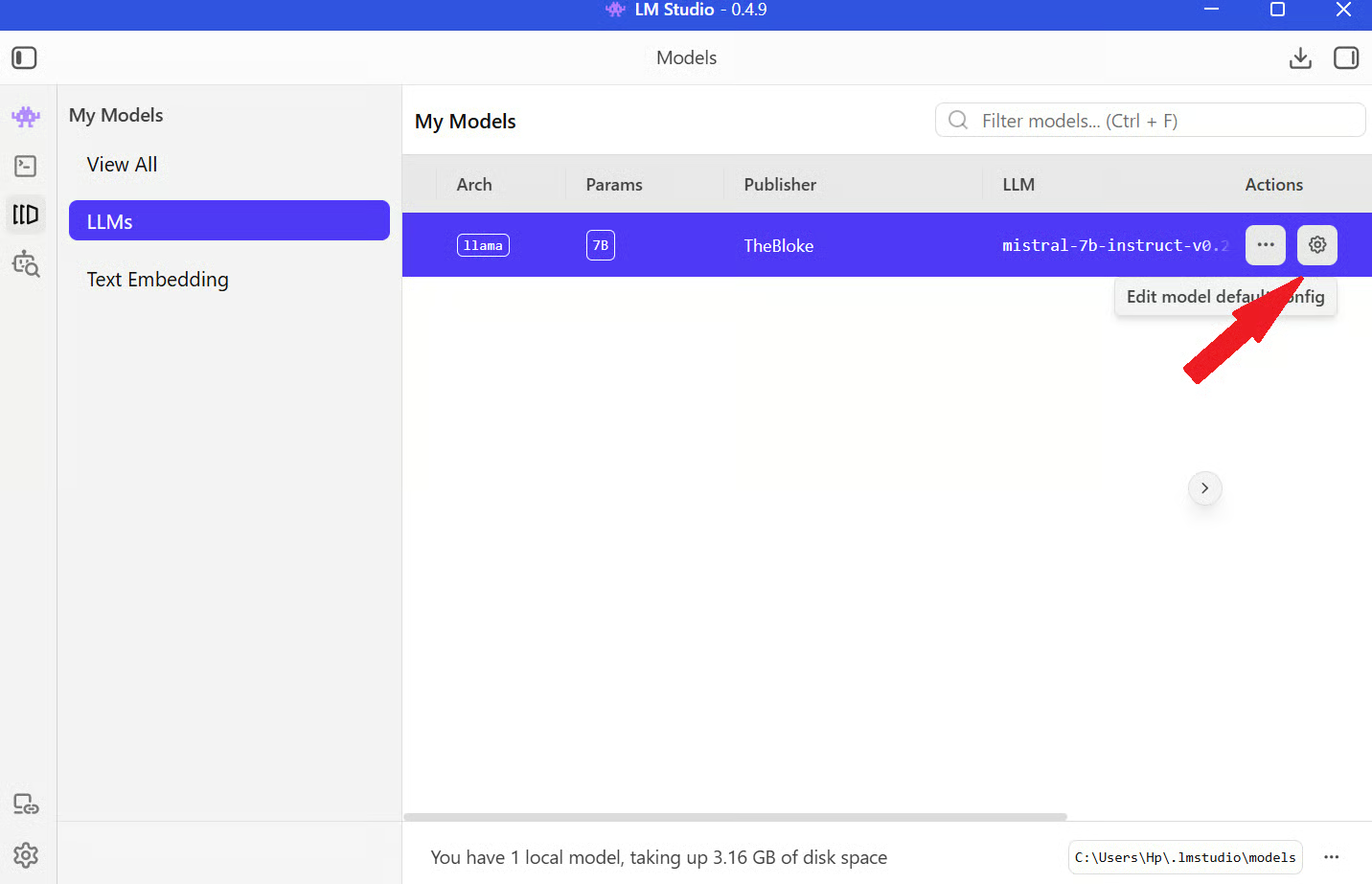
Bước 1: Mở LM Studio và đi tới mục My Models ở thanh menu bên trái.
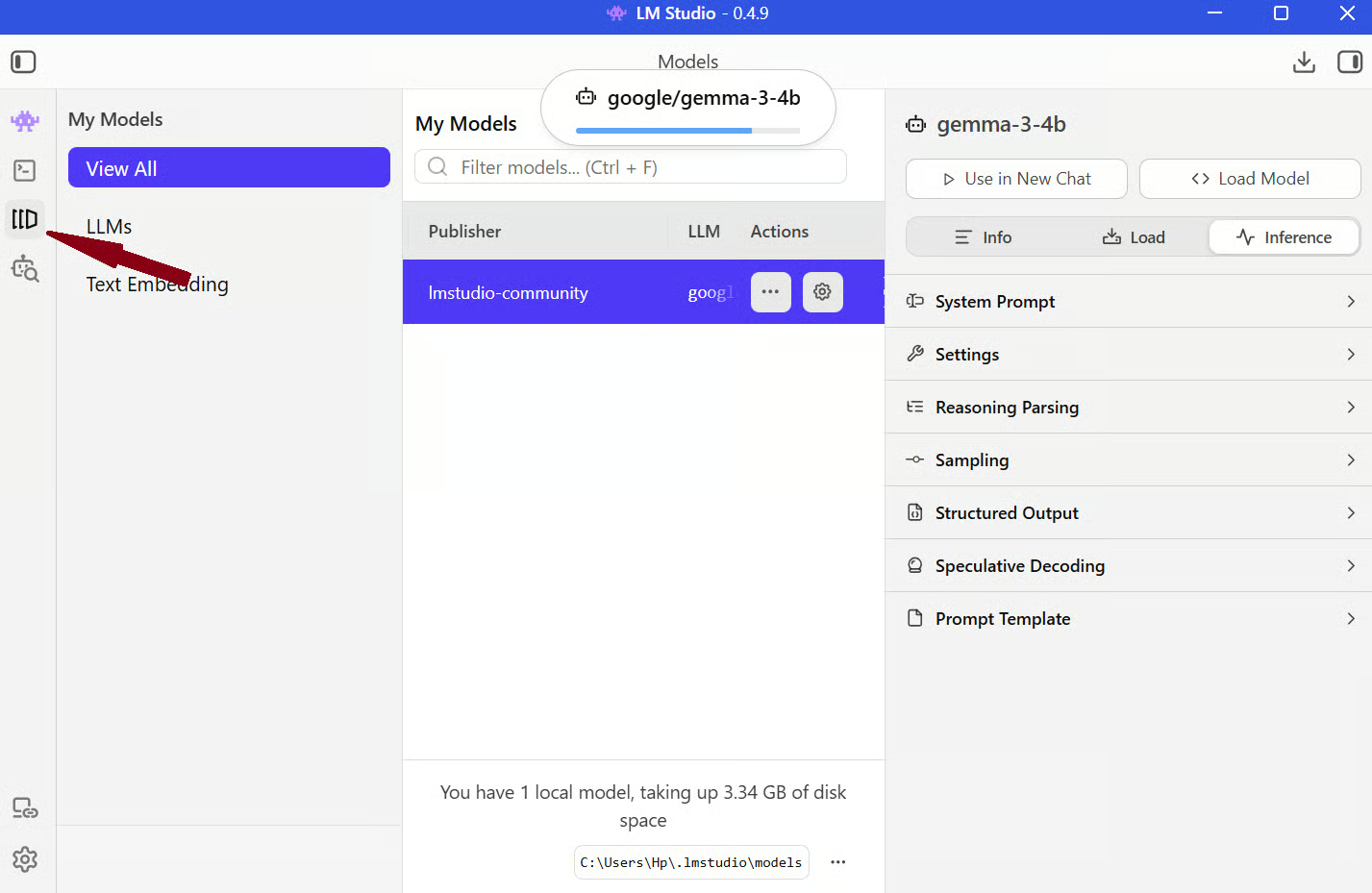
Bước 2: Nhấp biểu tượng Settings trên mô hình và chọn Load Model.
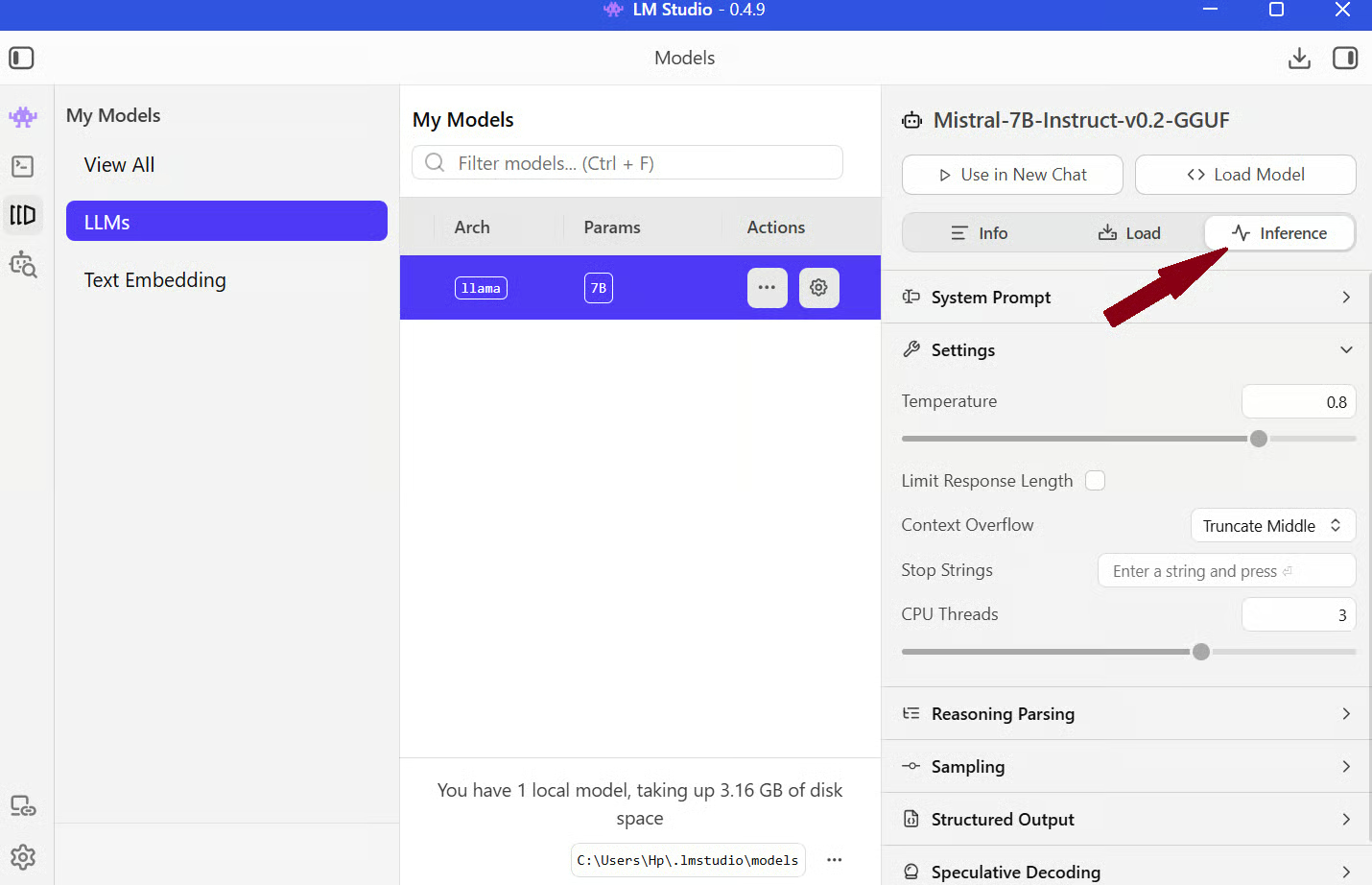
Khi đã tải, vào thẻ Inference trên cùng màn hình; bạn sẽ thấy các điều khiển độ dài ngữ cảnh, nhiệt độ và nhiều mục khác.
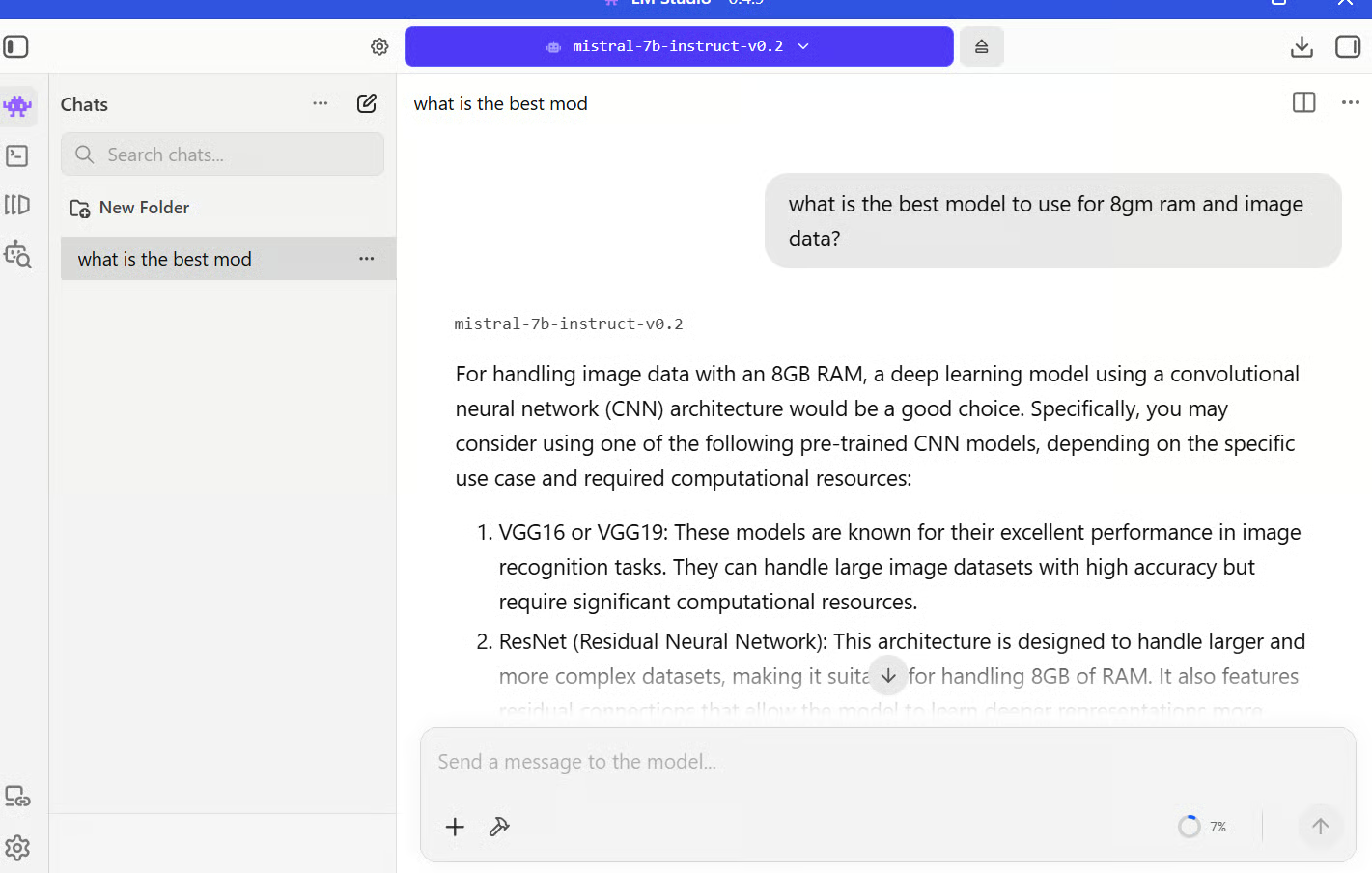
Khi mọi thứ đã sẵn sàng, bạn có thể bắt đầu trò chuyện với mô hình giống như bất kỳ trợ lý AI nào. Ví dụ đơn giản:
Tôi hỏi: “Mô hình nào tốt nhất cho 8GB RAM và dữ liệu ảnh?”
Mô hình gợi ý dùng mô hình có kiến trúc mạng nơ-ron tích chập (CNN), như trong hình.
Đó là quy trình cơ bản. Chất lượng phản hồi phụ thuộc nhiều vào cấu hình của bạn. Ví dụ, nếu bạn đặt “Giải thích mọi thứ bằng ngôn ngữ đơn giản, trả lời ngắn gọn” trong system prompt, mô hình sẽ nhất quán với phong cách đó qua nhiều lượt trả lời.
Một trong những tính năng hữu ích nhất của LM Studio là hỗ trợ RAG tích hợp. Bạn có thể tải tài liệu trực tiếp vào khung chat và bắt đầu đặt câu hỏi.
Để bắt đầu, mở một phiên chat với mô hình đã tải. Bạn sẽ thấy biểu tượng + để đính kèm tệp. Nhấp để tải lên các tài liệu như PDF hoặc tệp văn bản trực tiếp vào khung chat.
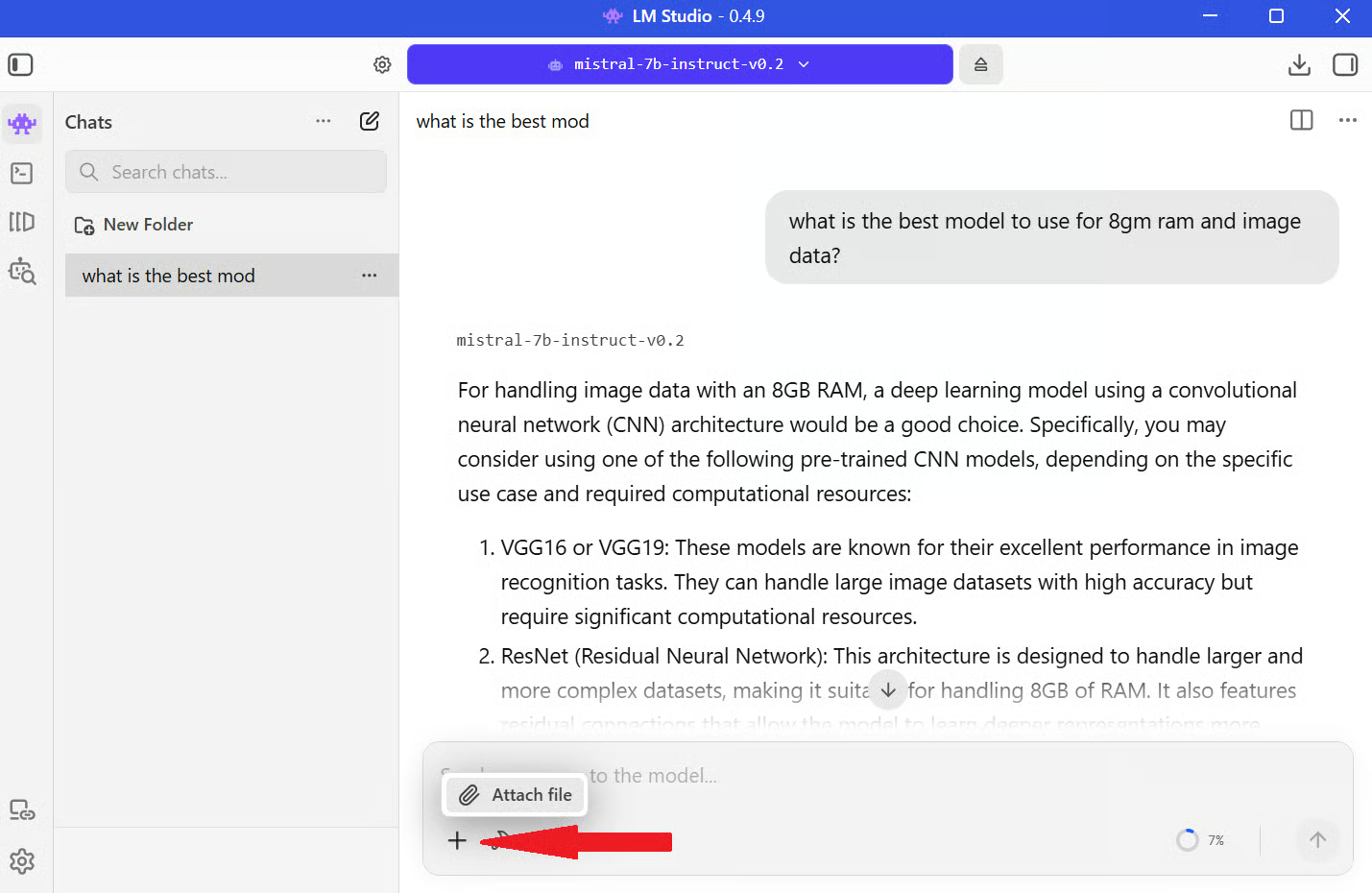
Khi tệp được thêm vào, LM Studio sẽ tự động chuẩn bị để truy vấn, bạn không cần cấu hình thủ công. Phía dưới, tài liệu được chia thành các đoạn nhỏ để mô hình xử lý hiệu quả. Các đoạn này sau đó được chuyển thành embedding là các biểu diễn số của văn bản.
Khi bạn đặt câu hỏi, LM Studio truy xuất những đoạn liên quan nhất và chuyển chúng cho mô hình cùng với câu hỏi của bạn. Nhờ vậy, mô hình có thêm thông tin từ tài liệu và phản hồi phù hợp.
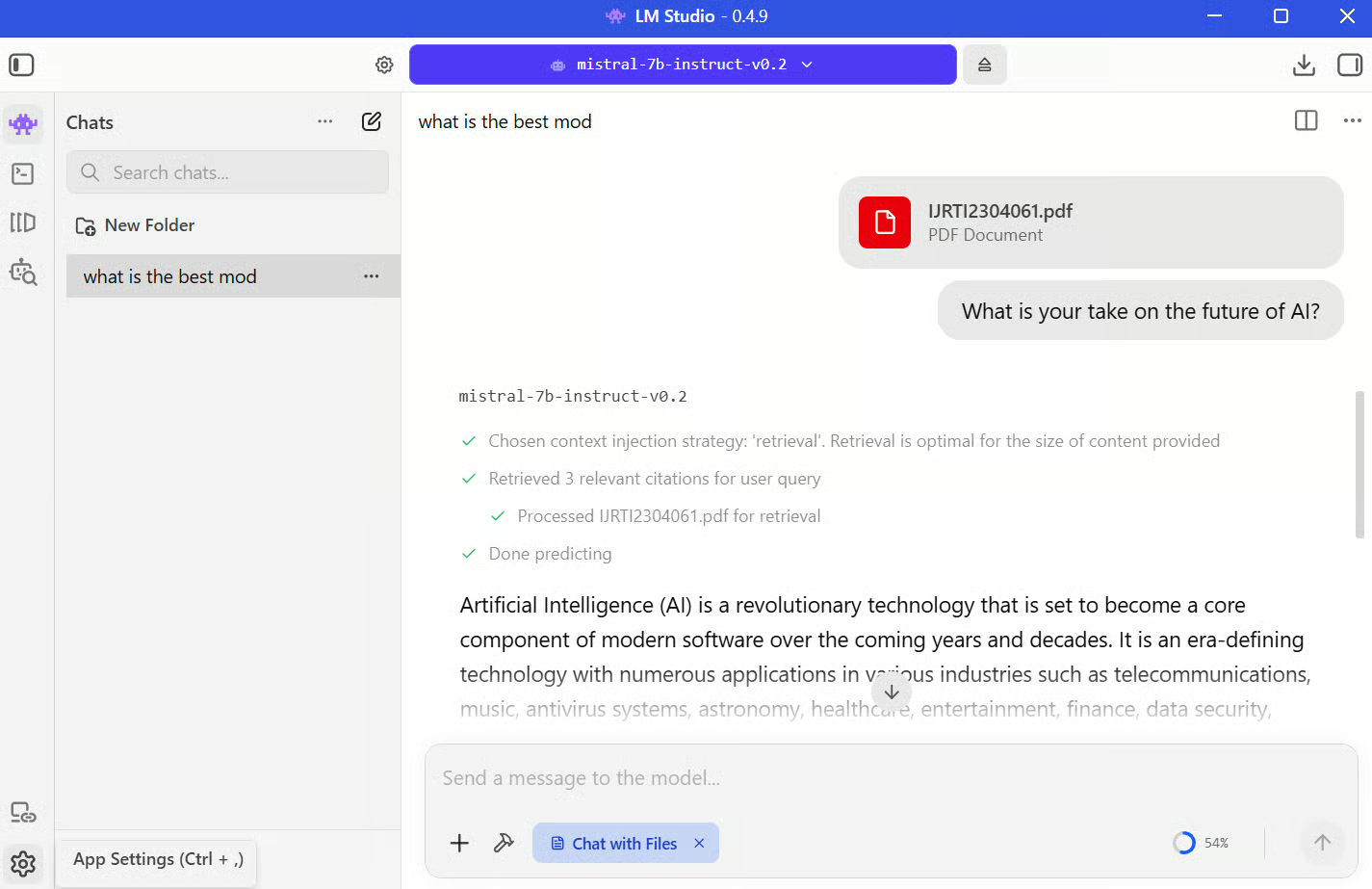
Ví dụ, tôi tải lên một bài nghiên cứu về trí tuệ nhân tạo và hỏi: “Quan điểm của bạn về tương lai của AI là gì?”
LM Studio lấy các phần liên quan nhất từ tài liệu và gửi chúng cho mô hình cùng với lời nhắc của bạn. Mô hình sau đó tạo phản hồi dựa trên cả ngữ cảnh được cung cấp và kiến thức sẵn có.
Bạn có thể thấy điều tương tự hiển thị trong hình dưới:
Có vài hạn chế cần lưu ý. Mô hình vẫn phụ thuộc vào cửa sổ ngữ cảnh, nên tài liệu rất lớn có thể không được xét toàn bộ cùng lúc. Chất lượng truy xuất cũng phụ thuộc vào cách chia đoạn tài liệu, nghĩa là đôi khi câu trả lời có thể bỏ sót chi tiết nếu phần liên quan không được truy xuất đúng.
Một trong những điều mạnh mẽ hơn bạn có thể làm với LM Studio là chạy nó như máy chủ API cục bộ. Việc này cho phép bạn dùng LLM cục bộ trong script, ứng dụng hoặc công cụ khác.
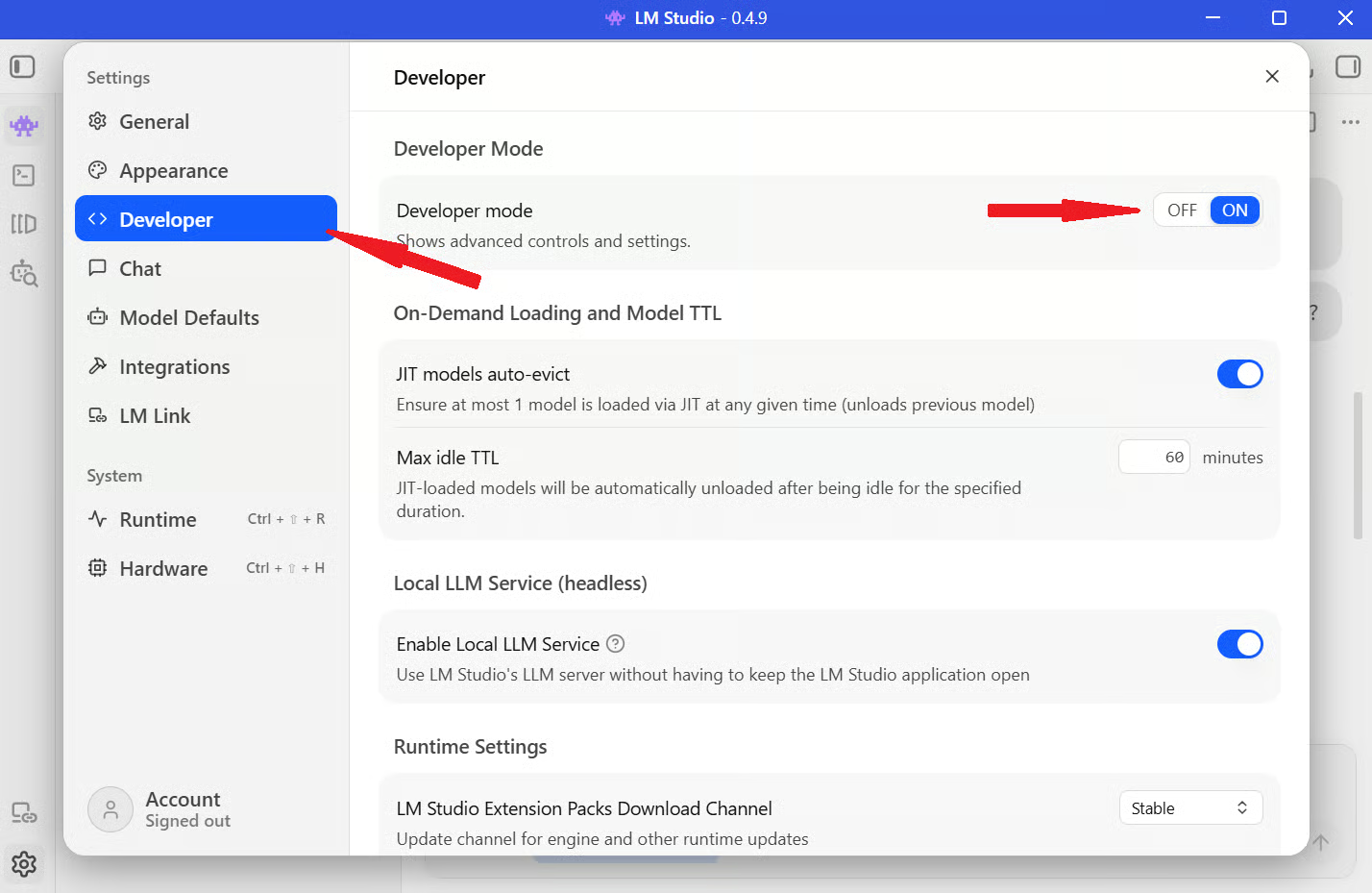
Bước 1: Để bật tính năng này, mở LM Studio và nhấp biểu tượng Settings ở góc dưới bên trái màn hình.
Bước 2: Vào mục Developer ở thanh bên trái và bật công tắc Developer Mode.
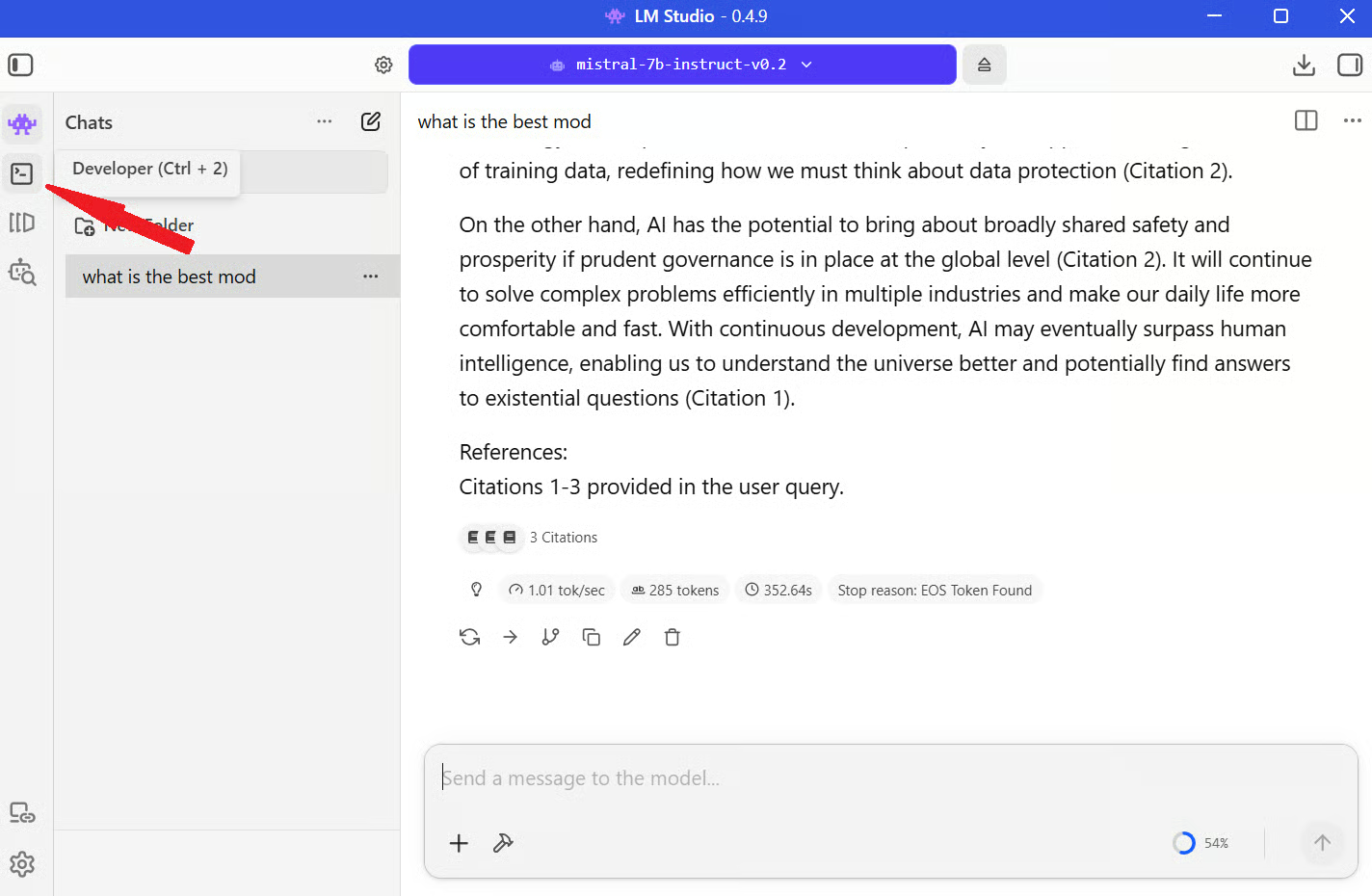
Bước 3: Quay lại giao diện chat và nhấp biểu tượng Developer ở thanh menu bên trái.
Bước 4: Bật công tắc bên cạnh Status để khởi động máy chủ, như hình dưới. Khi máy chủ chạy, bạn có thể sao chép địa chỉ máy chủ và thử với lệnh curl đơn giản:
curl http://127.0.0.1:1234/v1/models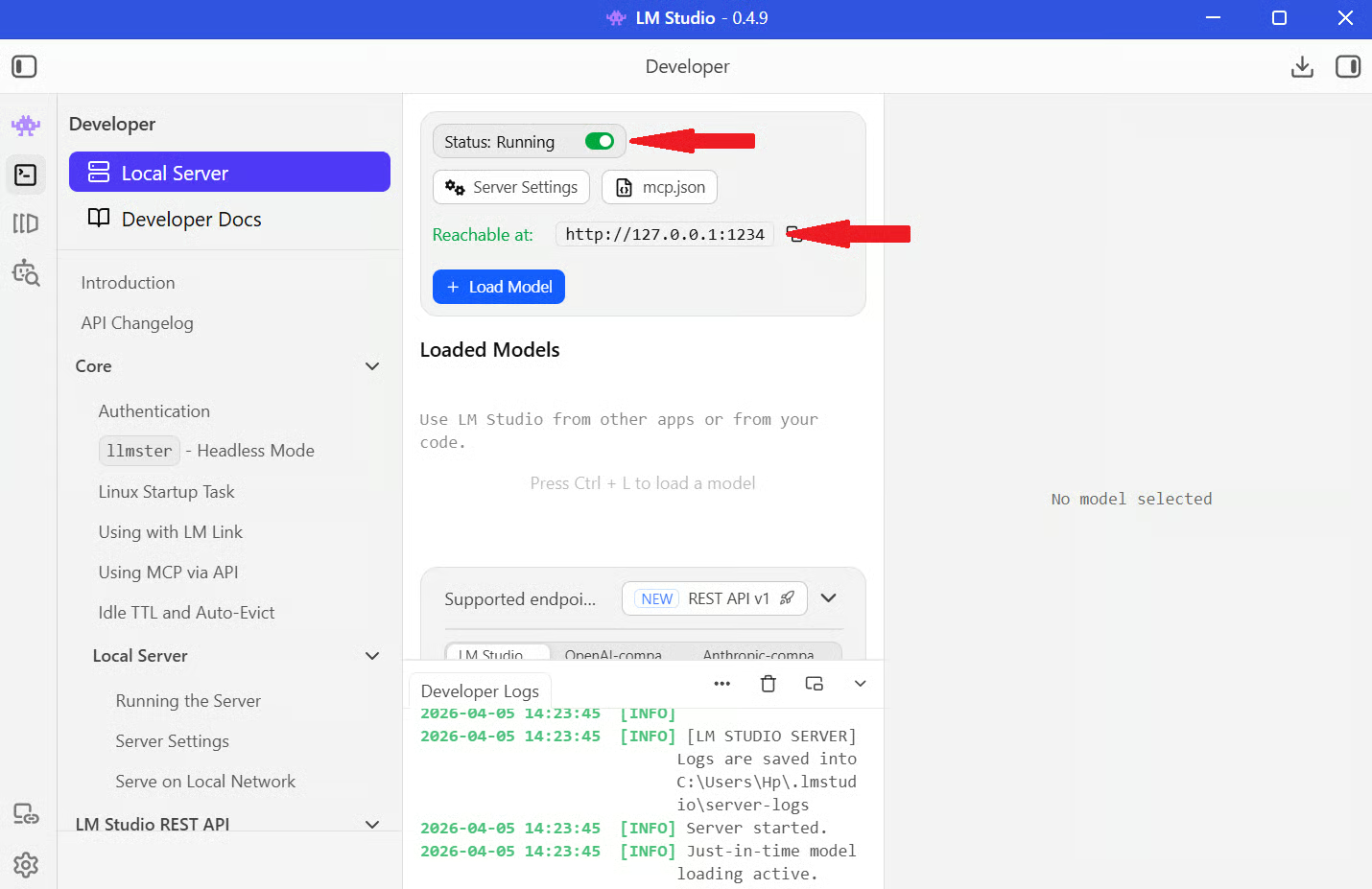
Nếu mọi thứ được thiết lập đúng, bạn sẽ thấy phản hồi JSON liệt kê mô hình sẵn có.
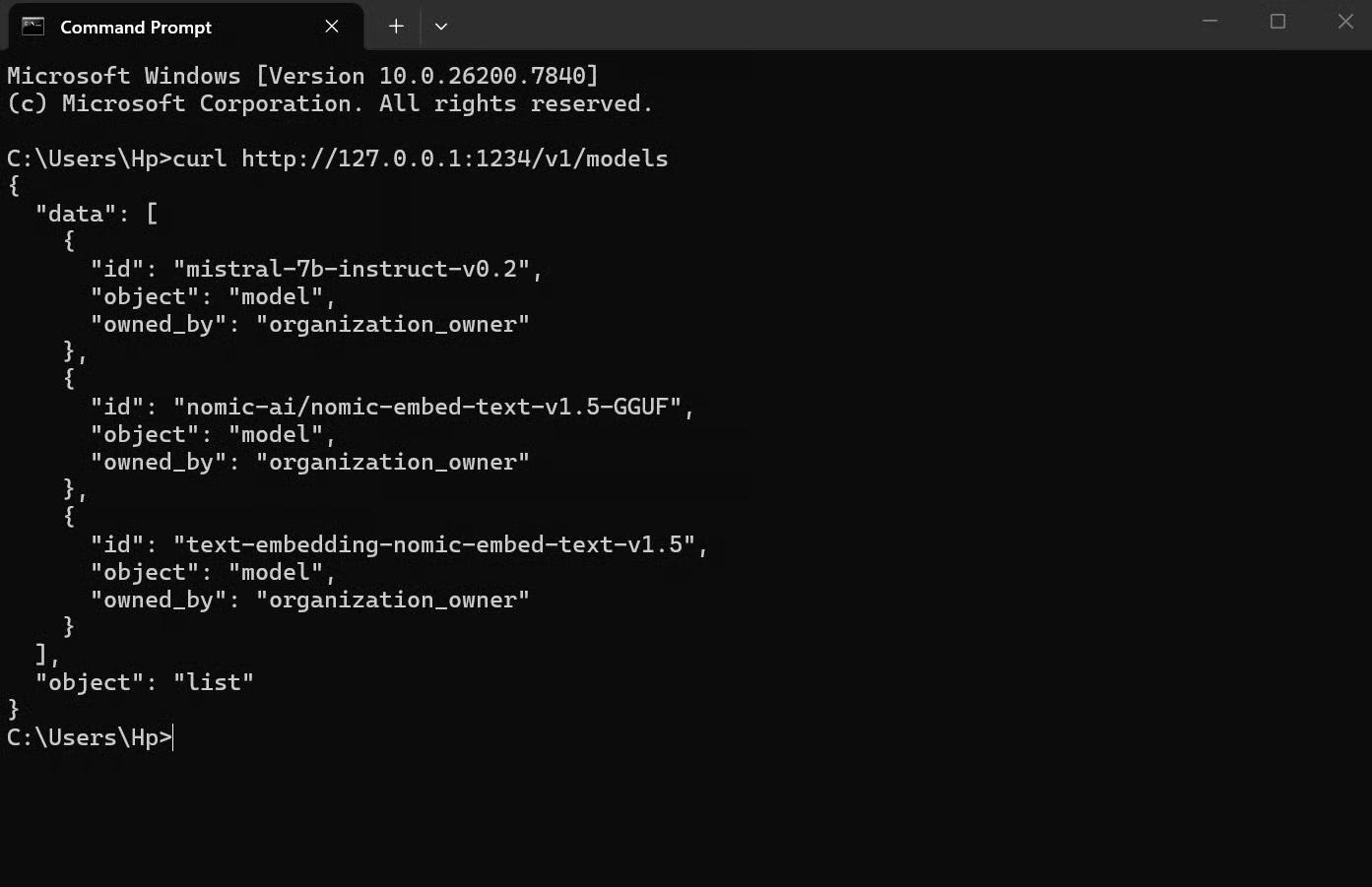
Khi máy chủ cục bộ đã chạy, bạn có thể dùng nó như bất kỳ API nào khác. Điểm khác biệt duy nhất là thay vì gọi máy chủ của OpenAI, bạn gọi chính máy của mình.
Ví dụ đơn giản:
from openai import OpenAI

client = OpenAI(base_url="http://localhost:1234/v1", api_key="lm-studio")

response = client.chat.completions.create(
    model="local-model",
    messages=[
        {"role": "user", "content": "Explain how local LLMs work"}
    ],
)

print(response.choices[0].message.content)
Diễn giải đoạn mã trên:
base_url báo cho mã dùng máy chủ LM Studio cục bộ thay vì OpenAI
api_key có thể là bất kỳ chuỗi nào (LM Studio không bắt buộc)
model là mô hình bạn đã tải trong LM Studio
messages là lời nhắc của bạn
Khi chạy, yêu cầu của bạn sẽ gửi tới “localhost:1234”, mô hình xử lý và phản hồi lại, giống như một cuộc gọi API. Điều này hoạt động vì LM Studio tuân theo định dạng API của OpenAI.
LM Studio mang đến giao diện gọn gàng, thực tế để bạn làm việc với LLM cục bộ, và bạn có toàn quyền kiểm soát môi trường. Bạn có thể chọn mô hình, cấu hình cài đặt, trò chuyện với mô hình, và thậm chí mở rộng để chạy như máy chủ API cục bộ.
Điểm nổi bật là trước đây, chạy LLM cục bộ đòi hỏi nhiều bước thiết lập và công cụ. LM Studio rút gọn thành trải nghiệm gần giống cài và dùng một ứng dụng desktop thông thường.
Nếu muốn tiến xa hơn, bước tiếp theo là học cách tích hợp các mô hình này vào quy trình thực tế. Bạn có thể khám phá các khóa học như Working with the OpenAI API hoặc các lộ trình nền tảng AI để hiểu cách cấu trúc lời nhắc, xây dựng ứng dụng và làm việc hiệu quả với mô hình.
Khóa học AI
Khóa học
Lộ trình
Luyện tập và Lộ trình tiến trình của bạn.
Tiếp Tục Với Googleblog
Matt Crabtree
10 phút
