AnythingLLM: A Complete Guide to Setup, Features, and Use Cases

Learn how to install AnythingLLM with Docker and Ollama, set up RAG pipelines for private document chat, and choose between AnythingLLM, ChatGPT, and Open WebUI.
Feb 24, 2026  · 11 min read

A common question in the self-hosted AI space is how to chat with private documents without sending them to a cloud API. 

AnythingLLM is a popular answer. It handles everything (document upload, embedding, search, and chat) in one interface and connects to a wide range of LLM providers. It lets you build private AI workflows without depending on cloud services.

In this guide, I will explain what AnythingLLM is, walk through its architecture, show you how to install it with Docker and Ollama, and demonstrate a working Retrieval-Augmented Generation (RAG) pipeline. I will also compare it against Open WebUI and ChatGPT.

What Is AnythingLLM?

AnythingLLM is an open-source application built by Mintplex Labs under the MIT license. It has an active GitHub community and frequent releases, and is widely used in the self-hosted AI space.

Here's what it does: it turns your documents into context that a large language model (LLM) can use during conversations. You upload files, the system processes and stores them, and then the LLM can answer questions based on your data. The project has grown fast, with an active Discord community and monthly updates that add new LLM providers and features.

Two things to understand upfront. First, AnythingLLM is not a model itself. It's a bridge connecting you to external LLM providers, whether local (like Ollama) or cloud-based (like OpenAI or Anthropic). 

Second, the platform organizes everything into workspaces. Think of these as separate rooms for different projects. Each workspace has its own documents and conversations that stay isolated unless you explicitly configure them to share.
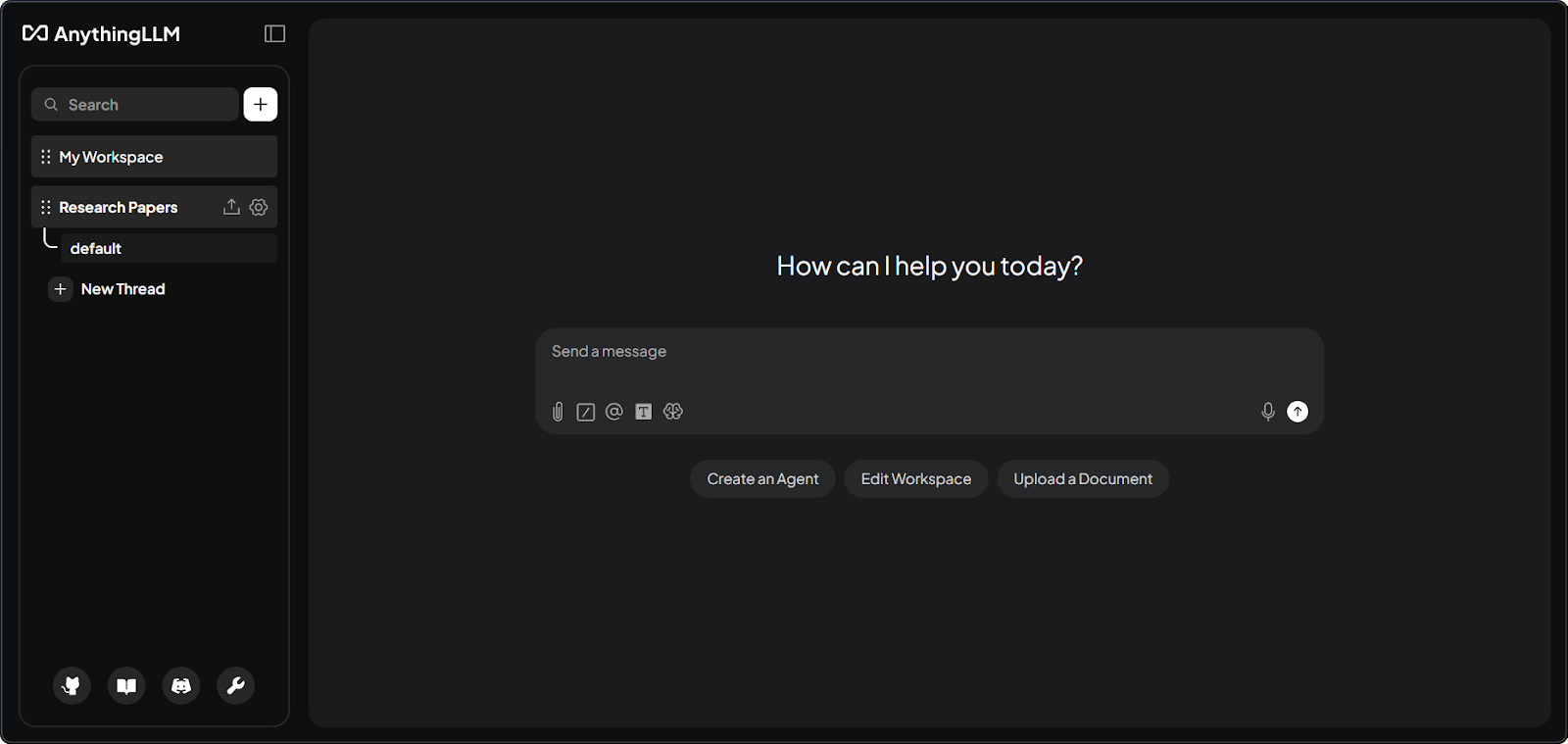
AnythingLLM workspace interface showing the chat panel and document sidebar.

AnythingLLM workspace interface with documents. Image by Author.

AnythingLLM on desktop vs. Docker

The desktop app (macOS, Windows, Linux) is for single users running everything locally. It comes with a built-in LLM engine, CPU-based embedder, and bundled LanceDB. One-click install, no configuration needed.

The Docker version is built for teams and servers. It adds proper access control with Admin, Manager, and Default roles, plus embeddable chat widgets for websites and white-labeling. If you need team access or public-facing chat widgets, Docker is your only option.

Feature

Desktop

Docker

Multi-user support

No

Yes (Admin, Manager, Default roles)

Built-in LLM engine

Yes

No (connect to external providers)

Embeddable chat widgets

No

Yes

White-labeling

No

Yes

Setup complexity

One-click install

Requires Docker knowledge

Core Features of AnythingLLM

Now that you know what AnythingLLM is and how to choose between Desktop and Docker, let's walk through the features that make it useful for document-based AI workflows.

Document ingestion

Works with PDF, DOCX, TXT, Markdown, CSV, XLSX, PPTX, HTML, 50+ code file types, and audio files (using Whisper transcription). You can also pull content directly from GitHub repos, YouTube transcripts, Confluence pages, and websites using the built-in scraper.

Vector database

LanceDB comes built in and needs zero setup. If you need enterprise features, you can switch to Chroma, Milvus, Pinecone, Qdrant, Weaviate, Zilliz, AstraDB, or PGVector.

Multiple LLM support

Supports a wide range of providers, including Ollama, LM Studio, OpenAI, Anthropic, Azure OpenAI, Google Gemini, AWS Bedrock, Groq, and DeepSeek. You pick models per workspace, so one workspace can use a local Ollama model for sensitive stuff while another uses GPT-4o through OpenAI.

AI agents

Type @agent in any chat to activate the no-code agent builder. It has built-in skills for searching documents, summarization, and web scraping. Agent Flows gives you a visual canvas for chaining together API calls, LLM instructions, and file operations. It also supports Model Context Protocol (MCP) for connecting external tools.

API access

The developer API lives at /api/docs (Swagger docs). You can programmatically manage workspaces, embed documents, and send chat messages.

How AnythingLLM Works (Architecture Overview)

The application has three parts: the frontend (React/ViteJS) gives you the interface you see and interact with. The server (Express backend) handles all the LLM interactions, vector database work, and API requests. It uses SQLite for storing configuration. The collector is a separate service that parses and processes your uploaded documents. When you upload a PDF, the collector extracts the text, then the server chunks, embeds, and stores it.

The RAG pipeline

The pipeline works in two phases.

Ingestion: Your documents go to the collector, which extracts the text. The server then splits this text into chunks (up to 1,000 characters with a small overlap to keep context). Each chunk gets converted into a vector by the embedding model, then stored in the vector database. A vector-cache/ folder reduces unnecessary re-embedding in many cases.

Query: Your question gets converted into a vector using the same embedding model. Then the system searches for the most similar chunks (usually four to six). After filtering by similarity score, the matching text gets added to the LLM prompt along with your question and chat history. The LLM reads all of this (system instructions, retrieved context, your question, and previous messages) and generates its answer.
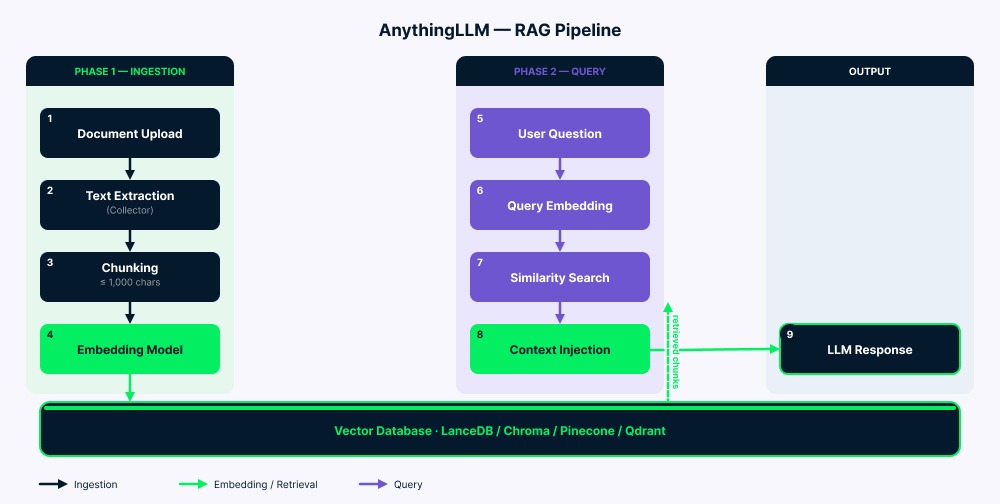
Flowchart of the AnythingLLM RAG pipeline from document upload to LLM response.

AnythingLLM RAG pipeline architecture overview. Image by Author.

Installing AnythingLLM with Docker

As you'll see in the FAQ, AnythingLLM is lightweight: around 2GB RAM, a 2-core CPU, and about 5GB of storage. Running a local LLM alongside it requires more (a 7B model typically needs 8GB+ RAM/VRAM). For this tutorial, I use a 3B model that works on limited hardware. Make sure Docker is installed and running before starting. Windows users also need WSL.

Step 1: Install Ollama and pull models

Download Ollama from ollama.com/download, then pull a chat model and an embedding model:

ollama pull llama3.2:3b
ollama pull nomic-embed-text
ollama serve

I use llama3.2:3b because it runs well on machines with limited VRAM (like an RTX 3050 with 6GB). For better quality, try llama3.2:8b or deepseek-r1:7b if your hardware allows. Check out our guide on running LLMs locally for more model options.

Step 2: Create the Docker Compose file

mkdir anythingllm-setup && cd anythingllm-setup
touch .env

Create docker-compose.yml:

services:
  anythingllm:
    image: mintplexlabs/anythingllm:latest
    container_name: anythingllm
    ports:
      - "3001:3001"
    cap_add:
      - SYS_ADMIN
    volumes:
      - anythingllm_storage:/app/server/storage
      - ./.env:/app/server/.env
    environment:
      - STORAGE_DIR=/app/server/storage
    extra_hosts:
      - "host.docker.internal:host-gateway"
    restart: unless-stopped

volumes:
  anythingllm_storage:

A few things to note about this configuration. The cap_add: SYS_ADMIN flag is required for the built-in PuppeteerJS web scraper, which uses a sandboxed Chromium browser. 

The extra_hosts line solves the most common Docker networking issue: it allows the container to reach Ollama running on your host machine. Without this, any attempt to connect to localhost:11434 from inside the container will fail because Docker containers have their own network namespace. 

I use a named Docker volume (anythingllm_storage) instead of a bind mount for better cross-platform compatibility, especially on Windows and macOS, where bind mount permissions can be problematic.

Step 3: Launch and configure

Wait about 30 seconds for the container to initialize, then open http://localhost:3001. You will see the first-run setup wizard. But first, run this command:

docker compose up -d
AnythingLLM first-run setup wizard after Docker installation.

AnythingLLM initial setup wizard on Docker. Image by Author.

During the setup wizard, select Ollama as both the LLM and embedding provider, set the base URL to http://host.docker.internal:11434, choose llama3.2:3b as the chat model, and nomic-embed-text as the embedder. Keep LanceDB as the default vector database.

Configuring Ollama as the LLM provider. Video by Author.

For the Desktop alternative, download the app from anythingllm.com. It bundles everything and works immediately with zero configuration. Ideal for personal use, but as mentioned earlier, it lacks the multi-user and enterprise features available in Docker.

Connecting LLM Providers

Beyond Ollama, you can connect cloud providers through Settings (as mentioned in FAQ 1, this is useful if your hardware is limited).

OpenAI

Pick OpenAI as your LLM provider, enter your API key from platform.openai.com, and choose a model (GPT-4o, GPT-4o-mini, etc.). Your account needs billing set up, or it won't work (and the error message won't be clear).

Anthropic

Enter your key from console.anthropic.com. All Claude models work for chat, but Anthropic doesn't have embedding models, so you still need a separate embedder like Ollama's nomic-embed-text.

Ollama configuration

If you configured Ollama during installation as shown above, you are already set. For other setups, use http://host.docker.internal:11434 on Windows/macOS, or http://172.17.0.1:11434 on Linux. If Ollama is unreachable, set OLLAMA_HOST=0.0.0.0:11434 before starting it.

Using AnythingLLM for Document Chat

Click "New Workspace" in the sidebar and name it. Upload files using the sidebar upload button or drag-and-drop.

AnythingLLM supports two document modes. Attaching (drag into chat) puts the full text into the conversation, but only for that specific chat thread. The model sees everything, but you're limited by token capacity. Embedding (the standard RAG approach) breaks the document into chunks, converts them to vectors, and stores them in the workspace. Once embedded, documents work across all your chats in that workspace. For most cases, embedding is the better choice. Click "Move to Workspace" to start the embedding process.

Uploading and embedding documents in a workspace. Video by Author.

Tuning retrieval quality

Type your question and the system automatically finds relevant chunks and sends them to the LLM. If the answers aren't good, here are the key settings to adjust:

Similarity threshold

As mentioned in FAQ 5, start with "No Restriction" if you're having issues, then gradually raise it to filter out noise.

Max context snippets

The default is four to six chunks. Bump this up to 10 or 12 for models with large context windows like Claude.

Search preference

"Accuracy Optimized" on LanceDB turns on reranking, which improves results but may introduce additional latency depending on the model and hardware.

Document pinning

Pin critical documents to skip chunking entirely. The full text gets added to every query (assuming it fits within token limits).

Document chat response with RAG context. Video by Author.

AnythingLLM vs. Open WebUI

Both tools are solid, but they're built for different users.

Dimension

AnythingLLM

Open WebUI

Primary audience

Business users, small teams

Developers, technical users

Desktop app

Yes (macOS, Windows, Linux)

No (web-based only)

Setup complexity

Desktop: one-click; Docker: straightforward

Requires Docker or server setup

RAG implementation

Built-in with multi-vector DB support, reranking

Extensive RAG, plugin-based extensibility

Multi-user

Docker only; three RBAC roles

Limited collaboration features

Plugin ecosystem

Growing; custom skills via Node.js

More mature and extensive

License

MIT

Modified BSD-3-Clause with branding protection since v0.6.6

AnythingLLM tends to fit teams that prioritize workspace management and embeddable widgets, while Open WebUI tends to fit users who want a larger plugin ecosystem and more developer-oriented extensibility. Some teams run both: Open WebUI for devs who want fine-grained control, and AnythingLLM for business users who need quick document workspaces.

AnythingLLM vs. ChatGPT

This comparison is about priorities, not which tool is "better."

Dimension

AnythingLLM

ChatGPT

Data privacy

Full ownership with local models

Data sent to OpenAI servers

Cost

Free (self-hosted); cloud from $50/month

Free tier; Plus $20/month; Pro $200/month

Customization

Any LLM, embedder, vector DB, agents

Limited to OpenAI models

Offline capability

Yes (with local models)

No

Setup effort

Requires installation

Zero setup, browser-based

Document chat

Full RAG control (thresholds, chunking, reranking)

File uploads with usage limits

ChatGPT emphasizes a fully hosted experience and strong default model quality, while AnythingLLM emphasizes privacy, flexibility, and control over RAG settings. You can also connect GPT-4o to AnythingLLM via the OpenAI API. That gives you ChatGPT-quality models with AnythingLLM's workspace and RAG features.

AnythingLLM Use Cases

Here's where AnythingLLM works best:

Internal knowledge bases

Employees can ask questions about company docs instead of digging through folders. Upload your policies, procedures, and documentation, then let people search in natural language.

Research workflows

Academics can search across hundreds of papers instantly. Embed your research library and surface relevant findings without manual keyword searches.

Private enterprise deployments

Healthcare, finance, and legal teams can use AI while keeping all data on their own servers. Common in regulated industries where data must stay on-premises.

Developer testing

Try different LLMs (Ollama, OpenAI, Claude) on the same documents by switching models per workspace. No infrastructure changes needed.

Customer chat widgets

Embed a chat interface on your website using Docker. Configure domain allowlists and per-session limits for public use.

Meeting transcription

The Meeting Assistant feature works like cloud note-taking tools but runs locally. Requires around 16GB RAM for smooth operation.

Limitations

As discussed earlier, Desktop and Docker have different features, which confuse new users. 

RAG quality needs tuning (I covered the main settings earlier) because the similarity search is math-based and doesn't truly understand the meaning. 

The plugin system is smaller than Open WebUI's, and building custom agent skills requires knowledge of Node.js. 

Finally, there's no built-in fine-tuning. You can only customize through system prompts, temperature, and token limits.

AnythingLLM Security and Privacy

Local deployment keeps all data on your device. (I have more details in the third FAQ down below.) When using cloud providers, only prompts and retrieved context are sent during inference. Vectors and embeddings stay on your server. Be deliberate about which workspaces use cloud versus local models.

The Docker version includes Simple SSO via SIMPLE_SSO_ENABLED, which creates temporary access tokens. API keys give full access with no granular permissions, so treat them like admin passwords and change them regularly. If you expose AnythingLLM to the internet, put an Nginx reverse proxy with SSL in front of it (the app doesn't handle HTTPS on its own). Telemetry can be disabled with DISABLE_TELEMETRY=true in your .env file.

Conclusion

AnythingLLM solves a real problem in the self-hosted AI space. It gives you an interface for chatting with your documents, connects to almost any LLM provider, and keeps your data under your control. As discussed earlier, pick Desktop for personal use or Docker for team deployments.

Like any tool, it has trade-offs. RAG quality depends on how you configure it, and the Desktop/Docker feature differences can confuse newcomers. 

As a next step, check out our AI Fundamentals track or our tutorial on building local AI with Docker and n8n.


Khalid Abdelaty's photo
Author
Khalid Abdelaty
LinkedIn

I’m a data engineer and community builder who works across data pipelines, cloud, and AI tooling while writing practical, high-impact tutorials for DataCamp and emerging developers.

FAQs

Can I run this on my old laptop without a GPU?

Yes! AnythingLLM itself is lightweight: around 2GB RAM, a 2-core CPU, and about 5GB of storage. The heavy part is running the LLM locally through Ollama. If your hardware is limited, connect to a cloud provider like OpenAI or Groq instead. You get the same workspace and RAG features, but inference happens in the cloud. In other words, AnythingLLM manages the workflow, and you choose whether the model runs locally or in the cloud.

What happens if I change my vector database later?

Plan ahead on this one. There's no automatic migration between vector databases. Switching from LanceDB to Pinecone means re-embedding all documents. Your original files stay safe, but the vectors need regenerating. Practical note: stick with LanceDB unless you have a specific enterprise need. It is typically low-configuration and suitable for many small-team deployments.

Is my data really private if I use OpenAI for the LLM?

Here's the key point: your documents and embeddings never leave your server. But when you ask questions, the retrieved text chunks and your prompt are sent to OpenAI's API for inference. For truly sensitive data, use Ollama instead. Everything stays local. For general work docs, AnythingLLM with OpenAI is still more private than uploading files directly to ChatGPT.

Can my team share one AnythingLLM setup?

Yes, but only with the Docker version. It supports multi-user with three roles: Admin, Manager, and Default. The Desktop app is single-user only. Important: multi-user mode is designed as a one-way configuration change. Decide if you need team access before enabling it.

Why does it sometimes ignore my documents when answering?

Usually three reasons: similarity threshold too high, vague queries, or non-English documents with the default English embedder. Quick fix: try "No Restriction" on the threshold first. If your docs aren't in English, switch to a multilingual embedding model available in Ollama (for example one of the e5-based models) for much better results.

Topics

Learn with DataCamp

Course

Understanding Artificial Intelligence

2 hr
380.5K
Learn the basic concepts of Artificial Intelligence, such as machine learning, deep learning, NLP, generative AI, and more.
See DetailsRight Arrow
Start Course
See MoreRight Arrow
Related

Tutorial

Docker Ollama: Run LLMs Locally for Privacy and Zero Cost

Set up Ollama in Docker to run local LLMs like Llama and Mistral. Keep your data private, eliminate API costs, and build AI apps that work offline.
Dario Radečić's photo

Dario Radečić

Tutorial

RAG With Llama 3.1 8B, Ollama, and Langchain: Tutorial

Learn to build a RAG application with Llama 3.1 8B using Ollama and Langchain by setting up the environment, processing documents, creating embeddings, and integrating a retriever.
Ryan Ong's photo

Ryan Ong

Tutorial

vLLM: Setting Up vLLM Locally and on Google Cloud for CPU

Learn how to set up and run vLLM (Virtual Large Language Model) locally using Docker and in the cloud using Google Cloud.
François Aubry's photo

François Aubry

Tutorial

LiteLLM: A Guide With Practical Examples

Learn what LiteLLM is and how to use it for unified API calls to various LLM providers, covering basic API usage, error handling, fallbacks, streaming, structured outputs, and cost tracking.
Bex Tuychiev's photo

Bex Tuychiev

Tutorial

How to Set Up and Run Gemma 3 Locally With Ollama

Learn how to install, set up, and run Gemma 3 locally with Ollama and build a simple file assistant on your own device.
François Aubry's photo

François Aubry

Tutorial

How to Run Llama 3 Locally With Ollama and GPT4ALL

Run LLaMA 3 locally with GPT4ALL and Ollama, and integrate it into VSCode. Then, build a Q&A retrieval system using Langchain and Chroma DB.
Abid Ali Awan's photo

Abid Ali Awan

See MoreSee More