
Cursus
Principes fondamentaux des agents IA
6 h
Meta Muse is a personal AI agent that completes tasks on its own cloud computer rather than answering questions in a chat window. Meta launched it on September 8, 2026, and our Meta Muse explainer offers a full tour. Here is only what you need to know to follow the steps below.
Muse runs on Muse Spark, the model family from Meta Superintelligence Labs. The newest Spark release is Muse Spark 1.3 from September 2, which Meta ships in Muse Code and the Meta Model API; Meta has not said which Spark version the agent itself uses. As of October 20, 2026, Meta's newest models are Muse Wonder and Muse Wonder Full, released October 12 through the Meta Model API and Muse Code, and Meta says Muse Wonder "will soon power experiences in Muse," rolling out to subscribers first.
Three facts about how it runs matter for everything that follows:
You can reach the same agent from 4 surfaces:
Meta said at Connect 2026 that Muse is coming to Meta's AI glasses "in the coming months" and that Muse will get its own email address. Meta's posts don't give a firm date for either, and nothing in this guide depends on those. As of October 20, 2026, a native Windows app is also announced but not released: Microsoft said at its October 7 Windows and Surface event that Muse is "coming soon" to Windows, with no date.
The free tier covers every task in this guide. Meta sells 2 paid plans, Power at $20 per month and Maximum at $100 per month, and both are larger weekly allowances of "Muse tokens" (500M and 3B per week) rather than feature unlocks. As of October 20, 2026, Meta has also said the Muse Wonder model will reach the Muse app for paying subscribers first, so the plans may soon differ by model as well as by allowance.
Meta's help pages describe the free tier only as "available for free with a usage limit." The 100M tokens per week figure you will see quoted traces to Mark Zuckerberg's launch-day post on X, not to Meta's documentation, so treat it as a statement of intent rather than a published quota. You can see where you stand under Settings > Usage (Menu at the top left on mobile, bottom left on the web), and Muse will also tell you in chat.
The rest of the entry requirements, as of October 26, 2026:
Setting up Muse safely means choosing permissions first and connecting apps second, and most guides get that order backward. A connector is Meta's name for a linked account such as Gmail, and a permission setting decides whether Muse acts or asks when a connector gives it something to act on.
Muse offers 2 settings, "Always ask" and "Ask for some actions," and the difference is what each one lets happen without you. Meta documents both, and "Ask for some actions" is the default.
Open Settings > Permissions and set both the Connectors default and the Web access default to "Always ask" before anything is connected. An agent with live connectors and loose permissions can act before you have any feel for how it behaves. Under the default, Muse decides for itself which reads count as "important," and you would rather learn where it draws that line from an approval card than from the Activity log after the fact.
The table compares the 2 settings in the 2 places they apply: connectors (actions in apps like Gmail or Calendar) and the web (sites Muse opens).
|
Setting |
On connectors (Gmail, Calendar) |
On the web |
|
Always ask |
Muse asks before any action, reads included |
Muse asks before opening any website |
|
Ask for some actions (default) |
Muse asks before every write and before important reads; routine reads proceed |
Muse asks only when your information may be shared or the site is unfamiliar |
"Always ask" is noisier. For your first 3 or 4 tasks, that noise is the training data you need, because each card tells you exactly what Muse wanted to do and why. Loosen it later, one connector at a time, once the cards stop surprising you.
Connect exactly 1 account. There are 2 routes, and both end at the same authorization screen.
Read the information screen slowly, because it tells you what you are granting. Connecting email lets Muse search your inbox; Meta states it will not download the whole inbox unless you tell it to. Meta also says many connectors can be limited, so Muse only retrieves data and cannot act, for example, by sending a calendar invite.
The help page does not say which connectors offer that limit, so pick the read-only option if your Gmail or Calendar screen shows it. You can widen access later and disconnect any connector at any time in Settings > Connectors. Meta notes that information Muse already gathered may stay in its memory and chat history after you disconnect.
One thing the screen will not tell you: a read-only Gmail connector is still a full read of your correspondence, filtered only by what Muse searches for. That is fine for an expense audit. It is a different decision for an inbox that holds client contracts or medical results, which is why I would start with a personal Gmail, not a work one.
The app is organized around a few places, and knowing where each one lives saves a lot of tapping. Meta's getting-started page documents the Chat and Library tabs, and Meta's data help page mentions the Goals tab and the memory file.
|
I want to... |
Where it lives |
|
Talk to Muse or give it a task |
Chat tab |
|
Run a project without cluttering the main chat |
Side chat: menu icon at top left, then the pencil-and-note icon |
|
Open a file Muse produced |
Library tab |
|
Browse suggested tasks |
Ideas section |
|
See reminders and scheduled tasks |
Assistant icon at the top, then Upcoming |
|
Track a long-running project |
Goals tab |
|
See what Muse did and what I approved |
Assistant icon, then Activity log |
|
Change permissions or connectors |
Menu, then Settings > Permissions or Settings > Connectors |
|
Turn off model training or download my data |
Menu, then Settings > Data controls |
|
Read or edit what Muse remembers |
Assistant icon, then Identity > Memory |
Two of these earn their place immediately. Side chats keep a multi-step project out of the main thread, and the Assistant icon is the front door to the Activity log, which is where Step 4 happens.
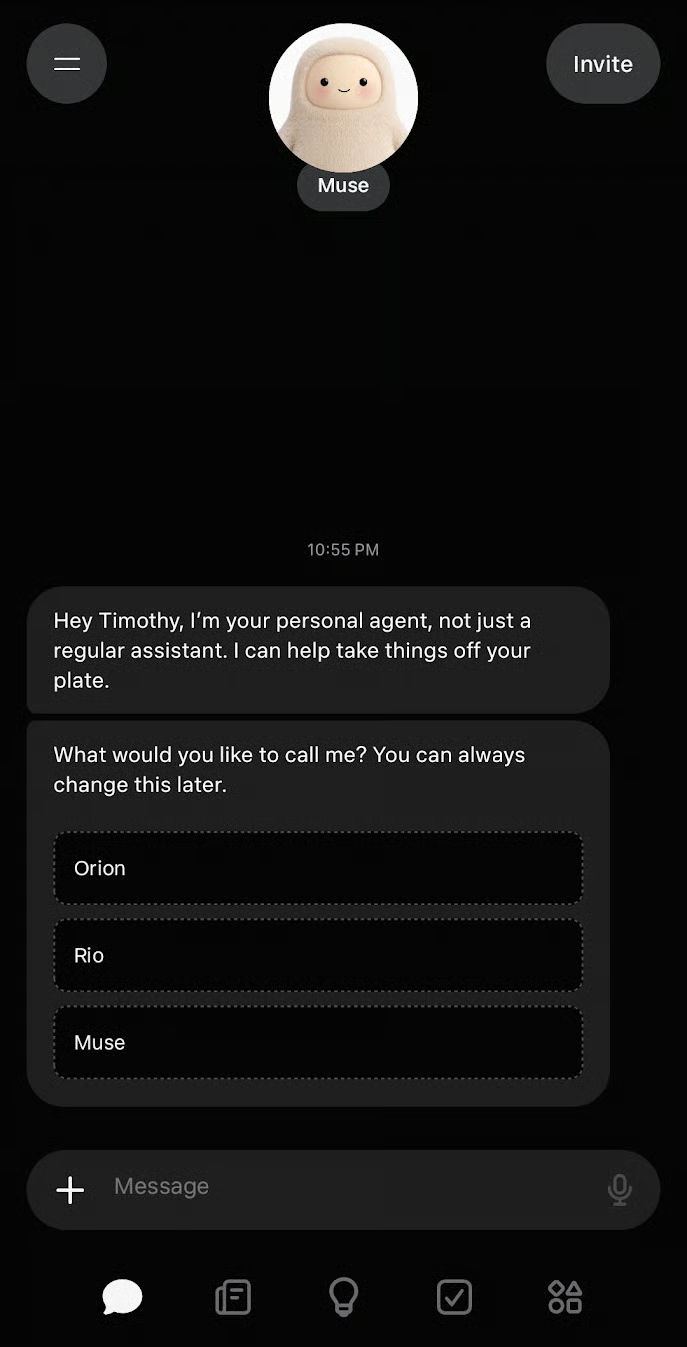
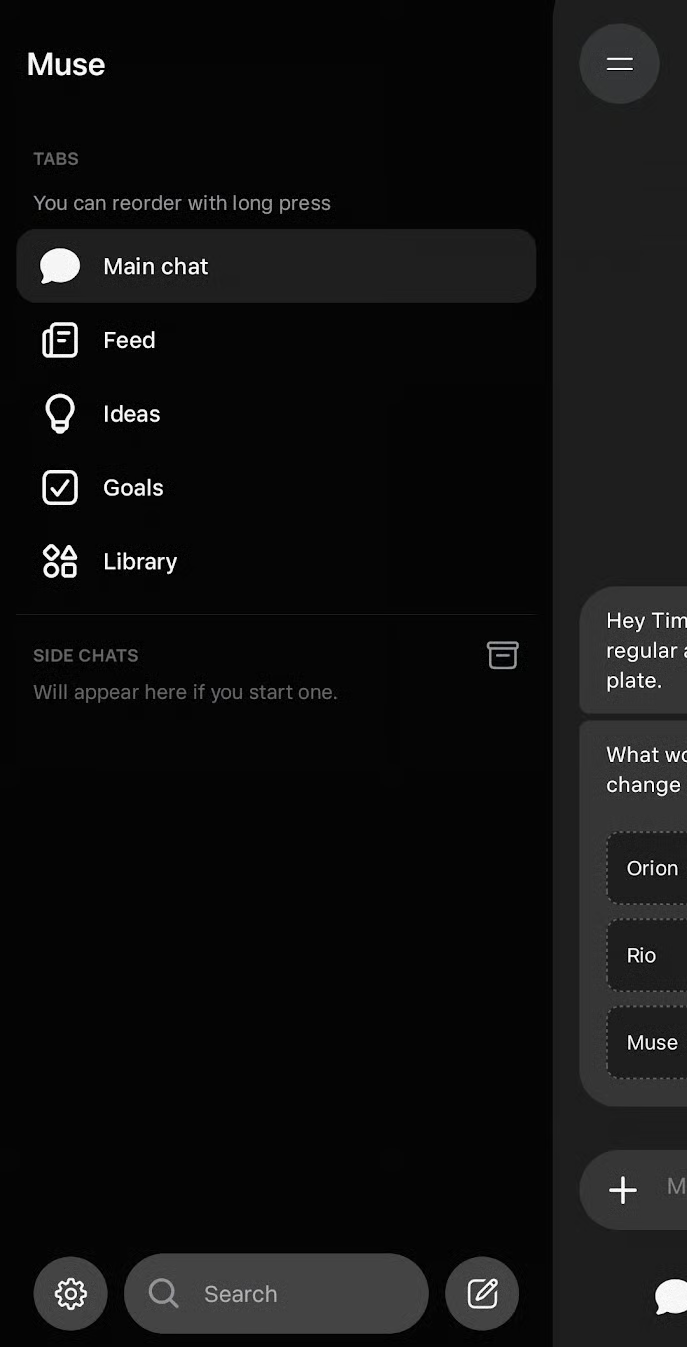
Muse’s main window and side bar with extra options
A task Muse can complete is one that meets 3 conditions, and I find the test more useful than any list of prompts to copy:
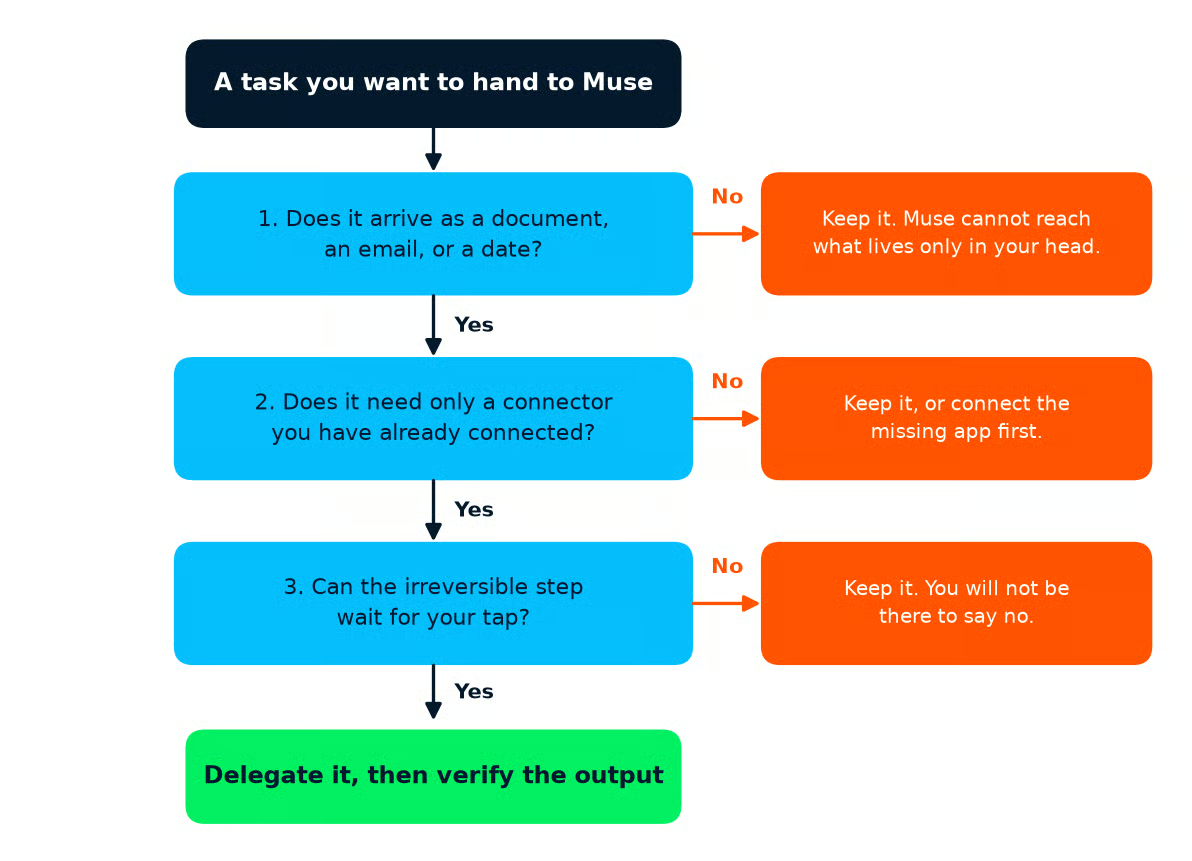
The 3-condition test for handing a task to Muse. Any "no" means you keep the task, at least for now. Image by author.
Here is a task that passes: a freelancer wants a spreadsheet of business expenses for the quarter, built from the receipts in Gmail, with duplicates flagged. The receipts arrive as emails, Gmail is the 1 connector already attached, and there is no irreversible step at all because the output is a file. This is the running example for the rest of the guide, and I picked it because the output is checkable against a card statement.
Let’s contrast it with a bad example. "Dispute the duplicate charge with my bank" arrives as a date on a statement, but the bank login needs a two-factor authentication (2FA) code Muse cannot receive, and the dispute itself is the irreversible step, executed inside a session you would have to hand over. Conditions 2 and 3 both fail, and the 2FA wall can’t be fixed by permission settings.
A request that works states 4 things:
A vague request leaves gaps; Muse fills each gap with a judgment call, and every judgment call is something you did not ask for. Here is the expense audit both ways.
|
Version |
Request |
|
Vague |
Sort out my business expenses for the quarter. |
|
Scoped |
Build a spreadsheet of my business expenses from July 1 to September 28, 2026. Use only receipts and invoices in my connected Gmail; do not open any website or log in anywhere. One row per receipt with date, vendor, amount, and one of these categories: software, travel, equipment, other. Flag any vendor that appears more than once in the same month. Do not send, reply to, archive, or delete any email. Save the sheet to my Library and stop; ask me before doing anything else. |
Read the scoped version against the 4 parts.
Each addition is doing work: "do not open any website" removes the judgment call of clicking a "view receipt" link, and the fixed category list removes the judgment call of inventing categories you will then have to reconcile.
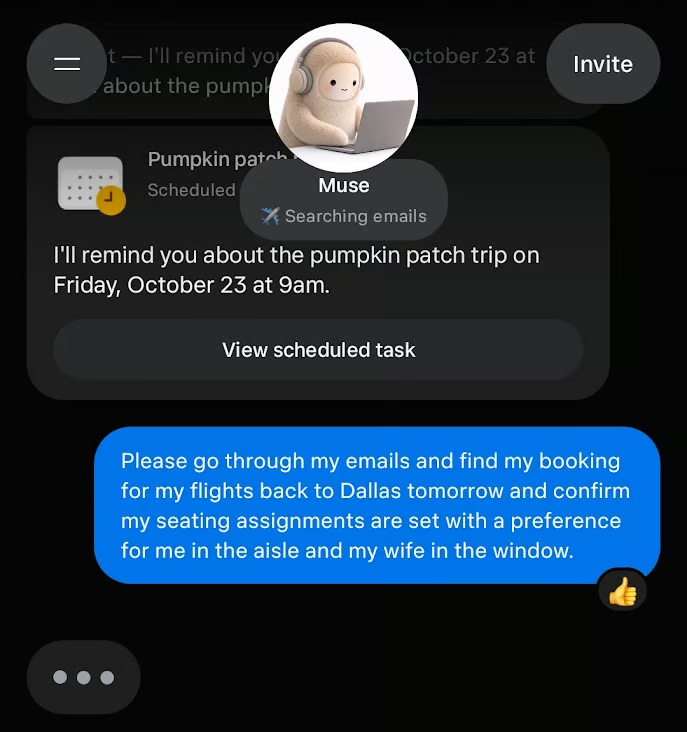
Example task of asking Muse to help me handle flight seat selection
Three kinds of tasks look delegable and are not, and each maps to a condition in the test.
Running a task means sending the scoped request, answering the approval cards one at a time, and knowing which of the 3 browser controls to reach for.
Start a side chat for the expense audit so the run stays in one thread, paste the scoped request, and watch the first card arrive. With "Always ask" set, expect the first card to ask to read your Gmail before Muse has done anything.
When your own expense sheet comes back, these are the errors I would look for first:
None of these are exotic, and all of them are exactly the rows Step 4 teaches you to check first.
Now the approval card. Open "See task details" first, every time, because it shows what Muse is about to do before you decide. Then pick from the 5 options, which Meta defines as follows.
|
Option |
What it grants |
|
Allow once |
Muse proceeds this one time |
|
Allow for this task |
Muse can take this type of action for the entire task |
|
Allow for this site |
Muse can take this type of action on this website without asking again |
|
Always allow |
Muse can take this type of action for this connector without asking again |
|
Deny |
Muse does not proceed this one time |
"Always allow" is where people lose the thread. It is a standing grant on a connector that survives the task, and it removes the one moment where you would have noticed a request that did not match your intent.
The narrow case where it is reasonable is a read action on a connector limited to retrieving data, such as reading your calendar, because the worst outcome is that Muse reads more of something it cannot change. For the expense audit, "Allow for this task" on Gmail reads is the right answer, and "Allow once" for anything that surprises you.
Muse browses out of your sight by default, and Meta's browsing help page gives you 3 controls in chat.
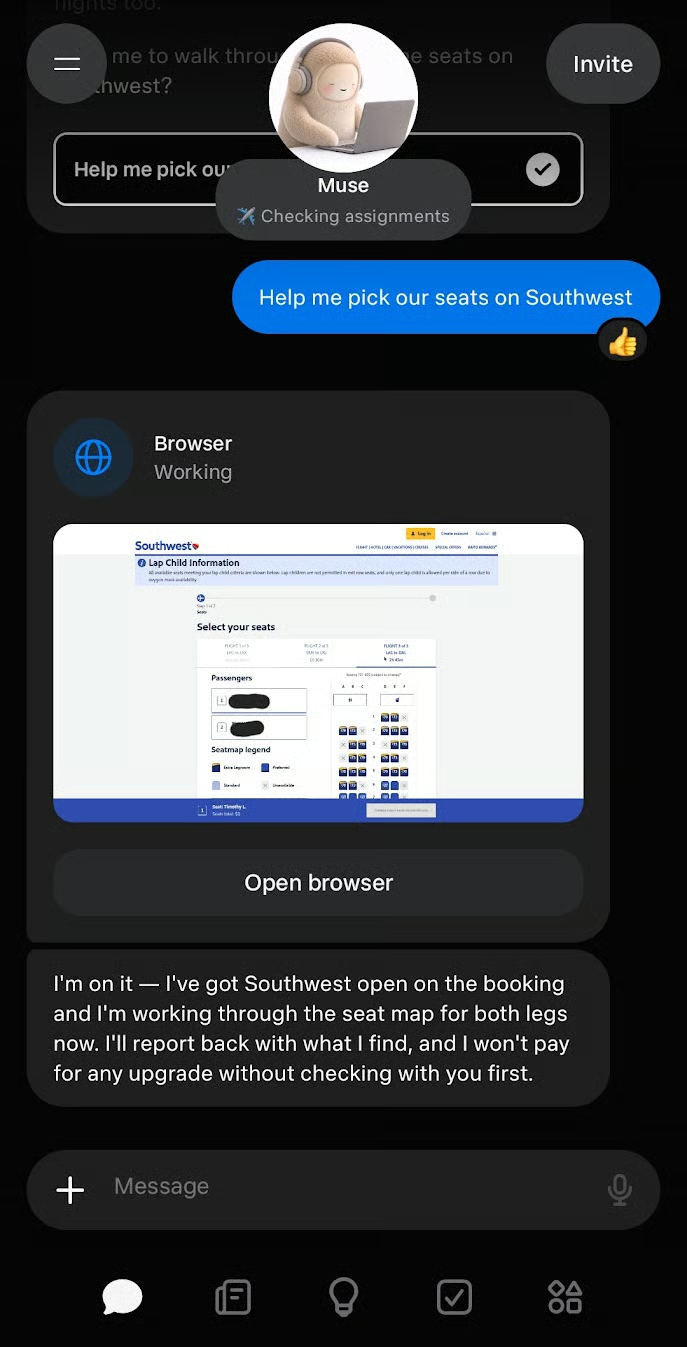
Muse going through the task on its own browser to help me pick some seats
Each control is the right move at a different moment:
Files land in the Library tab, and reminders land under the Assistant icon's Upcoming section. The expense sheet will appear in the Library as a spreadsheet artifact, and Meta's artifacts help page lists XLSX and CSV among the spreadsheet types Muse works with.
Revise the file instead of starting over. Ask in the same side chat for the change you want, such as "Add a total row at the bottom" or "Move the July 14 Adobe row to software," and Meta says Muse will apply the edits and confirm what changed. Starting a fresh request means a fresh read of your inbox and a fresh set of judgment calls, which is a second run to verify.
The Activity log is a chronological record of every action Muse took and every permission you gave, and it is the reason you can trust a file you did not build. Tap the Assistant icon and open the Activity log for the expense run. Then read it with one question in mind: where does what Muse did differ from what I assumed it did?
Two direct checks belong in every verification, and both are questions you type in chat:
The gap between intent and action shows up as a log line you did not ask for. I would expect it to take one of 3 shapes:
None of these is malicious, and each is a judgment call. The scoped request forbade the first 2, so they are violations to correct in Step 5, while the third tells you the request needs a rule about thresholds. Whichever you find, quote that log line when you re-scope.
You cannot re-do 40 rows by hand, so check the 3 rows most likely to be wrong and reconcile 1 total. The rows are the largest amount on the sheet, any row Muse put in "other," and any vendor it flagged as appearing twice in a month. The total is the quarter's sum against your card statement for the same window.
If the 3 rows and the total hold, accept the sheet. When 1 row is wrong, ask Muse to fix it and check 3 more of the same kind. A total that is off by more than 1 or 2 receipts' worth means the run failed, and the next step should be diagnosis.
A run that went wrong is diagnosed from the log, because the output only tells you the result was wrong, and the log tells you where. Say the sheet comes back with 14 rows when you know the quarter had close to 40 receipts. Open the Activity log and look for 1 of 3 causes.
Real runs fail this way too. Slate's reviewer asked for a calendar event at "10 a.m. tomorrow" and got one 2 hours and 40 minutes in the past, the kind of error an absolute date and time zone in the request leaves no room for. CNN's reviewer got 2 restaurants that had been closed for years, a stale-source failure that a line like "confirm each place is open today" would have caught.
Here is the re-scoped expense request, with only the lines that changed. The rest of the request is the scoped version from Step 2.
|
Change |
New line in the request |
|
Wrong scope |
Search for receipts, invoices, order confirmations, and "your order" emails, not just the word "receipt." |
|
Missing connector |
Also search the forwarded receipts in the label "Receipts-2nd-account," which I will set up before you start. |
|
Blocked step |
If an email has no amount in the body, do not open the link. Add the row with the amount blank and list it at the bottom as "needs manual check." |
The second run should come back with more rows and a "needs manual check" list, and the check list is the point. A run that reports what it could not do is a run you can finish by hand in 10 minutes. A run that silently skips is one you cannot trust.
That is the full loop: scope the task, run it one approval card at a time, verify it in the Activity log, and correct it from the log line where intent and action parted. Then scope again with what you learned.
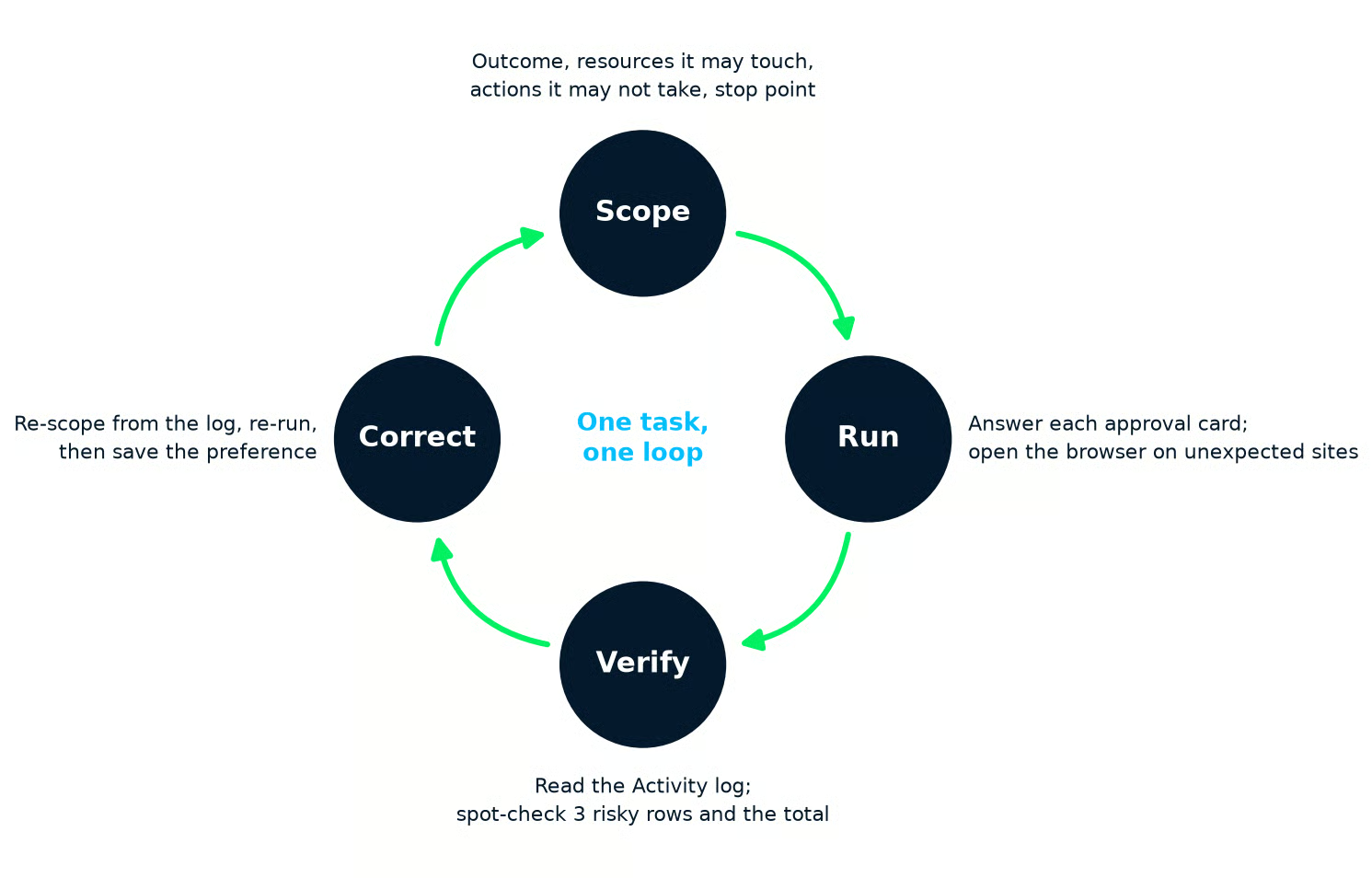
The loop this guide teaches: scope, run, verify, correct, then scope again with what you learned. Image by author.
Muse turns your corrections into memories it carries into later chats: Meta's customization help page suggests feedback as short as "too long" or "be more casual," and Muse builds memories partly from the preferences it observes.
A rule like "only search my email, not my messages" works the same way. After the second run, tell Muse: "From now on, when you build an expense sheet, use these 4 categories, list anything you could not read at the bottom, and never open a link to get an amount."
Then check what it actually remembers, because a memory is a claim about you that Muse will act on. Open the Assistant icon, then Identity > Memory, where Meta exposes the memory file for direct editing, or ask in chat "What do you remember about how I want expense reports formatted?"
If a memory is wrong or stale, ask Muse to forget it, and confirm in the file that it did.
Some tasks stay with you no matter how well the last run went. Here is where I draw the line:
A read action, such as searching your inbox, is recoverable: the worst outcome is that Muse saw something. A write action, such as sending an email, may not be recoverable at all. Meta’s own help page says you can ask Muse to undo some actions, but logically, something like a sent email cannot be reversed.
So writes with no undo need a tap every time, no matter how many times the previous tap went fine. The approval card is the only moment you see the action before it happens.
Keep these out of scope until the product has a longer track record, since Muse has only been public since September 8. The connector list won’t stop you. Apple Health already puts health data on it, and the payments help page states that you are responsible for every transaction Muse makes on your behalf.
Work accounts have their own route. Meta added Muse for Small Business on September 29, with business connectors such as QuickBooks, Slack, and Shopify. If you want Muse on a company account, start there with your employer’s sign-off rather than with the personal agent you set up here.
Each of these has already happened to a real agent, and each has a defense on your side.
|
Risk |
What happened |
What you do |
|
A lost confirmation rule |
In a February 2026 incident, Summer Yue, director of alignment at Meta Superintelligence Labs, told her OpenClaw agent to “confirm before acting.” It deleted more than 200 emails anyway, after compaction (summarizing older context to free up space) dropped the rule. |
Rely on permission settings, not on instructions you type in chat. |
|
Prompt injection |
Web pages can carry hidden text written to hijack an agent, and Muse reads every page it visits. |
Give Muse no websites the task doesn’t need. |
|
A local exploit on the Mac app |
On September 21, researcher Patrick Wardle showed that code already on a Mac could redirect Muse’s dictation traffic and act with your granted access. Meta hotfixed it the next day. |
Keep the app updated, and leave each app on “Read only” until a task needs more. |
Two caveats on the Yue story. It is a self-report with no independent review, and OpenClaw has a very different permission model from Muse. Muse routes permission checks through Sentinel, a separate agent outside the model that Meta’s safety write-up describes as the sole authority over connector actions and network access.
The lesson transfers anyway: a rule that lives only in the conversation can be lost. On prompt injection, Meta cites classifiers, model training, and limits on what Muse can reach, and Muse Spark 1.3 claims improved resistance. Our OpenClaw security guide covers general agent hardening, and our prompt injection explainer covers the attack itself.
Each connected app is a standing grant, so review them on a schedule rather than when something goes wrong:
Meta Muse and Claude Cowork solve the same delegation problem from opposite ends:
That difference decides which one fits a given task more than any benchmark does. Here is the comparison that matters for a first-time user:
|
What matters |
Meta Muse |
Claude Cowork |
|
Where the agent runs |
Its own VM in Meta's cloud, where it also browses |
Anthropic's cloud, reaching your local files and browser through the Claude desktop app |
|
Price to start |
Free tier with a weekly usage limit |
Paid plans only, from about $20 per month |
|
Permission model |
"Always ask" or "Ask for some actions," plus 5 approval scopes per card |
Manual, Auto, or Skip modes |
|
Surfaces |
iPhone, iPad, Android, muse.ai, WhatsApp, Mac; a native Windows app announced October 7, not yet released as of October 20, 2026 |
Inside the Claude app on macOS, Windows, web, and mobile, plus the Chrome side panel |
|
Fits best |
Tasks that live in email, calendar, and the web |
Tasks that live in folders on your machine |
If the task starts in Gmail and ends in a file, as the expense audit does, Muse's model is the simpler one, and the free tier means you can find out for nothing.
If the task starts in a folder of PDFs on your laptop, I recommend reading our Claude Cowork tutorial and using Anthropic’s tool instead of Muse.
And if you have used OpenAI's agent, our ChatGPT Agent guide covers its variant, which also works from its own virtual computer with a browser and will feel familiar after this guide.
The expense audit was the example, but the loop works the same for a packing schedule, a subscription cull, or a week of calendar triage. Scope it with the 4 parts, approve one card at a time, spot-check 3 rows and the total, and fix the run from the log rather than the output.
What changed with agents is where the skill sits. Writing a good prompt mattered when software returned words. But now that software acts, the skill is defining a task tightly enough that the judgment calls disappear, and checking the result closely enough that the ones you missed can’t hide.
That is already a data professional’s skill. I think people who work with data will be better at delegating to Muse than the people it was marketed to.
If you want the foundations under agents, start with our Introduction to AI Agents course, then go further with the AI Agent Fundamentals track.
Learn AI With DataCamp!
Cursus
Cours
Cursus
blog
Matt Crabtree
10 min
blog
Matt Crabtree
8 min
blog
Matt Crabtree
10 min
Tutoriel
Josep Ferrer
15 min
Tutoriel
Derrick Mwiti
11 min
Tutoriel
Aashi Dutt
12 min


